Controls and Indicators
10 User Manual
Advanced Editing Features
To make editing easier and give further control over the appearance of messages, there are a number
of extra features available from the keyboard.
Moving to Start and End of Message
To move the cursor to the start of the message, hold the [shift] key down and press the left arrow key.
To move the cursor to the end of the message, hold the [shift] key down and press the right arrow key.
Moving to Pixel (Drop) Locations
Each character of a message is made up of a number of drops. Each drop is called
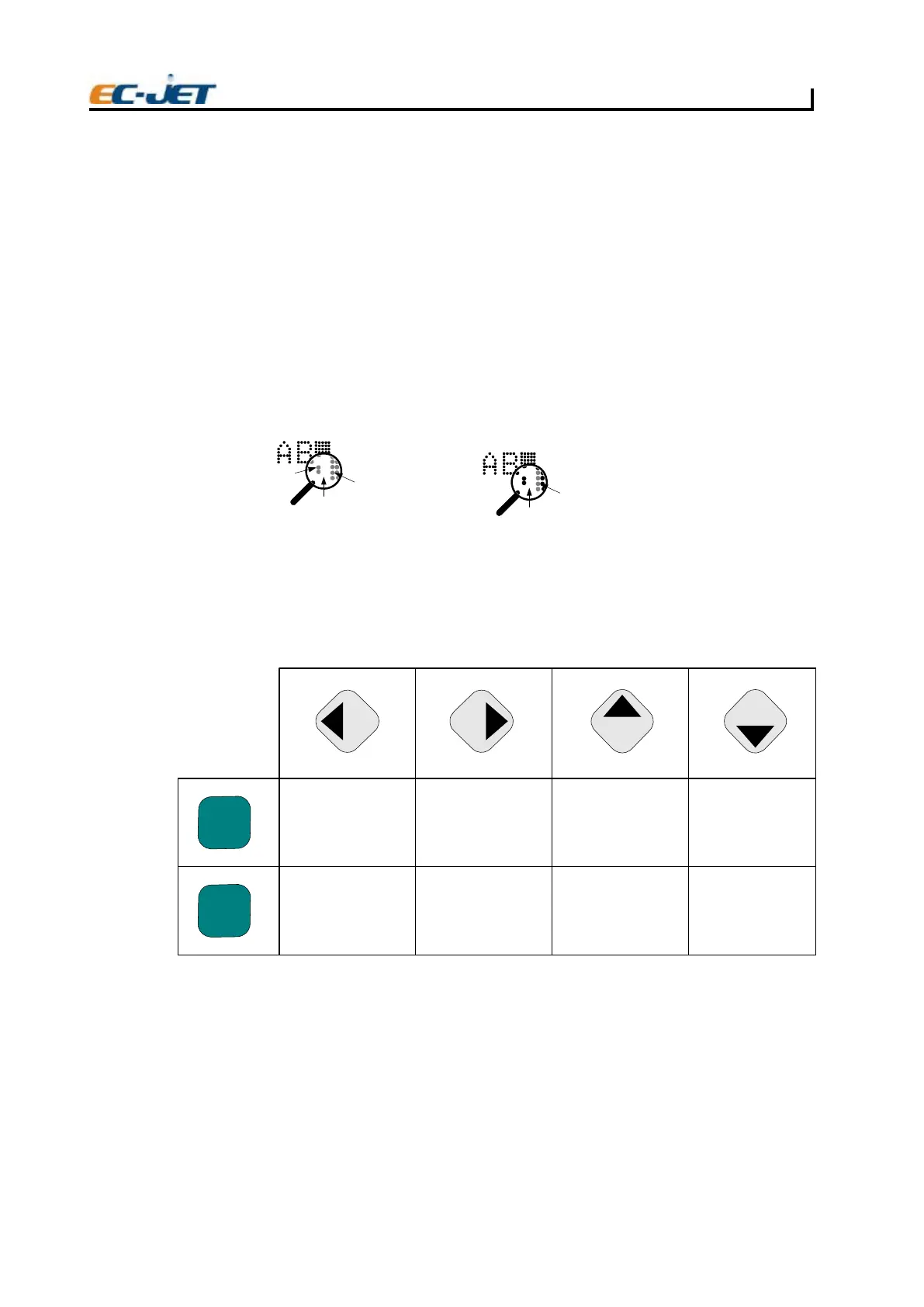
a pixel. The cursor can be moved up or down and left or right one pixel at a time, by using the [ctrl] key
in conjunction with the cursor control (arrow) keys.
This is useful when the spacing between characters needs to be adjusted to improve readability and/
or appearance. Also, this makes it possible to adjust the position along a vert
ical axis, perhaps to
centralize a 7 high field against a 16 high field.
The following table summarises the advanced editing features, and shows the key depressions
which enable you to use them:
AB
EJ12
Cursor
pixels
Letter "B"
pixels
Single pixel
(one raster) gap
AB
EJ13
Original cursor position
New cursor Position after pressing
Right arrow key with CTRL key
held down
shift
ctrl
Moves cursor to top of
message
Moves cursor to end of
message
Moves cursor One pixel to
the left
Moves cursor One pixel to
the right
Moves cursor One pixel
towards top of field
Moves cursor One pixel
towards bottom of field
Press an arrow key for its special function:
EJ14
Moves cursor to Bottom
of message
Moves cursor to Beginning
of message
Hold down:


 To Next Page