| 19
19 User Manual
Using the System
NOTE: If [F3] is pressed to create a new message, the message area is cleared, thus destroying
the current message, and the message area of the EDIT MESSAGE screen would be
empty.
As a precaution, [F3] must be pressed a second time to confirm the message deletion.
Message Fields
Date Fields
These are created by pressing key [F3] from the Field Type menu of the EDIT MESSAGE screen. The
format can be defined and an offset in terms of days can be applied so that sell or use by dates can
automatically be calculated by the printer.
Time Fields
These are also created using a menu selected from the Field Type menu of the EDIT MESSAGE
screen. Similarly, the time format can be selected from a range of choices to suit requirements.
Timed Message Fields
These are also created using a menu selected from the Field Type menu of the EDIT MESSAGE
screen. Up to 10 timed messages can be stored in the system, each comprising up to 20 characters.
Each message is assigned a time from which it is to be printed. It will continue to be printed until
another timed message becomes due. This will then print until another timed message becomes
due, and so on.
Sequential Numbers
These are also created by pressing key [F3] using a menu selected from the FIELD TYPE menu of
the EDIT MESSAGE screen, the legth of the numbers Maximum 20.
The count(s) will increment each time a product is detected.
Logo Fields
Only available if logos are included in the software.
It enables logos to be placed into the message area.
Passwords
A password system is used to control access to various printer functions.
Entering the Password
The PASSWORD menu will be active if the password function has been turned On in the SETUP menu
(see “Changing the System Setup”).
The PASSWORD menu actually appears after the CURRENT MESSAGE screen, as a result of
pressing the [F4] key (Change Setup), [F1] key (Change Message) and [F3] key (New Message):
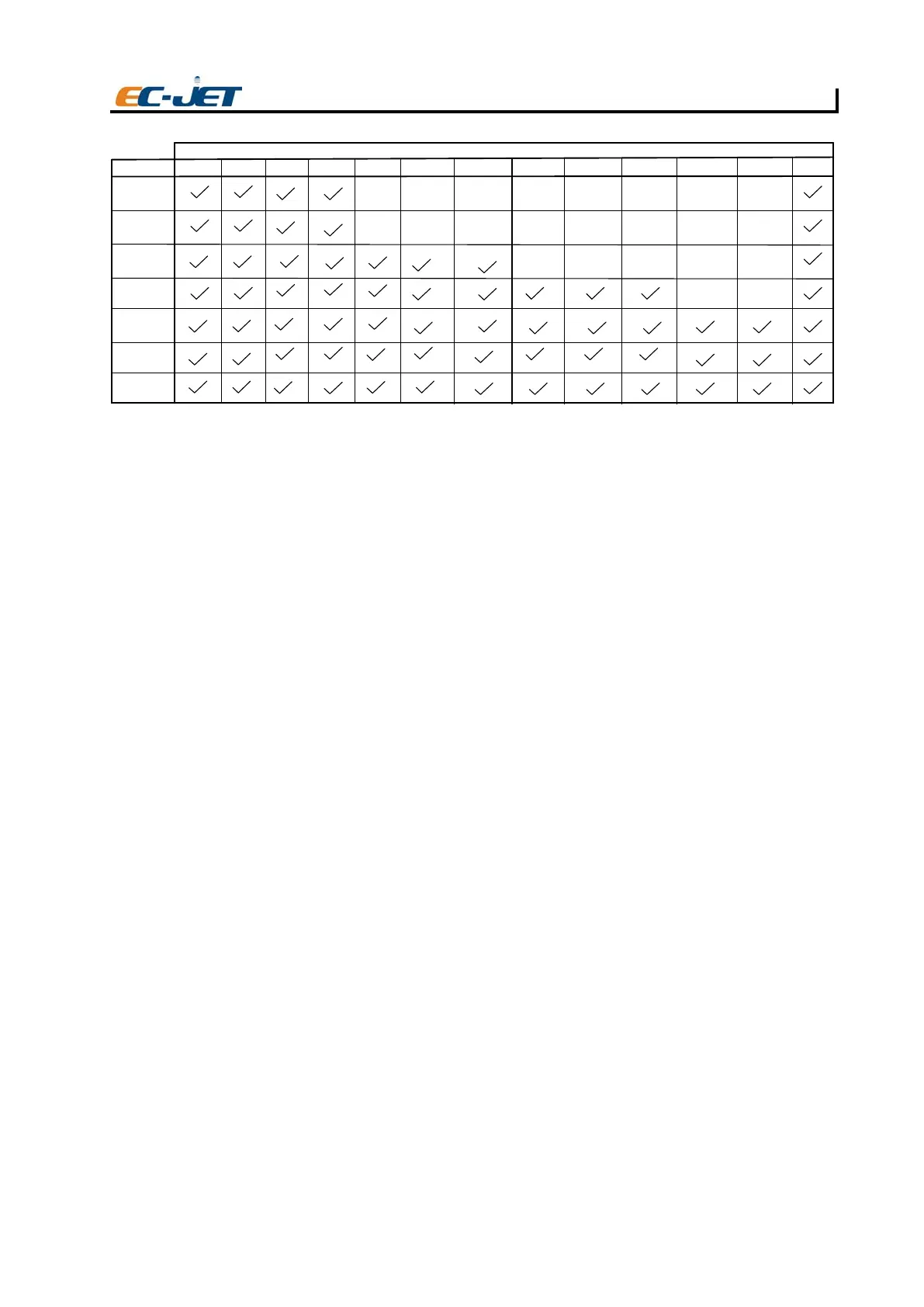
5 HighCaps
CHARACTER SETS
Raster Type
7 Gen Std
12 Gen Std
7 Min Std
EJ32
16 Gen Std
24 Gen Std
32 Gen Std
34 Gen Std
Logo Edit
16 HighCaps
16 HighFull
7 Gen Std
7 Chinese7 HighCaps 9 HighCaps
12 Chinese
12 HighCaps
16 Chinese
24 HighCaps
24 Chinese


 To Next Page