58
Various Settings
Time alignment adjustment
(Time Alignment)
The delay time and level of the sound from each
speaker can be adjusted in order to correct any
phase mismatches in the sound resulting from
the listening position. (For details about speaker
layout selection, see page 61.)
The time alignment setting mode is
activated.
Each time the button is pressed, the
band changes in the following order.
When the 4-speaker layout is selected:
FL → FR → RL → RR → SW →
FL →
When the 3 way speaker layout is
selected:
HL → HR → ML → MR → LL → LR →
HL →
The delay time can be adjusted within
0.0 to 10.0 ms (in main units of 0.1
ms).
Right: Increases the time.
Left: Decreases the time.
ATTENTION
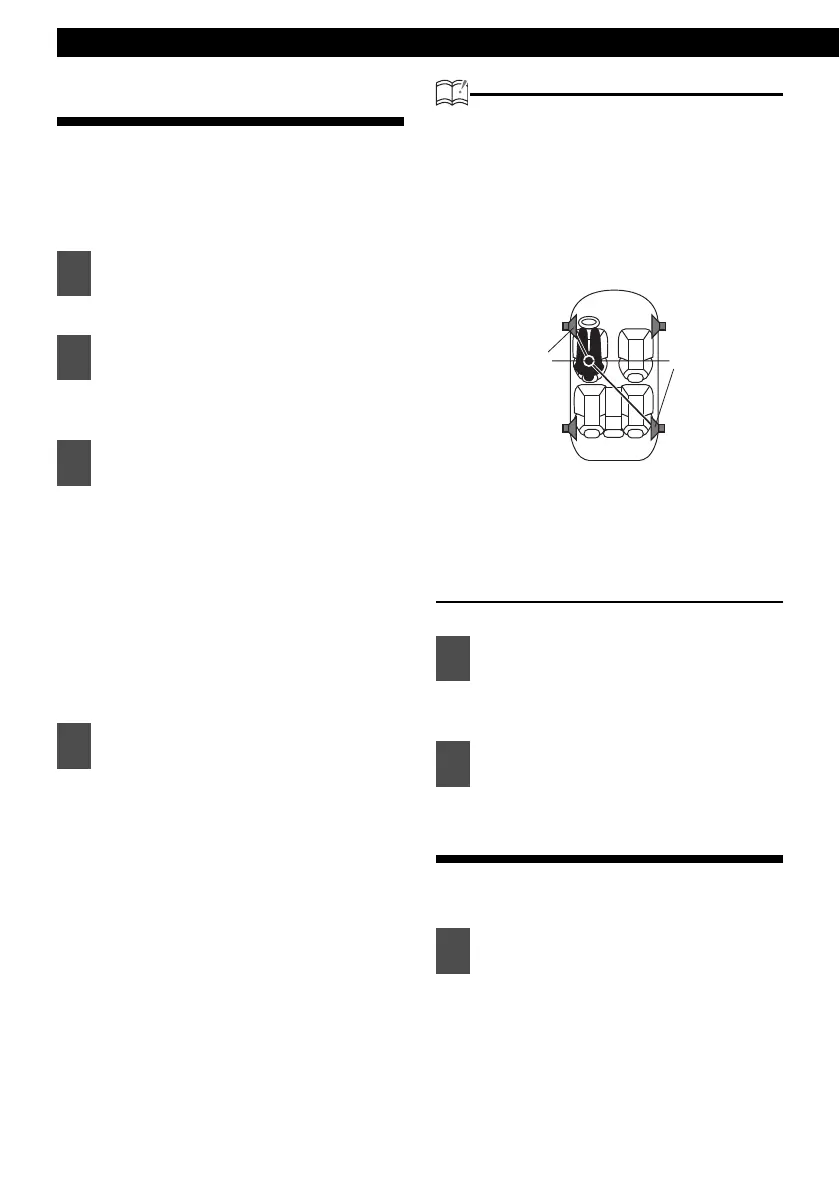
• Refer to the following for the method of
calculating the delay time.
A = (B-C) / 34
A:Delay time (ms)
B:Distance from listening position to furthest
speaker (cm)
C:Distance from listening position to the
speaker to be adjusted (cm)
(Example) Listening position:
Driver's seat (left)
B:200 (cm)
C:50 (cm)
Delay time = 200 (cm) - 50 (cm) / 34
= Approx. 4.4(ms)
Upper: Increases the dB.
Lower: Decreases the dB.
Crossover adjustment (X-Over)
Allocate specified frequency bands to each
speaker for improved sound integration.
1
Press the [SELECT] (Upper/ Lower)
button to select the Time
Alignment.
2
Press the [ENTER] button.
3
Press the [ENTER] button to select
the speaker band to be adjusted.
4
Press the [SELECT] (Right/Left)
button to adjust the delay time for
the sound to arrive.
5
Press the [SELECT] (Upper/ Lower)
button to adjust level.
6
Press the [CUSTOM/MENU] or
[RTN] button to exit sound
adjustment mode.
1
Press the [SELECT] (Upper/ Lower)
button to select the X-Over.
C
B



 To Next Page