TelevisGo Page 21/68
5.2.4 NAMING NETWORK DEVICES FROM FILE
Network devices can be named by applying the settings in a specific xml file generated by the Offline Configurator application (see
the associated manual).
Go to:
Settings Interfaces Device Template
LAN Adapter
Interface ID DevicesAddress
0
192.168.0.1
15
Name
0.02:00 ID 974LX
0.02:01 ID 974LX
Compact 999 1
999.14:14 TelevisCompact
Legend
Filter devices
Description
Filter resources
Analogue inputs
Digital Inputs
States
Alarms
Show helpers
Show table header
Legend
Select devices
Select a device template
Browse...
Execute
(.xml)
File to be loaded
Device template
Select all Deselect all
Expand all
Collapse all Cancel filters Apply
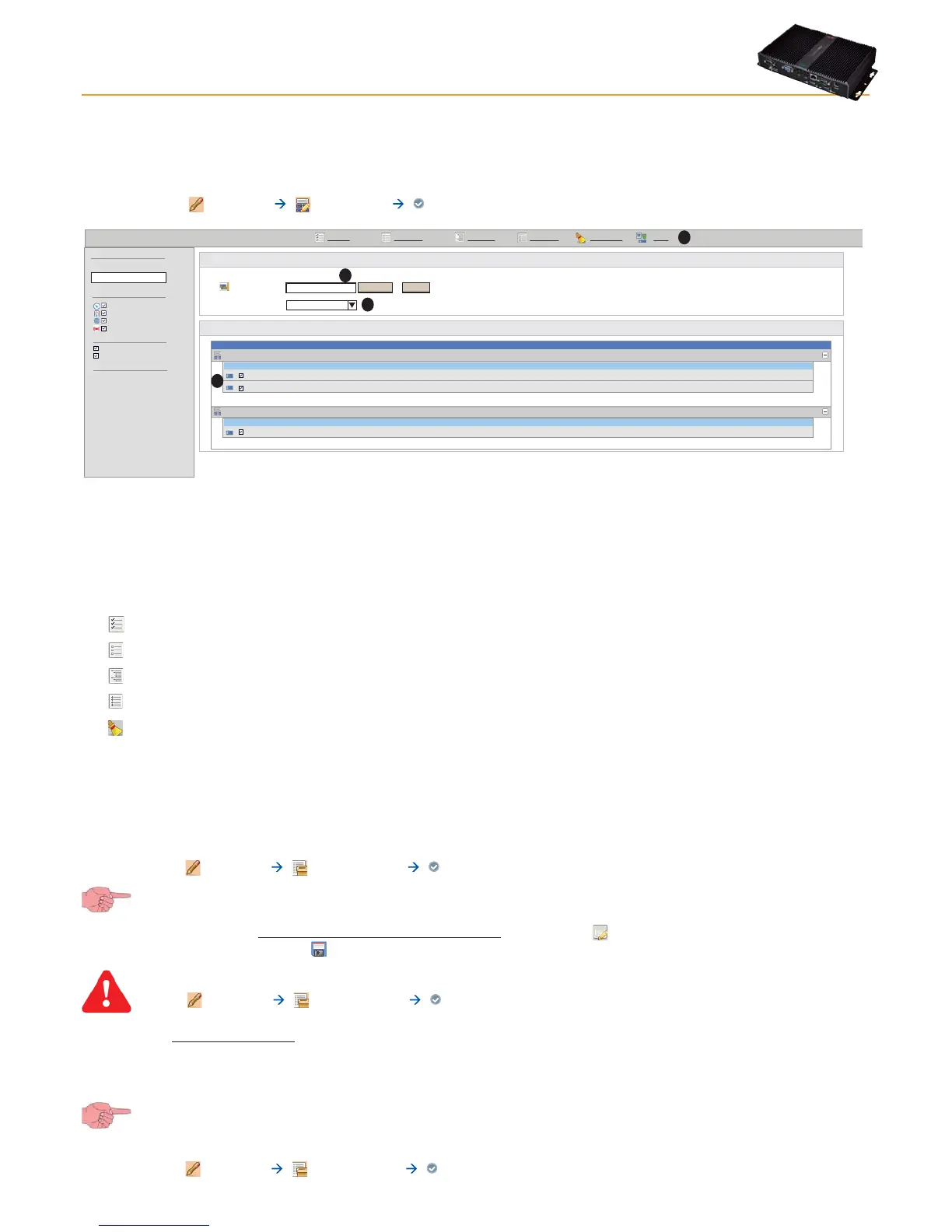
The page is very similar to the one in Naming Network Devices Manually or From File, as regards both the device and associated
functions (for the meaning of many controls).
The file and settings to be applied can be selected in the File to load (A) box.
Clicking Run will load the template and make it available in the drop-down menu (D).
Clicking the Apply (C) button will apply the current template settings (D) to all network devices selected via the check box to the
left of the name (B).
The following buttons are presented at the top:
•
Select All: to select all devices in the list.
•
Deselect All: to deselect all devices in the list.
•
Expand All: to view all devices in the interface.
•
Collapse All: to hide all devices in the interface.
• Cancel Filters: to cancel all filters applied.
5.2.5 SETTING THE DATA LOGGING INTERVAL
A data logging interval must be set. The time set (in minutes) is the interval (sample) in which data from the selected resource will be
logged.
Data on Statuses, Alarms and Digital Inputs is not logged in this interval. In these cases, data is recorded when these parameters
change and not over a set interval. To set the interval, go to:
Settings Data Archive Control
To access this section, data logging must be suspended (see Data Logging section).
On opening this menu, click “Saved data-logging interval in archive”, then click the icon or Edit, enter the number
(hours:minutes:seconds) and click the
icon or Save.
For expert USERS: in
Settings Data Archive Manage
the “Maximum Capacity” (CM) (maximum memory used to save data) is set at 7GB; users can also set the “part of data
archive to be used for circularity” (%CA) (percentage of memory freed when oldest data is deleted each time the
memory reaches full capacity).
The factory-set value is: %CA = 12%.
If you change page without saving, any changes made will be lost (the same as clicking Cancel).
The device will now show the summary in:
Settings Data archive Summary


 To Next Page