TelevisGo Page 53/68
7.2.6 ALARM LOG
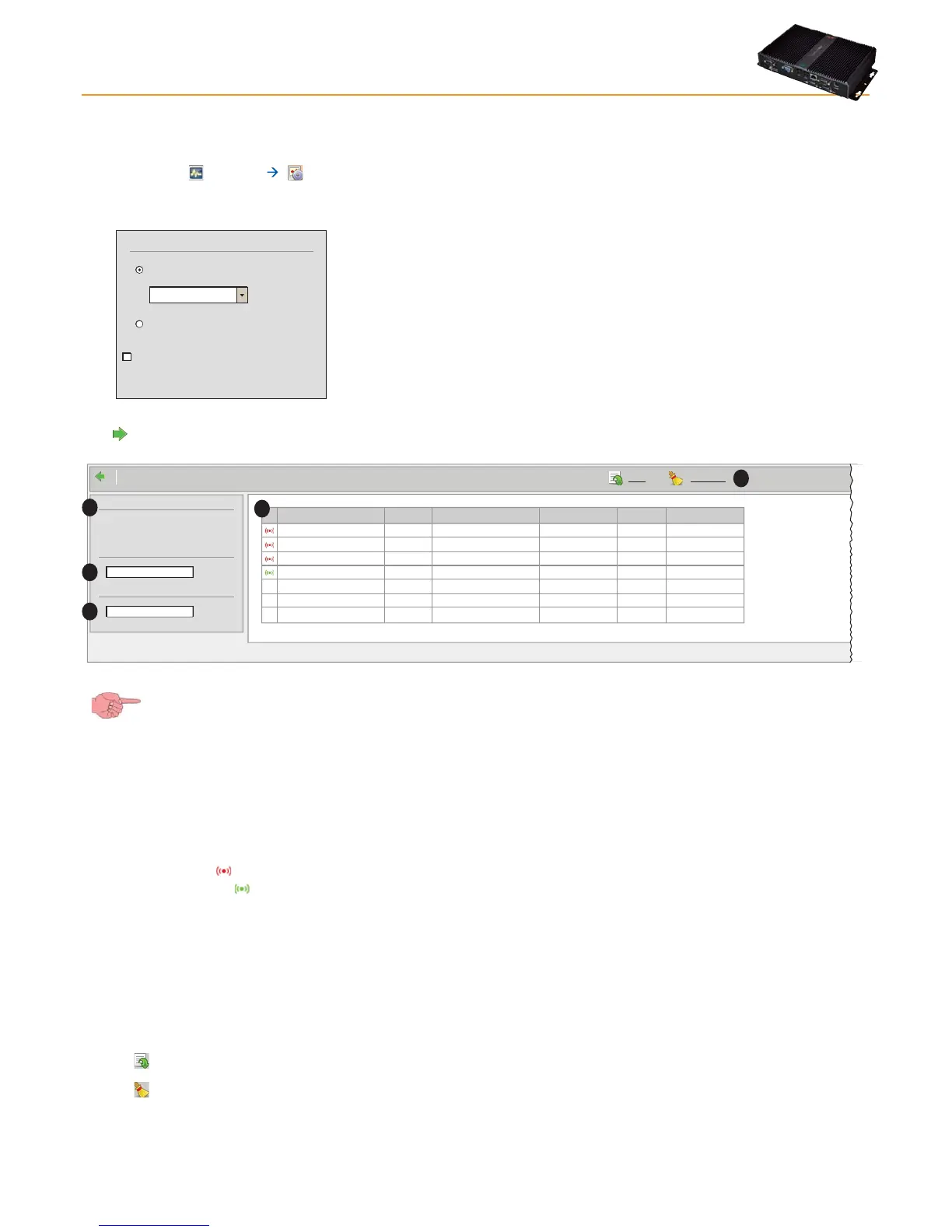
Logged data can be viewed in table format in the various ways described below. To open or view the page, go to:
Alarms Alarm Log
The following screen opens, depending on the interval set:
Time intervals
Quick
Custom
Include suppressed alarms too
Last day
Select Default Interval
Select a relative range (Quick) or absolute range (Customized). In
the former case, there is a series of preset intervals that start counting
backwards from the current date (by 1, 2, 3, 6, 12 hours, 1 or 2 days). In
the latter case, the start/stop date/time must be specified.
Overridden alarms can be included by clicking the appropriate check
box.
Click to go to the next page. The next window shows all alarms in the selected period:
Page last update on: 7.39.34
0.02:00 ID 974LX
999.14:14 TelevisCompact
999.14:14 TelevisCompact
0.02:01 ID 974LX ALM00300
ALM00300
ALM99998 Modem signal strength low 18/06/10 16.27.41
09/07/10 9.46.43
09/07/10 9.46.49
20/07/10 16.11.18 21/07/10 16.32.56Acquisitions stopped
NOLINK
NOLINK
ALM99999
Time interval
Type: Last hour
From: 21/07/2010 15:44:18
to: 21/07/2010 16:44:18
Devices
Resources
Export
Device Code Alarm Start Suppressed End
Cancel filters
A
B
C
D
E
IMPORTANT: In this case, you can only select the time range, not the device.
The functions of each part of the interface are:
• (A) Time interval, to specify the period of time covered.
• (B) Devices, to filter by device name.
• (C) Resources, to filter by resource name.
• (D) Shows details of alarms:
• icon:
• RED
if there is at least one active alarm.
• GREEN
if there is an acknowledged alarm.
• Device: device name
• Code: device code
• Alarm: alarm name
• Start: alarm start date/time
• Overridden: indicates how long after the alarm it was overridden.
• End: date/time alarm ended.
The following buttons are presented at the top (E):
•
Export, saves data to PC as a Csv file (which can be opened in Microsoft Excel).
•
Cancel Filters: to restore the display of all alarms and cancel device (B) and resource (C) filters.


 To Next Page