TelevisGo Page 27/68
5.4.2 ADD, EDIT OR REMOVE SCHEDULED ACTIVITIES
To edit scheduled activities, go to:
Settings Scheduled Activities Actions
To access these sections, data logging must be suspended (see Data Logging section)
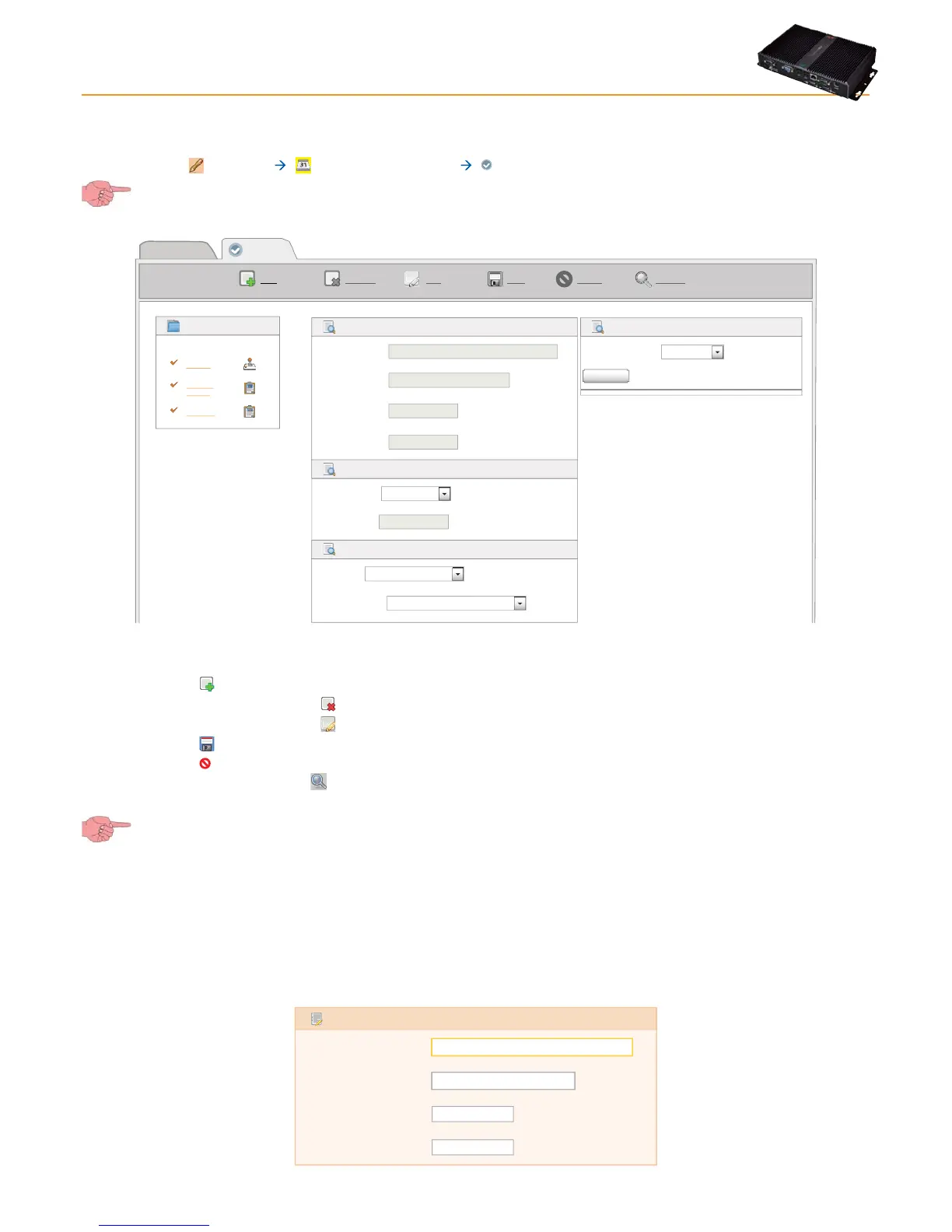
A window similar to this one will open:
PreviewCancelSaveEditRemoveAdd
View
Actions
Actions
Defrost
Scrittura
Mappa
Set Point
Details
Name
Starting
date
Retry
duration
Retry
interval
Name
Type
Schedule
Action
Typ e
Period
Command
Typ e
Command
Periodico
Manual defrost activation
Filters
Language
Deutsch
Edit
The section of the left of the screen contains a list of actions currently defined by the user which can each be selected. The part on
the right gives details of the action selected and the option of modifying it. You now have the following options:
• Click the
icon or Add to create a new scheduled action.
• Select an action and click the icon or Remove to delete the selected action.
• Select an action and click the
icon or Edit to modify the selected action.
• Click the
icon or Save to save an action that has been edited or created.
• Click the
icon or Cancel to delete any changed made to an action.
• Select an action or click the
icon or Preview to open another window in the browser showing a preview of the tools
that the selected action will be applied to.
If you change page without saving, any changes made will be lost (the same as clicking Cancel).
The part on the right is split into 4 sections:
5.4.2.1 Details
The Details tab includes information shared by all types of actions and scheduling:
• The name of the action, as given by the user.
• The start date (and time) of the scheduled action.
• Retry duration.
• Retry interval.
Name
Starting date
Retry duration
Retry interval
Details
00:02:00
01:00:00
01-08-2001 @ 00:00
Defrost


 To Next Page