4.2 Configuring Microsoft Windows Vista
Use the following procedure to configure a computer running Microsoft Windows Vista with
the default Windows interface.
1. On the Windows taskbar, click Start, click Control Panel, and then select the Network
and Internet icon.
2. Click View Network Status and tasks and then click Manage Networks Connections.
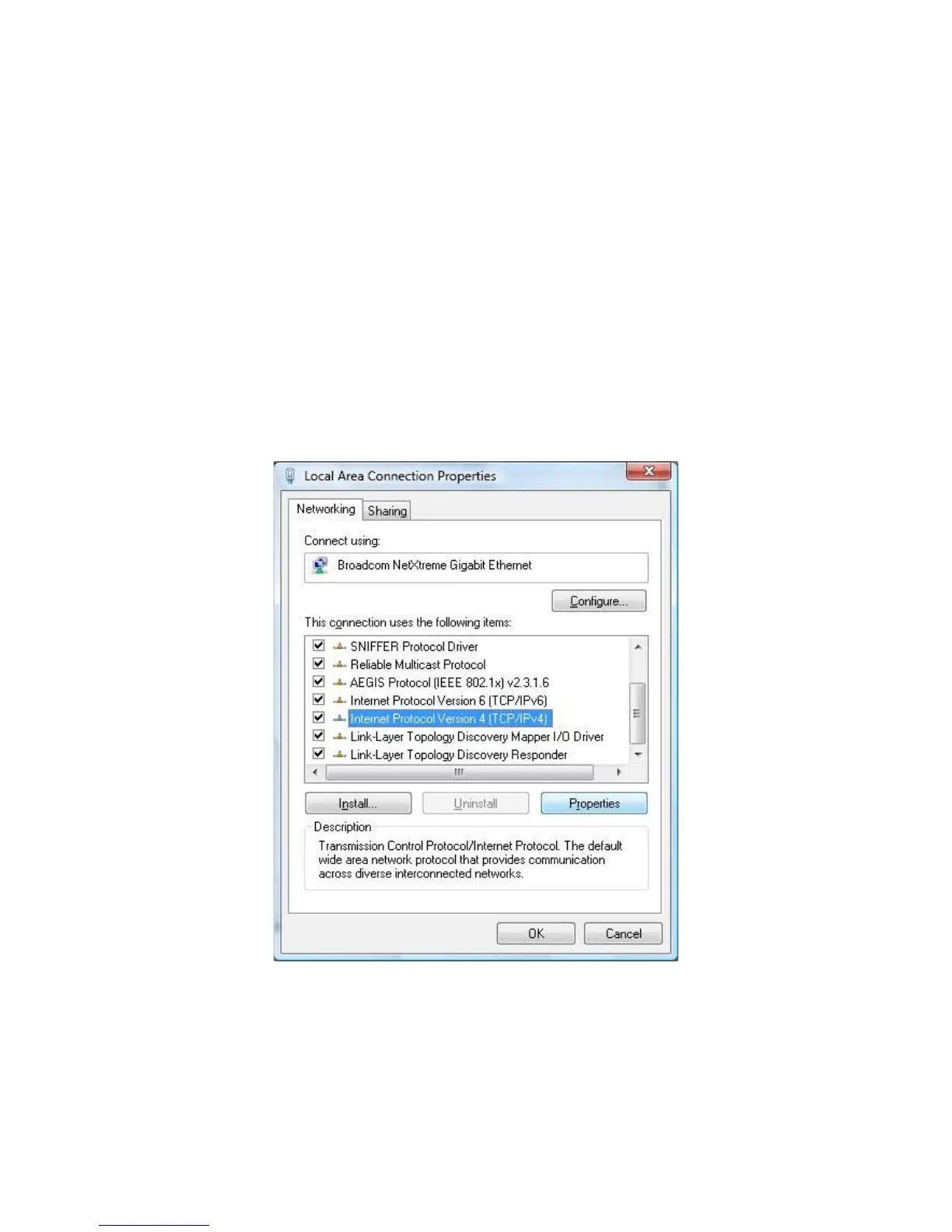
3. Right-click the Local Area Connection icon and click Properties.
4. Click Continue. The Local Area Connection Properties dialog box appears.
5. In the Local Area Connection Properties dialog box, verify that Internet Protocol
(TCP/IPv4) is checked. Then select Internet Protocol (TCP/IPv4) and click the Properties
button. The Internet Protocol Version 4 Properties dialog box appears.


 To Next Page