POWERED BY
23
SERIESSERIES
3.2 Operations in Live View Mode
In live view mode, the following functions can be realized:
• Single Screen: showing only one screen on the monitor.
• Multi-screen: showing multiple screens on the monitor simultaneously.
• Auto-switch: the screen is auto switched to the next one. And you must set the dwell time for each screen on the configura-
tion menu before enabling the auto-switch.
Menu>Configuration>Live View>Dwell Time.
• All-day Playback: play back the recorded videos for current day.
• Start Recording: start all-day normal recording or motion detection recording for all channels.
• Aux/Main Monitor switch: the DVR will check the connection of the output interfaces to define the main and auxiliary output
interfaces. When both HDMI and VGA are connected, , or either one is connected, the CVBS is used as the auxiliary video
output for live view, recording and PTZ controls; When both HDMI and VGA are not connected, the CVBS is used as the
main video output for live view playback, recording, PTZ control and menu operations.
When the aux output is enabled, you can do some basic operation on the live view mode for the Aux output, while no operation
is allowed for the main output.
3.2.1 Using the Mouse in Live View
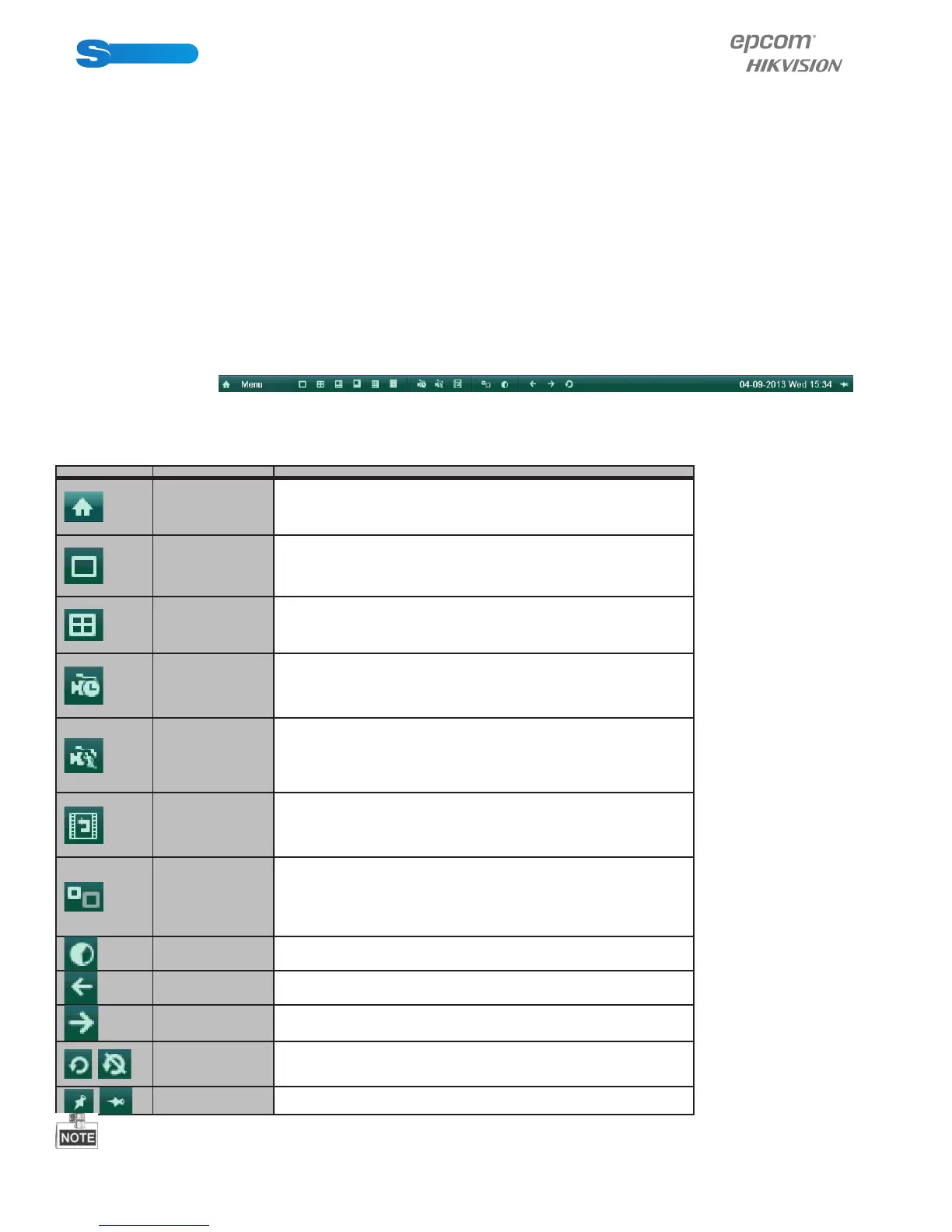
In the live view mode, right click on the screen or move the mouse to the bottom of the screen, the main menu button and the
live view toolbar appears:
Figure 3.1 Menu under Live View Mode
Table 3.2 Mouse Operation in Live View
Icon Name Description
Main Menu Enter the main menu of the system.
Single Screen Switch to the single full screen live view mode.
Multi-screen
Switch to multi-screen live view mode.
e multi-screen icon varies according to the device models.
Normal Record
Start all-day normal recording for all channels.
Motion Detection
Record
Start motion detection recording for all channels.
All-day Playback Play back the record video.
Aux Monitor
Switch to the auxiliary output mode and the operation for the main
output is disabled.
If you enter Aux monitor mode and the Aux monitor is not connected,
the mouse operation is disabled. You can use the mouse wheel to dou-
ble-click for three times to switch back to the main video output.
Output Mode Set the video output mode to Standard, Bright, Gentle or Vivid.
Previous Screen Switch to the previous screen.
Next Screen Switch to the next screen.
/
Start/Stop Au-
to-switch
Enable/disable the auto-switch of the screens.
e dwell time of the live view conguration must be set before using
Start Auto-switch.
/
Lock/Unlock Lock/unlock the toolbar.



 To Next Page