POWERED BY
50
SERIESSERIES
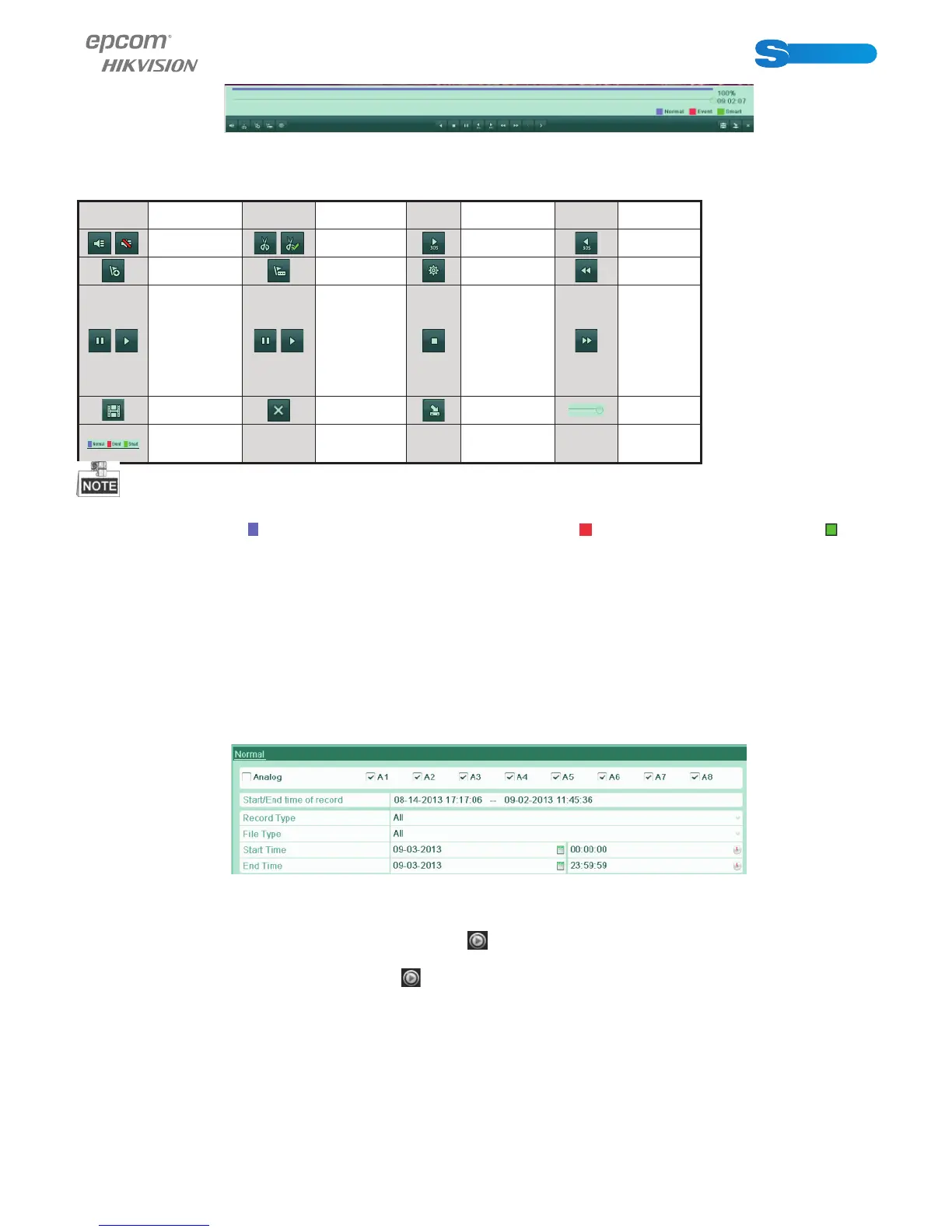
Figure 6.8 Toolbar of Playback by Time
Table 6.2 Detailed Explanation of Playback-by-time Toolbar
Button
Operation Button Operation
But-
ton
Operation
Button Operation
/
Audio on/
Mute
/
Start/Stop
clipping
30s forward 30s reverse
Add default
tag
Add custo-
mized tag
Tag manage-
ment
Slow
forward
/
Pause reverse
play/Re-
verse play/
Single-frame
reverse play
/
Pause play/
Play/Sin-
gle-frame
play
Stop
Fast
forward
Video search Exit Hide
Progress
bar
Video type
bar
Playback progress bar: use the mouse to click any point of the progress bar or drag the progress bar to locate special frames.
About video type bar: represents normal recording (manual or schedule); represents event recording (motion); repre-
sents smart search recording.
6.1.3 Playing Back by Normal Video Search
Purpose:
Play back video fi les searched out by restricting recording type and recording time. The video fi les in the result list are played back
sequentially and channel switch is supported. Recording types contain Normal, Motion and Manual.
Steps:
1. Enter Record File Search interface.
Menu>Playback
Set search condition and click Search button to enter the Search Result interface.
Figure 6.9 Norma l Video Search
2. Choose a record fi le you want to play back.
If there is only one channel in the search result, clicking
button takes you to Full-screen Playback interface of this chan-
nel.
If more than one channel is optional, clicking
button takes you to step 3 and step 4.



 To Next Page