POWERED BY
80
SERIESSERIES
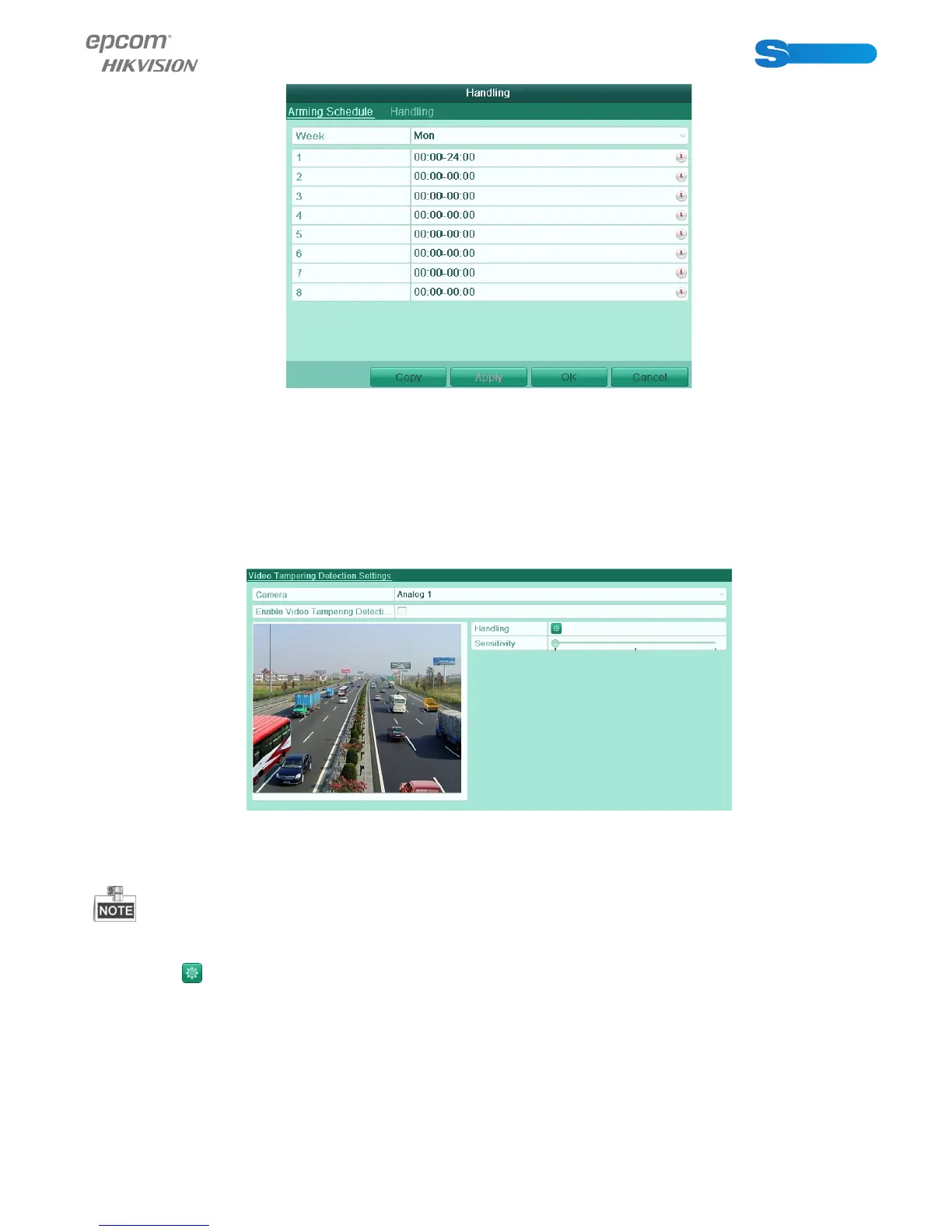
Figure 8.13 Set Arming Schedule of Video Loss
6. Click Apply to save the video loss alarm settings.
8.4 Detecting Video Tampering
Purpose:
Trigger alarm when the lens is covered and take alarm response action(s).
Steps:
1. Enter Video Tampering interface of Camera Management.
Menu> Camera> Video Tampering Detection
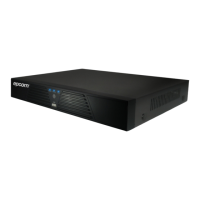
Figure 8.14 Video Tampering Detection Setup Interface
2. Select a channel you want to detect video tampering.
3. Check the checkbox of Enable Video Tampering Detection.
By default, the video tampering detection is configured in full screen.
4. Move the sensitivity bar and choose a proper sensitivity level.
5. Click the icon of Handling to enter the Handling interface.
6. Set the arming schedule and alarm response actions. Please refer to Step4 and Step5 of Chapter 8.1 Setting Motion Detec-
tion.
7. If you want to set video tampering detection handling method for another channel, repeat above steps or click Copy to copy
the above settings to it.



 To Next Page