POWERED BY
91
SERIESSERIES
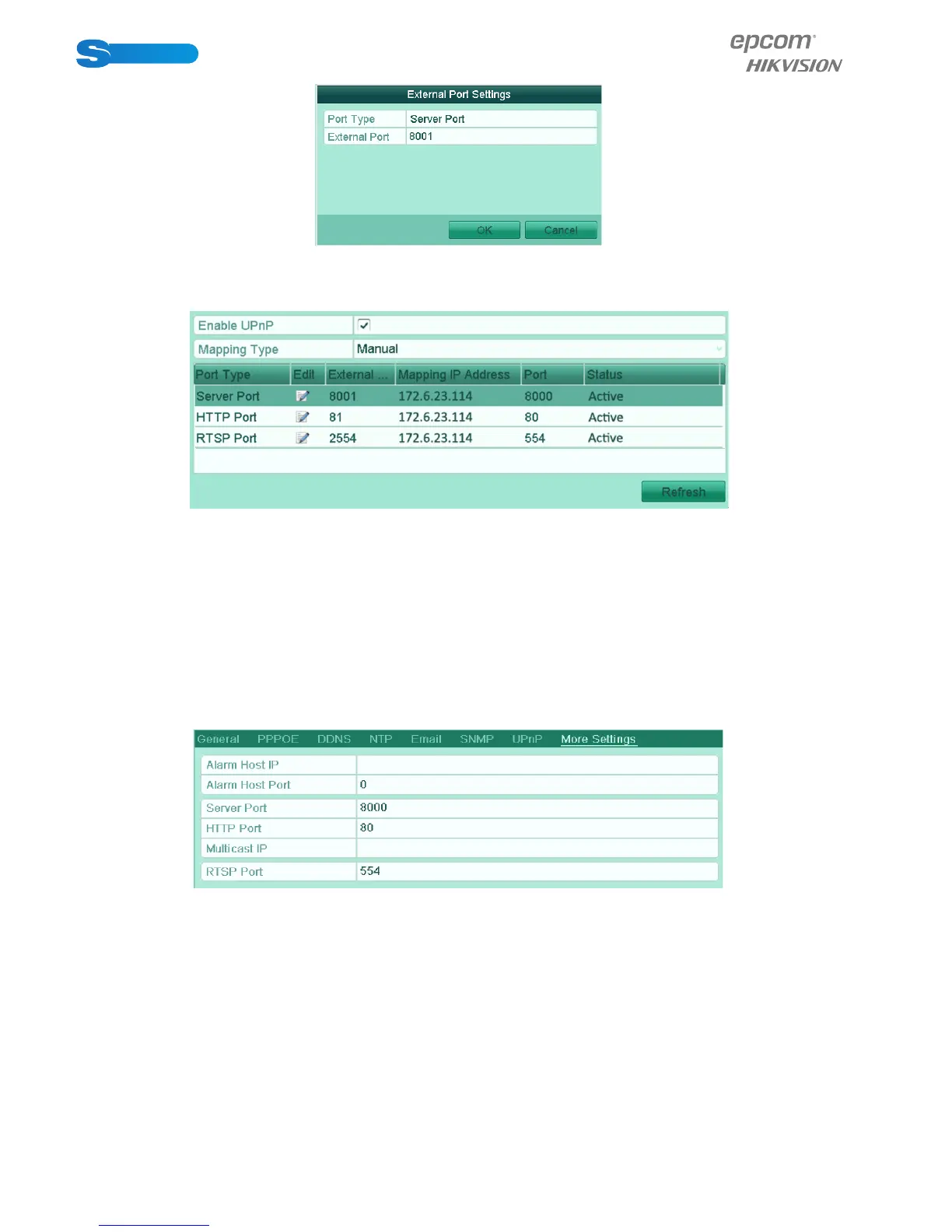
Figure 9.14 External Port Settings Dialog Box
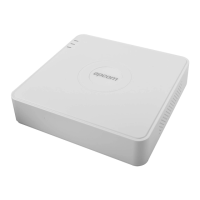
6. You can click Refresh to get the latest status of the port mapping.
Figure 9.15 UPnP™ Settings Finished
7. Click the Apply button to save the settings.
9.2.5 Configuring Remote Alarm Host
Purpose:
With a remote alarm host configured, the device will send the alarm event or exception message to the host when an alarm is
triggered. The remote alarm host must have the CMS (Client Management System) software installed.
Steps:
1. Enter the Network Settings interface.
Menu > Configuration > Network
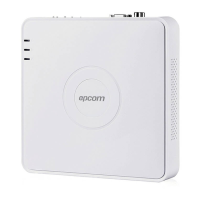
2. Select the More Settings tab to enter the More Settings interface.
Figure 9.16 More Settings Interface
3. Enter Alarm Host IP and Alarm Host Port in the text fields.
The Alarm Host IP refers to the IP address of the remote PC on which the CMS (Client Management System) software
(e.g., iVMS-4200) is installed, and the Alarm Host Port must be the same as the alarm monitoring port configured in the
software (default port is 7200).



 To Next Page