POWERED BY
93
SERIESSERIES
9.2.8 Confi guring Server and HTTP Ports
Purpose:
You can change the server and HTTP ports in the Network Settings menu. The default server port is 8000 and the default HTTP
port is 80.
Steps:
1. Enter the Network Settings interface.
Menu > Confi guration > Network
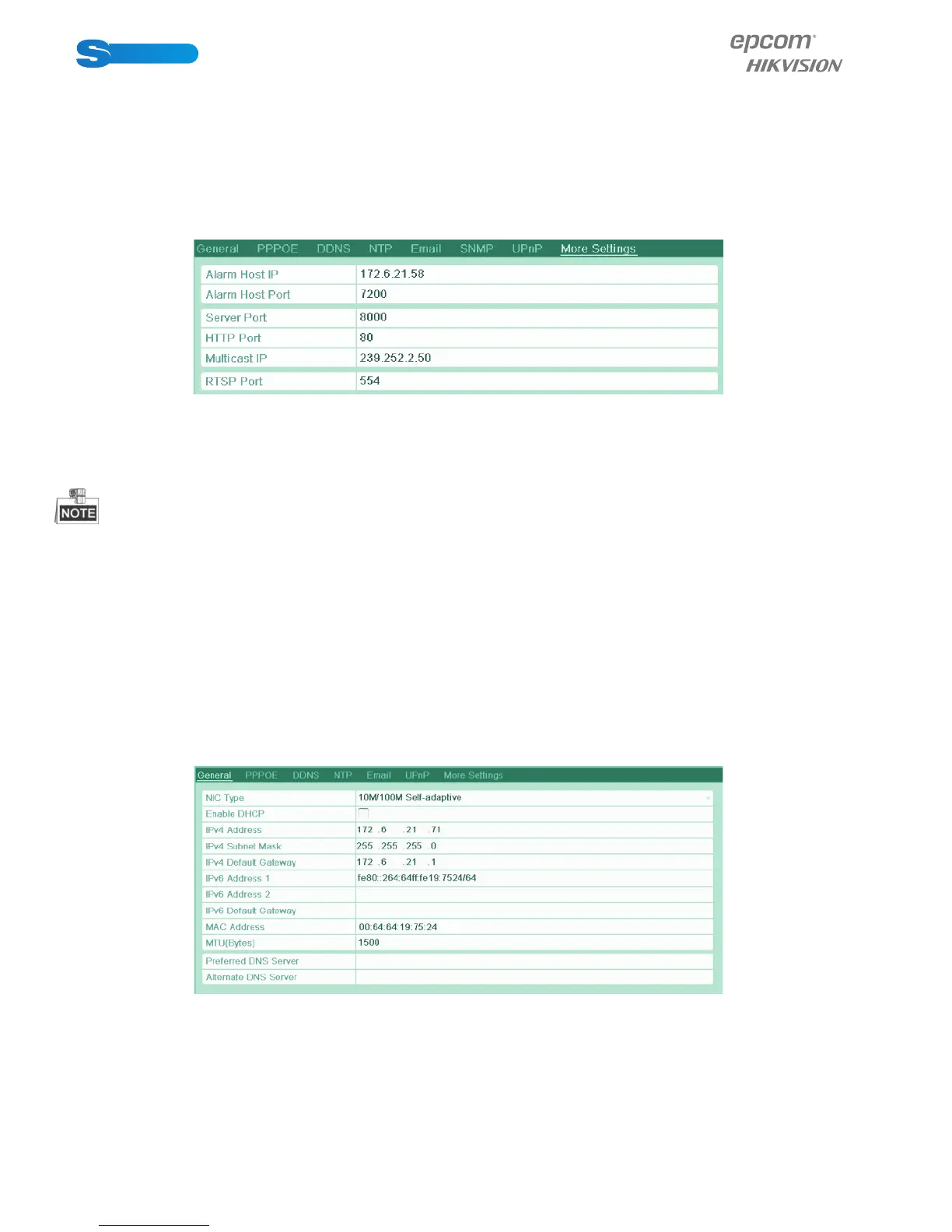
2. Select the More Settings tab to enter the More Settings interface.
3. Enter new Server Port and HTTP Port.
Figure 9.20 Host/Others Settings Menu
4. Enter the Server Port and HTTP Port in the text fi elds. The default Server Port is 8000 and the HTTP Port is 80, and you
can change them according to different requirements.
5. Click the Apply button to save and exit the interface.
The Server Port should be set to the range of 2000-65535 and it is used for remote client software access. The HTTP port is
used for remote IE access.
9.2.9 Confi guring Email
Purpose:
The system can be confi gured to send an Email notifi cation to all designated users if an alarm event is detected, a motion detec-
tion event is detected, etc.
Before confi guring the Email settings, the device must be connected to a local area network (LAN) that maintains an SMTP mail
server. The network must also be connected to either an intranet or the Internet depending on the location of the e-mail accounts
to which you want to send notifi cation.
Steps:
1. Enter the Network Settings interface.
Menu > Confi guration > Network
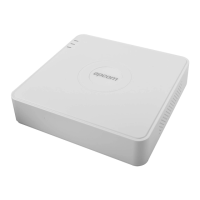
2. Set the IPv4 Address, IPv4 Subnet Mask, IPv4 Gateway and the Preferred DNS Server in the Network Settings menu.
Figure 9.21 Network Settings Interface
3. Click the Apply button to save the settings.
4. Select the Email tab to enter the Email Settings interface.



 To Next Page