POWERED BY
39
SERIESSERIES
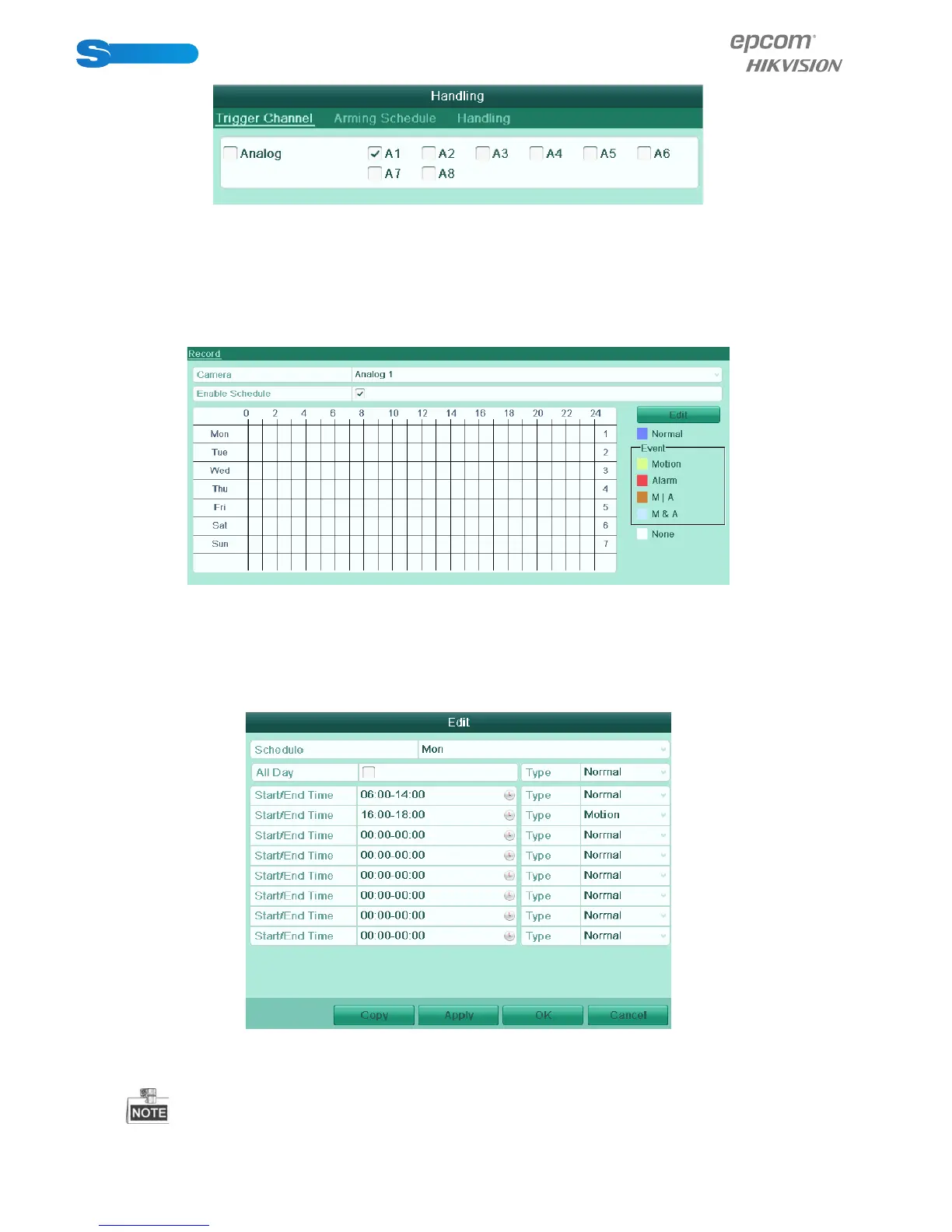
Figure 5.14 Motion Detection Handling
5) Select the channels which you want the motion detection event to trigger recording.
6) Click Apply to save the settings.
7) Click OK to back to the upper level menu.
8) Exit the Motion Detection menu.
3. Enter Schedule settings interface.
4. Menu> Record> Schedule>Record Schedule
Figure 5.15 Record Schedule
1) Check the checkbox after the Enable Schedule item.
2) Click Edit.
3) In the message box, you can choose the day to which you want to set schedule.
4) Set the Type as Motion.
5) To schedule an all-day recording, check the checkbox after the All Day item.
Figure 5.16 Edit Schedule
To arrange other schedule, leave the All Day checkbox blank and set the Start/End time.
Up to 8 periods can be configured for each day. And the time periods can’t be overlapped each other.


 To Next Page
 Loading...