15
Connect the Scanner to Your Computer
Make sure the scanner, computer, and any SCSI devices
connected to your computer are turned off. The scanner is off
when the
P OPERATE button is out (not pushed down below
the surface of the front panel).
1. Locate the SCSI cable that came with your scanner.
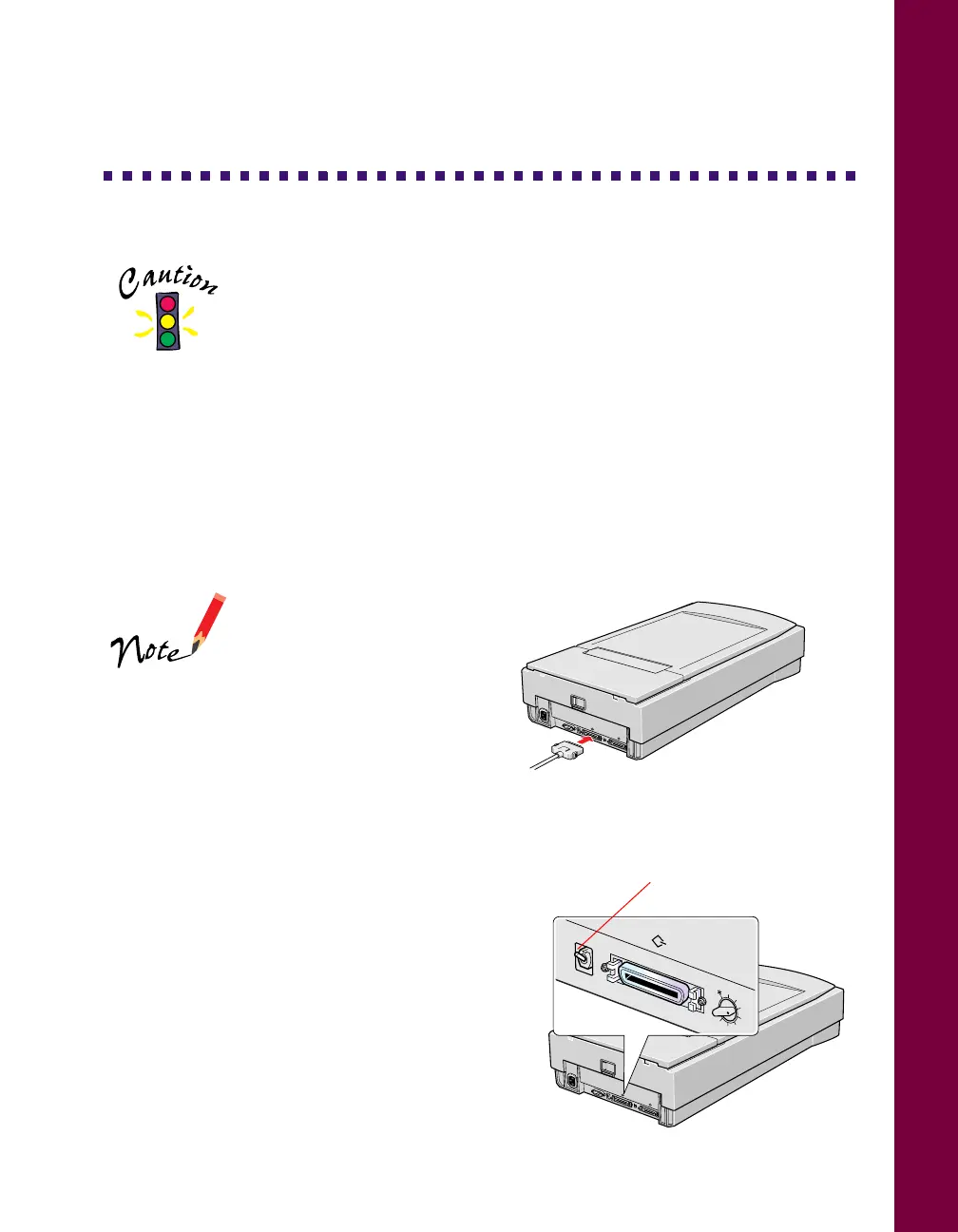
2. Squeeze the lock releases on the lock connector end of the SCSI cable and plug
the cable into either SCSI connector on the back of the scanner. The cable is
secure when both connector locks snap in.
3. Connect the pin end of the SCSI cable to the SCSI port on your computer or
another SCSI device in the chain and tighten the screws to secure the cable.
If you are connecting
multiple SCSI devices, the
total length of the SCSI bus
(cables) must not exceed
19.7 feet (6 meters);
otherwise the system may
not work properly.
Do not use an external
terminator. For more information on SCSI connections, see
your electronic
EPSON Expression 800 Reference Guide
.
4. Locate the SCSI terminator switch at the
rear of the scanner. If the scanner is the
only SCSI device in the chain or if it’s the
last device in the chain, leave the
terminator turned on. Turn the terminator
switch off if you’ve connected your scanner
in the middle of a SCSI chain.
5. Plug in the power cables for your
computer, scanner, and other external
SCSI devices.
0
1
2
3
4
5
6
7
SCSI
ID
OPTION
TERMINATOR
SW
LOCK
UNLOCK
ON
OFF
0
1
2
3
4
5
6
7
SCSI
ID
OPTION
TERMINATOR
SW
LOCK
UNLOCK
ON
OFF
ON
OFF
7
6
1
2
4
5
terminator switch













 To Next Page