30
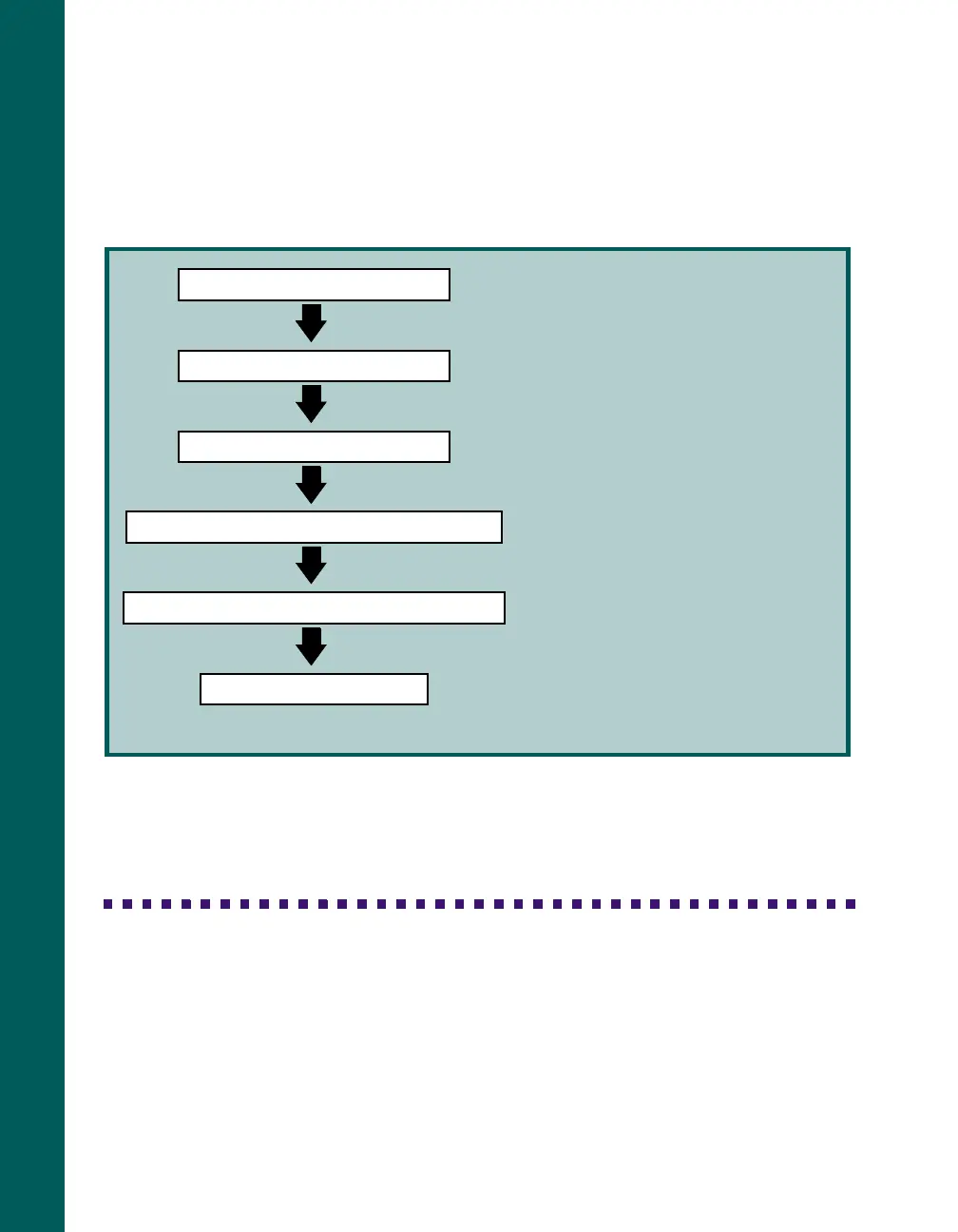
As with most projects, planning ahead can save you time. Scanning is a multi-step
process, as shown in the following chart.
*If you have the Artist or Professional model, your scanner also comes with the full version of
LaserSoft SilverFast 4.0.
Scanning Tips
Getting the best scan possible depends on several factors, including the quality of your
original and the resolution you select. The better your original is, the better your scan
will be. While you can make some corrections in your scanning software, you’ll need
to do major photo retouching in a program such as Adobe Photoshop to correct or
mask problems such as a coffee stain on the original image.
Select an image to scan
Determine what the final output will be
Open your host application
Select your scanner source
Select the correct settings for your scan
Scan your image
The type of image you’re scanning
determines what
input
setting you select in
your software.
This is the scanner driver you’re using. Your
scanner comes with EPSON TWAIN Pro
and LaserSoft SilverFast Lite.*
You can scan part of your image, adjust
colors, and scale your image.
How you’re going to use your scanned
image determines some of the settings you
select.
This is the software application where
you’ll import your scanned image.
Once you scan, your image appears in your
application window for use in your
document.




 To Next Page