18
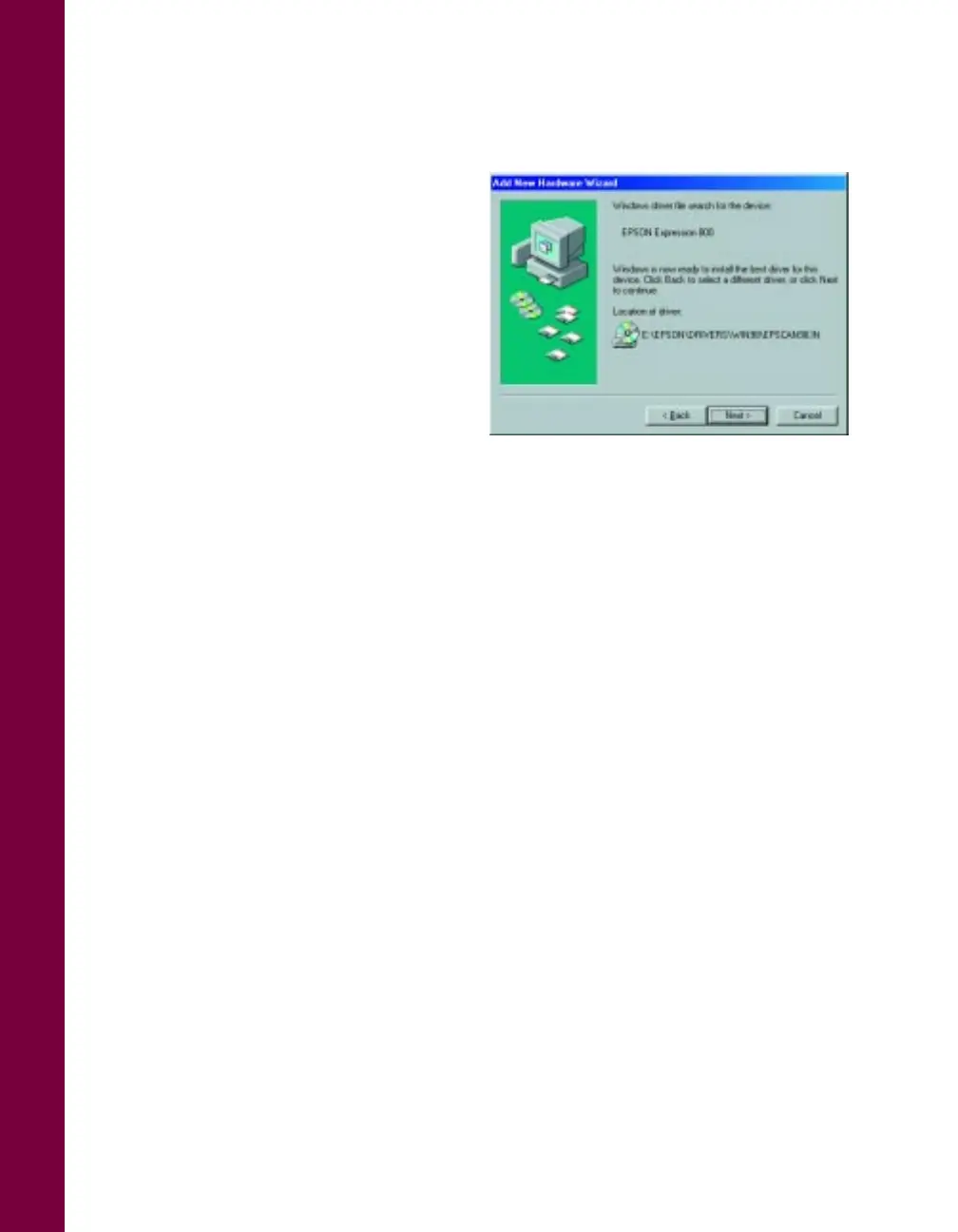
5. You see a screen indicating that
Windows is ready to install the best
driver for this device. Click Next to
begin driver installation.
6. If your system stops installation to
request the file essiscnb.dll, insert
your Windows operating system
CD-ROM in the CD-ROM drive
and click OK to continue.
7. When you see a screen indicating that
installation is complete, click Finish.
The Add New Hardware Wizard closes, and you return to the Windows desktop.
8. Verify that the scanner is listed in the Windows Device Manager. (Click Start,
Settings, Control Panel, then double-click the System icon. Select the Device
Manager tab and double-click Image Device if you’re running Windows 98, or
EPSON Scanners if you’re running Windows 95. EPSON Expression800
should appear in the list.)
If You’re Running Windows NT 4.0. . .
Depending on how your computer system was originally set up, you may be asked to
insert your Windows NT CD-ROM during the scanner installation. Please have your
CD-ROM handy, in case it is needed.
1. Turn on your scanner first; then turn on your computer.
2. Log onto Windows NT.
3. Wait until you see the Windows desktop icons, then click
Start
,
Settings
,
Control
Panel
.













 To Next Page