37
3. Open the scanner software.
For example, choose Import
from Photoshop 5.0 LE’s
File menu.
In Windows, select
TWAIN_32.
On a Macintosh, select
TWAIN_Acquire.
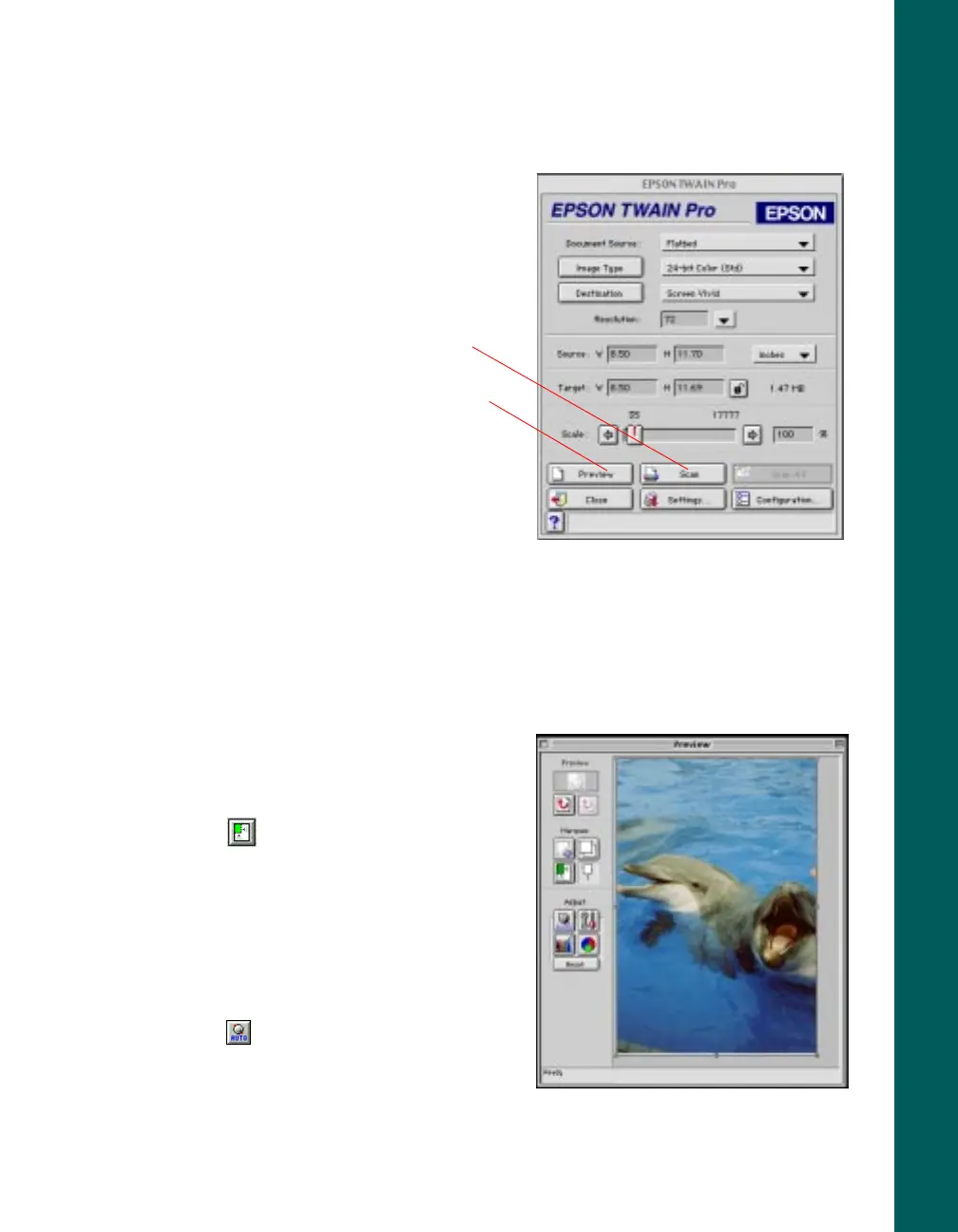
The EPSON TWAIN Pro
main window appears.
4. Choose the Document
Source
, Image Type, and
Destination.
For example, if you’re scanning a photograph, select Flatbed as your Document
Source
, 24-bit Color (Std) as your Image Type, and your printer as the
Destination. (If your printer isn’t listed, just select Inkjet Printer or Laser Printer
as the Destination.)
5. Click the Preview button.
You see a preview of your scan in the
window that opens.
6. Click the
Auto Locate
button to
automatically define the scan area
around the edges of your image. Or
adjust the scan area by positioning the
mouse pointer over any of the eight
boxes around the marquee’s edge and
dragging the box to resize the marquee.
Click the
Auto Exposure
button to
automatically set the highlight and
shadow exposure.
Scan button
Preview button













 To Next Page