EasyManua.ls Logo

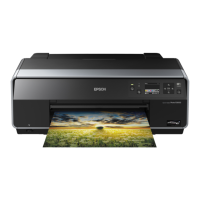
Epson Stylus Photo R3000 - User Manual

Epson Stylus Photo R3000
119 pages
Print Icon
To Next Page IconTo Next Page
Loading...
User's Guide
NPD4330-00 EN

Table of Contents

Other manuals for Epson Stylus Photo R3000

Questions and Answers

  • R
    Ryan LaneAug 18, 2025
    Why my Epson Stylus Photo R3000 Printer cannot print?
    • S
      Sara JohnsonAug 18, 2025
      If your Epson printer is not printing, ensure the interface cable is securely plugged into both the computer and the printer, and that it isn't broken or bent. Verify that the cable specifications match those required for both devices. Try connecting the printer directly to the computer with the interface cable to see if normal printing resumes. If you're using a USB connection, plug the USB cable directly into your computer's USB port. If a USB hub is in use, disconnect all USB hubs and connect the printer directly to the computer's USB port. You may also need to print a nozzle check pattern or install the printer driver.
  • R
    reynoldsyvonneAug 21, 2025
    Why does my Epson Stylus Photo R3000 Printer not recognize or feed the paper correctly?
    • B
      brittanymayerAug 21, 2025
      If your Epson printer does not recognize the paper or feed it correctly, load cut sheets vertically.
  • N
    nsantosAug 23, 2025
    Why is my Epson Stylus Photo R3000 Printer unable to feed or eject paper?
    • T
      Tristan BlackAug 23, 2025
      If your Epson printer is unable to feed or eject paper, first check for paper jams or foreign objects inside the printer by opening the printer cover. Ensure you are loading paper correctly. If a cleaning sheet is provided with the paper, pass it through the printer to clean the rollers. Load cut sheets vertically. When installing roll paper, close the front manual feed tray and confirm that Ready appears in the control panel. Avoid using old or damp paper, or paper with folds. After inserting fine art media, align the tail end of the paper with the line on the front manual feed tray.
  • S
    Scott PrattAug 26, 2025
    What to do if Epson Stylus Photo R3000 Printer stops printing?
    • G
      gwilsonAug 26, 2025
      If your Epson printer stops printing, it may be because the print queue is paused. To resolve this, deselect 'Pause Printing' in the Printer menu.
  • G
    Gerald DixonAug 28, 2025
    How to fix misaligned vertical lines on Epson Printer?
    • J
      Jessica HarrisAug 28, 2025
      If the vertical ruled lines are misaligned when printing with your Epson printer, perform head alignment.
  • T
    Tiffany JohnsonAug 30, 2025
    What to do if I cannot print on my Epson Stylus Photo R3000 Printer in the network environment?
    • M
      michael10Aug 30, 2025
      If you cannot print under the network environment using your Epson printer, check if the status in the Printer Setup Utility is paused. If it is, click 'Resume Printer'.
  • A
    Angela CortezSep 2, 2025
    Why is the printed surface scuffed or soiled on my Epson Stylus Photo R3000 Printer?
    • D
      Destiny AnthonySep 2, 2025
      If the printed surface from your Epson printer is scuffed or soiled, verify that the paper specifications are compatible with your printer and always use new paper. Flatten the paper before loading it, or use new paper. Select Wide for Platen Gap in the Setup menu. Check the printer's inside for dust.
  • K
    kelseyhallSep 4, 2025
    How to reduce too much ink fired by Epson Stylus Photo R3000 Printer?
    • J
      Justin PerezSep 4, 2025
      To reduce the amount of ink your Epson printer is using, ensure that the printer driver's Media Type settings match the paper you are using. Additionally, lower the ink density in the Paper Configuration screen from the printer driver.
  • F
    francischristinaSep 7, 2025
    Why does my Epson Stylus Photo R3000 Printer sound like it's printing but nothing comes out?
    • E
      Emma NguyenSep 7, 2025
      If your Epson printer sounds like it's printing but no ink is appearing on the paper, the nozzles may be clogged, so try performing a print head cleaning. You can also perform a head alignment. Ensure you are using the correct ink cartridge and replace any old ink cartridges with new ones. Check that the print heads are not clogged before resuming printing. Also, be sure to match the media type setting with the paper that is loaded in the printer.
  • D
    dylanwattsSep 9, 2025
    Why is the Epson Stylus Photo R3000 Printer icon missing from Devices and Printers?
    • J
      Jessica GeorgeSep 9, 2025
      If the Epson printer icon is not listed in the Devices and Printers, it might be because the printer driver is not installed. Install the printer driver.

Summary

Introduction and Safety Information

Important Safety Instructions

Essential safety guidelines and precautions for using the printer.

Basic Operations and Software

Basic Printing Methods

Guide to basic printing setup and execution in Windows and Mac OS X.

Printer Driver Usage

Maintenance Procedures

Print Head Adjustment and Cleaning

Procedures for adjusting and cleaning the print head for optimal quality.

Replacing Ink Cartridges

Step-by-step instructions for replacing ink cartridges.

Problem Solver

Error Messages and Troubleshooting

Solutions for common printer error messages and operational issues.

Print Quality and Paper Feed Issues

Diagnosing and resolving problems related to print quality.

Paper Jam Resolution

Step-by-step instructions for clearing paper jams.

Epson Stylus Photo R3000 Specifications

General IconGeneral
ColorYes
Maximum resolution5760 x 1440 DPI
Print speed (black, normal quality, A4/US Letter)- ppm
InterfaceUSB 2.0
Print technologyInkjet
Dimensions (WxDxH)614.7 x 368.3 x 228.6 mm
Networking features100Base-TX Ethernet
Paper tray media typesPhoto paper, Plain paper
Non-ISO print media sizesLetter
ISO A-series sizes (A0...A9)A3
Compatible operating systemsWindows 7 (32-bit, 64-bit), Windows Vista (32-bit, 64-bit), Windows XP, Windows XP Professional x64 Mac OS X 10.5.x – 10.6.x
Optional connectivityEthernet, Wireless LAN
USB 2.0 ports quantity1
Sustainability certificatesENERGY STAR
Power consumption (standby)3.5 W
Power consumption (printing)21 W
Storage temperature (T-T)-20 - 40 °C
Operating temperature (T-T)10 - 35 °C
Storage relative humidity (H-H)5 - 85 %
Operating relative humidity (H-H)20 - 80 %
Sound power level (printing)38 dB
Country of originChina
Market positioningHome & office
Pallet width800 mm
Pallet height2150 mm
Pallet length1200 mm
Pallet width (UK)1000 mm
Quantity per pallet10 pc(s)
Quantity per pallet layer2 pc(s)
Package depth750 mm
Package width490 mm
Package height400 mm
Package weight19420 g
Quantity per pack1 pc(s)
Weight and Dimensions IconWeight and Dimensions
Depth368.3 mm
Width614.7 mm
Height228.6 mm

Related product manuals