6 CueSystem
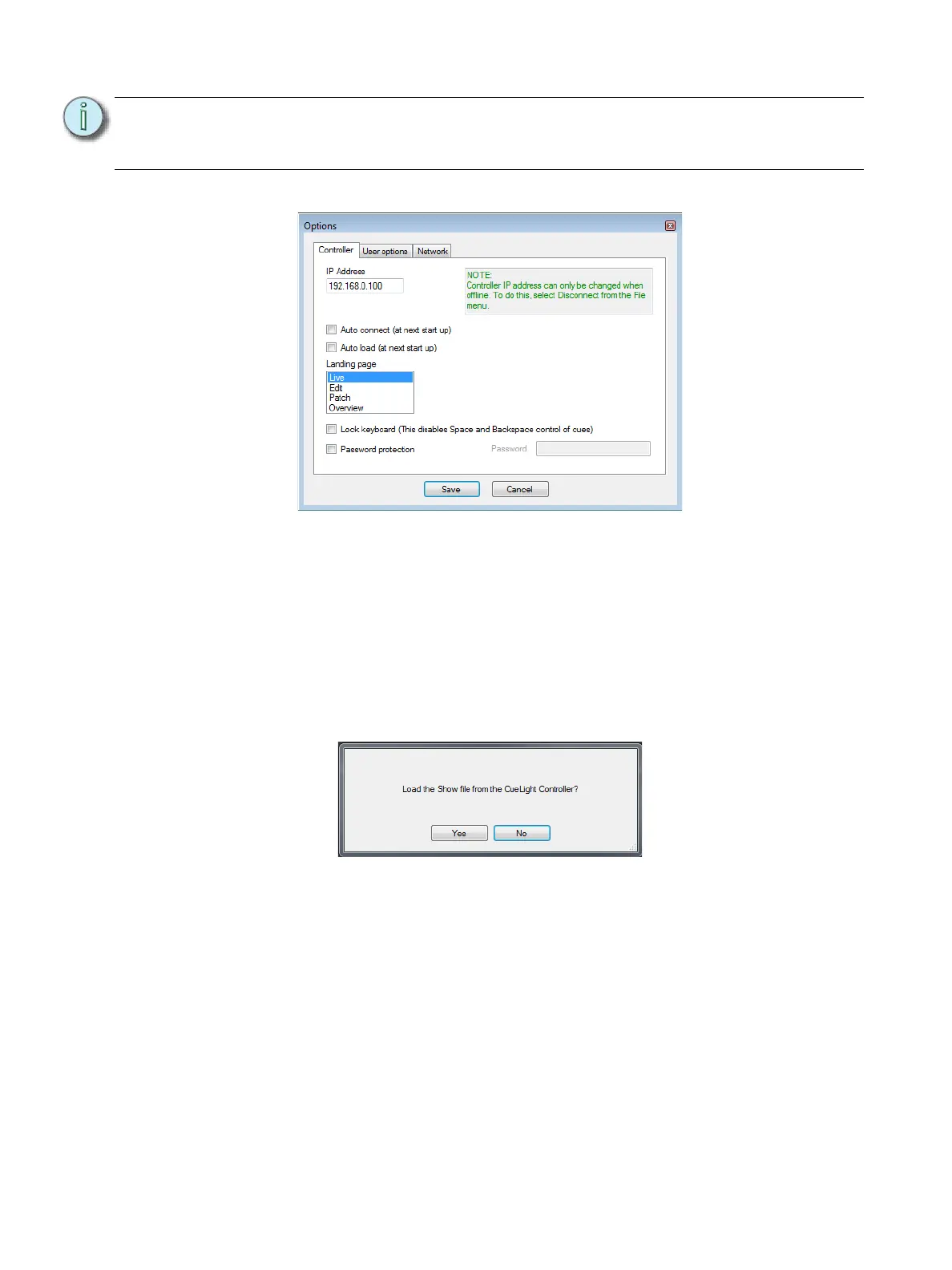
Step 2: Select File > Options, and then click the Controller tab.
Step 3: In the IP Address field, enter the IP address for the master controller, and then click
Save.
Step 4: Click the blue Connect button in the lower-left corner of the CueSystem window.The
application attempts to make a connection to the controller. If the connection is
successful this label changes to Online (in green).
Step 5: You are now prompted to load the show file from the controller. All CueSystem
hardware is shipped with a demo show. Click Yes to load the demo show from the
controller. This will allow you to familiarize yourself with the system. In future sessions,
you will still see this prompt, but the show file on the controller will be the last one saved
rather than the demo show.
Note:
Your Windows display settings must be set to use text at 100% size in order for the
CueSystem software to display correctly. To set this, go to Control Panel > Display,
and then select the Smaller - 100% option.












 To Next Page