22 CueSystem
Setting User Preferences
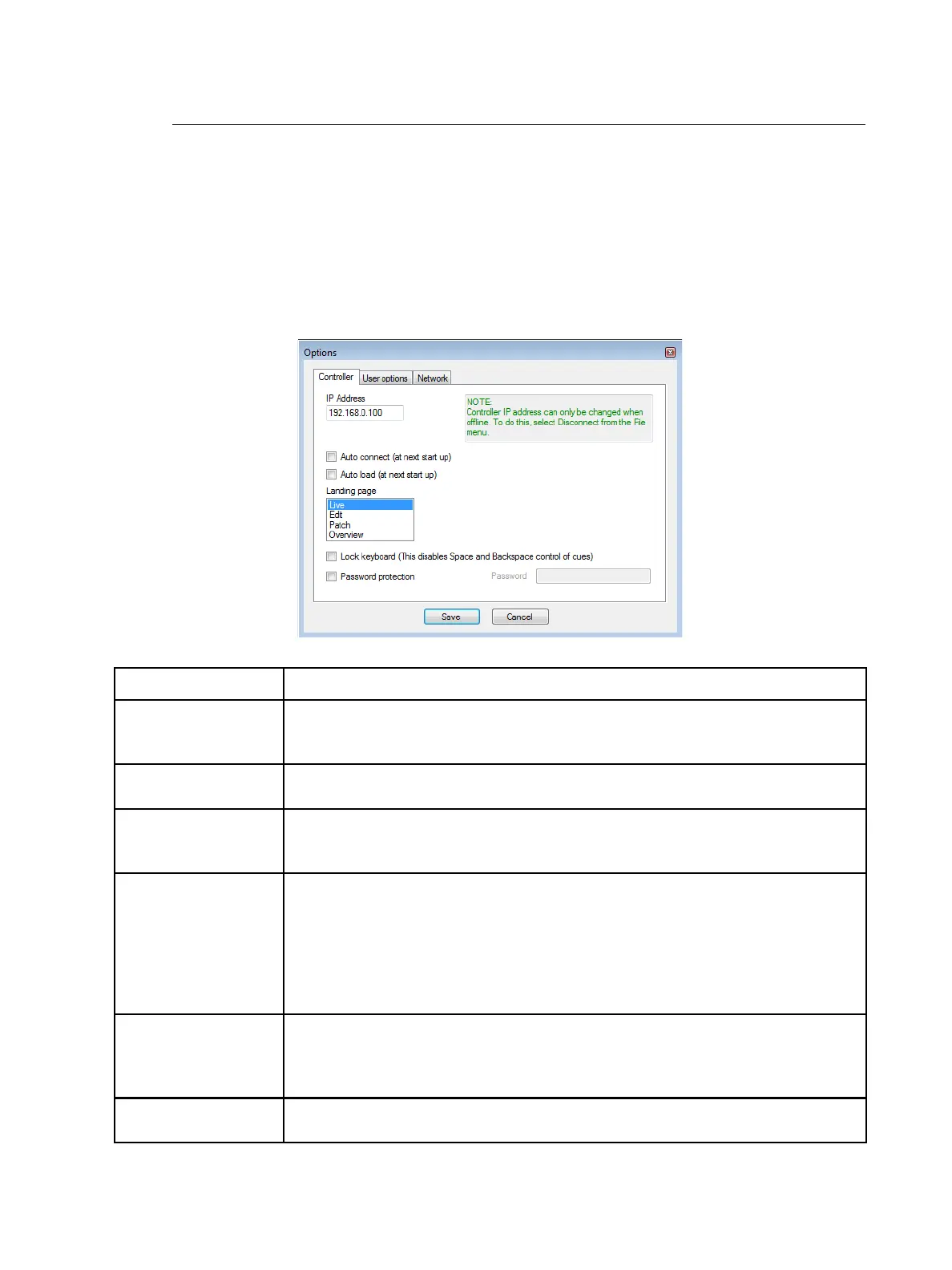
You can set user preferences in the Options window. Click Save to save the preferences.
Controller
One CueSystem desk or playback unit must be assigned as a master controller, storing all
show file and setup information for the rest of the system. By default, this unit would be a
playback unit. If no playback unit is present, the master controller must be a desk.
Select File > Options, and then click the Controller tab to adjust the settings for the master
controller.
Field Description
IP Address
IP address of the master controller device. Set the address to the IP address of the
designated master controller. Only change this value to communicate with a
different master controller.
Auto connect
(at next start up)
Select this option to make CueSystem software attempt to automatically connect to
the last configured hardware on start-up.
Auto load
(at next start up)
Select this option to make CueSystem software download the latest copy of the
show file from the master controller and establish a synchronized connection to the
network on start-up.
Landing page
Specify which window displays when CueSystem software starts.
• Live: Starts in the Live window (see Playing Back Cues on page 17)
• Edit: Starts in the Cue Editing window (see Programming Cues on page 15)
• Patch: Starts in the Patch window (see Discovering and Configuring Devices
on the Network on page 7)
• Overview: Starts in the Overview window (Using the Overview Window on
page 13)
Lock keyboard
Select this option to prevent the use of the SPACEBAR and BACKSPACE keys on
your PC keyboard to cycle forwards and backwards through the current cues in the
Live Cues window. When this option is selected, you must use the GO! and Back
buttons on screen instead).
Password protection
Allows you to password-protect the editing functions of CueSystem software. Users
who do not enter the password can only play cues.












 To Next Page