Using the Overview Window 13
Using the Overview Window
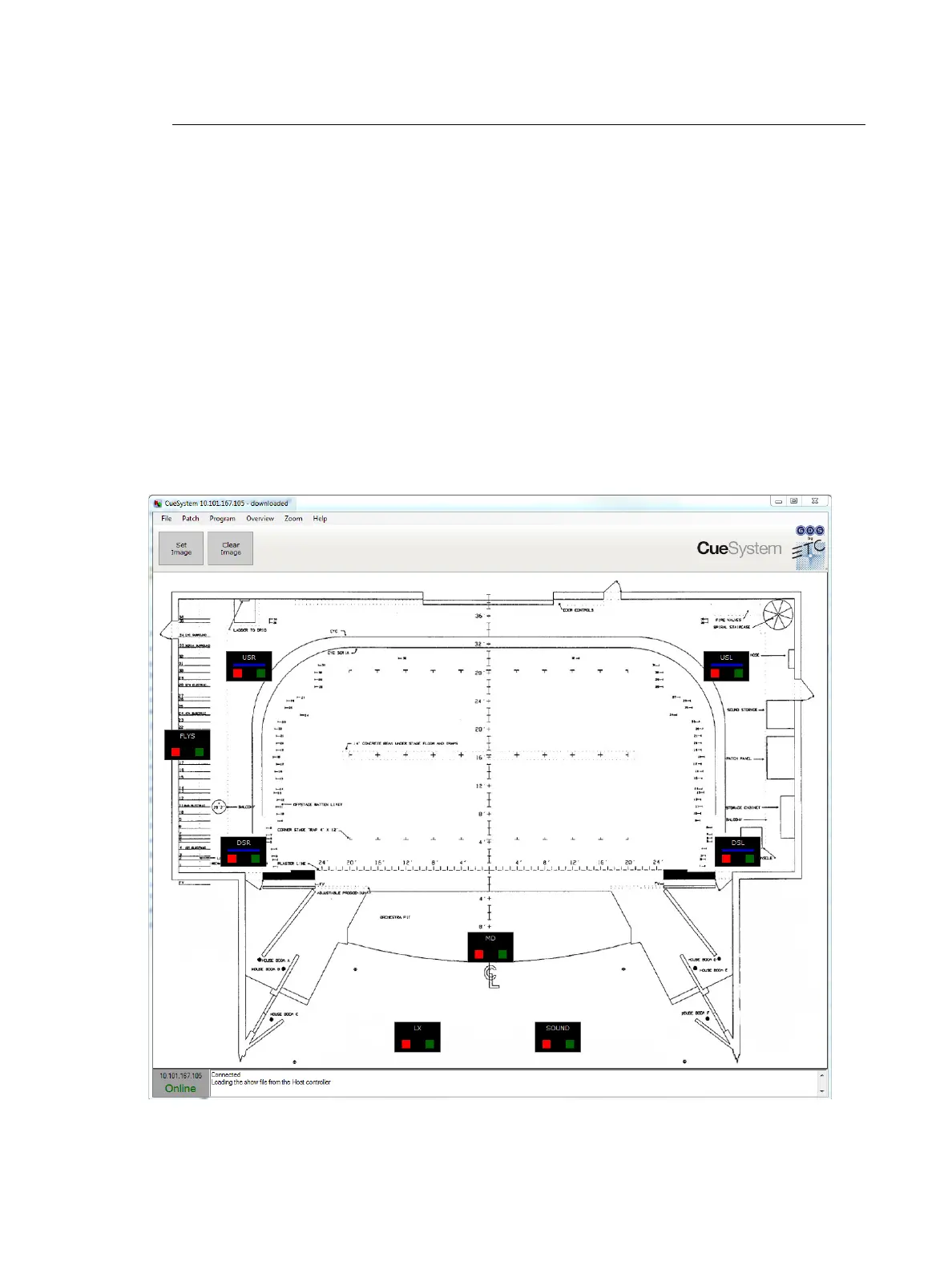
The Overview window provides a graphical representation of your real-world layout of
outstations. By importing a JPG or PNG image of your floor plan, you can overlay the
outstation graphics on top of the image.
During a show, you can use the overview screen as a monitor to provide real-time feedback
on the status of each outstation. When you activate CueSpider outstations using a hardware
desk or playback unit, the standby and go lights for those outstations also illuminate in the
Overview window.
Step 1: Click the Overview menu to open the Overview window.
Step 2: Click the Set Image button at the top of the window.
Step 3: In the window that opens, select a JPG or PNG image file from your computer to display
on the overview screen and click Open.
Step 4: Drag an outstation to its appropriate location on the imported image. Repeat as needed
for additional outstations.
Step 5: To delete an image, click the Clear Image button at the top of the window.












 To Next Page