Discovering and Configuring Devices on the Network 7
Discovering and Configuring Devices
on the Network
After you install the software and successfully connect to the network, click the Patch menu
to open the Patch window and configure your devices.
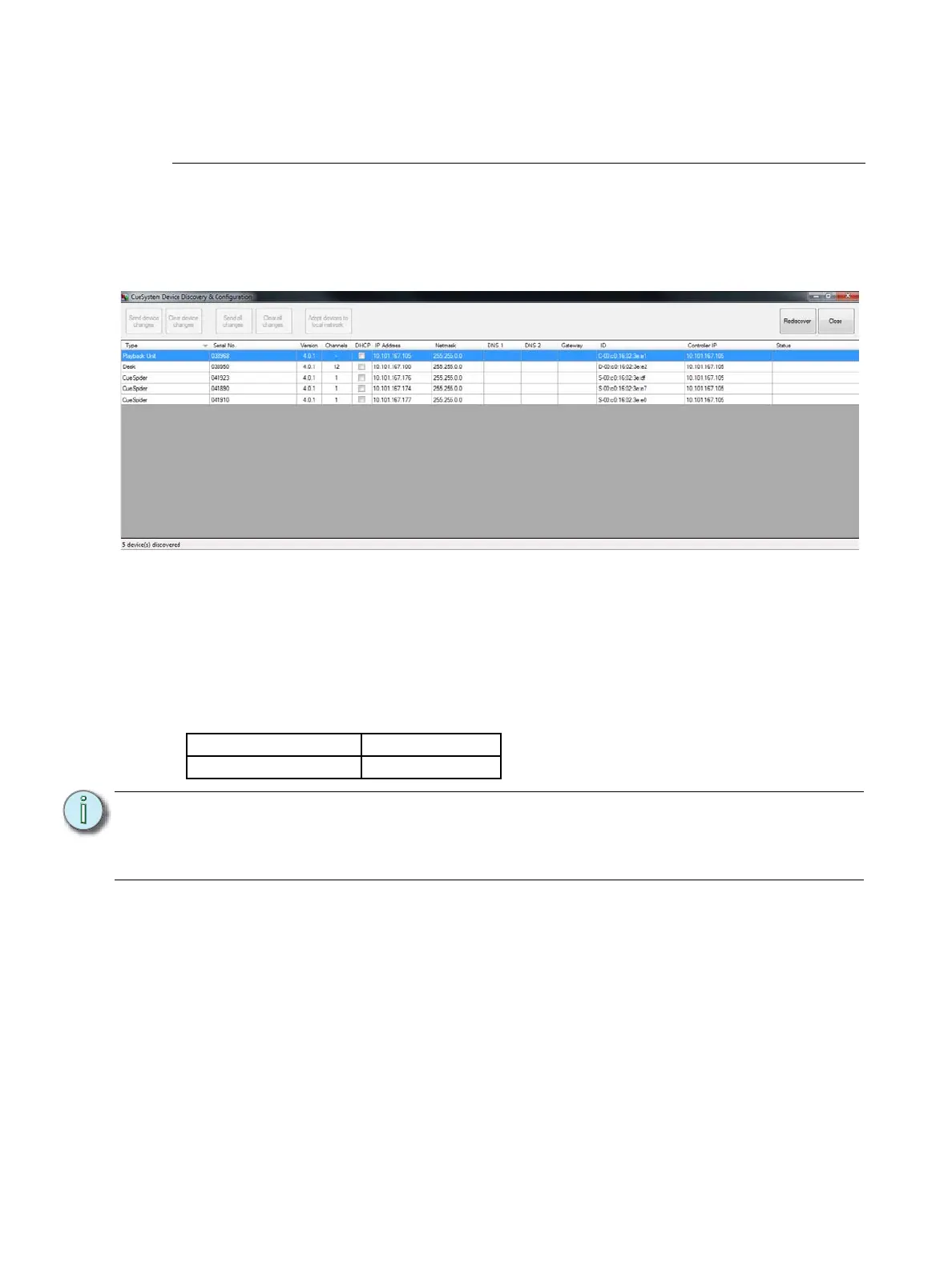
Click the Device Discovery button at the top of the Patch window. The CueSystem Device
Discovery & Configuration window opens and shows all devices on the network.
About Device IP Addresses
CueSystem devices are pre-configured with DHCP selected. In this mode, a DHCP server is
required (typically found on an Ethernet switch) to allocate an IP address to the CueSystem
device in order to communicate on the network.
If you choose to set up a static IP scheme for your CueSystem network or you do not have a
DHCP server, see the table below for suggested IP addresses for the units.
Changing the IP Addresses of the Devices
Step 1: Deselect the DHCP check box.
Step 2: Double-click on the device’s IP address and enter the new IP address for the device.
Step 3: Double-click on any other related network settings and enter the new settings.
Step 4: Repeat steps 1–3 for other devices, and then click Send all changes.
Desks 10.101.167.100
Playback Units 10.101.167.105
Note:
All IP addresses must be unique. If you have multiple devices of the same type (e.g.,
two desks), the IP address of at least one of the units must be changed before you
can use them together. Ensure that the default addresses do not conflict with other
devices on your IP network before you connect them.












 To Next Page