Installing and Setting Up the System 5
Installing and Setting Up the System
Installing Hardware
See the CueSystem Control Desks & Playback Units Installation Guide and the CueSystem
CueSpider Outstation Installation Guide for installation instructions. CueSystem documents
are available for free download at www.etcconnect.com/cuesystem.
Installing PC Software
Download the PC software from www.etcconnect.com/cuesystem and run the installer.
Follow the on-screen prompts to install the software.
Configuring the IP Address of the PC
After you install the software, you must change the IP address, subnet mask, and gateway of
the PC to match the CueSystem network IP address scheme. For a single client PC, we
recommend that you use the following settings:
Starting the Software and Connecting to the Network
One CueSystem desk or playback unit must be assigned as a master controller, storing all
show file and setup information for the rest of the system. By default, this unit is a playback
unit. If no playback unit is present, the master controller must be a desk. For more
information, see Adopting Devices to the Local Network on page 8 and Controller on page
22.
After you start the software, you must enter the IP address of the master controller for initial
setup.
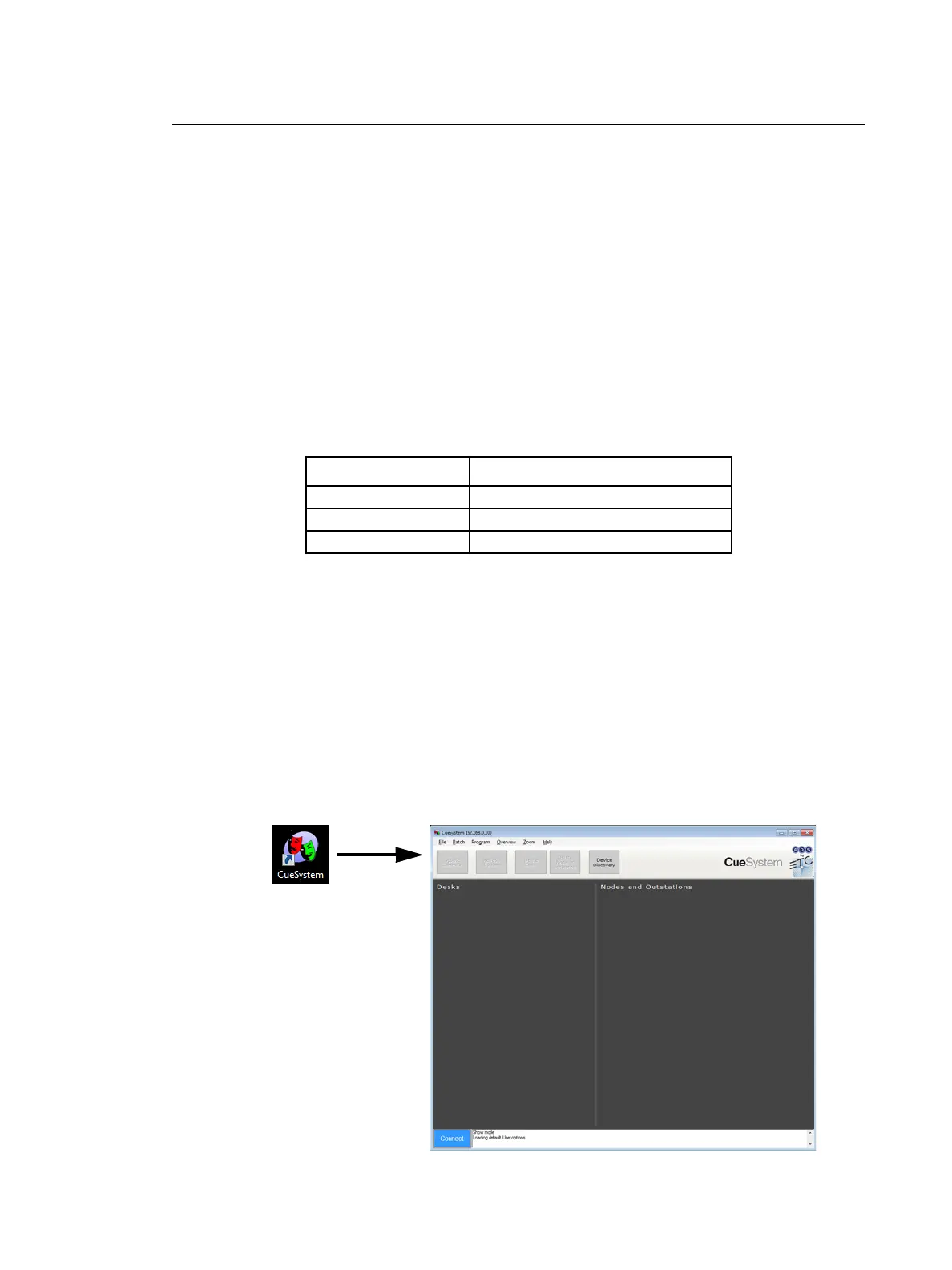
Step 1: Double-click the CueSystem icon on your desktop. The CueSystem software application
opens.
Protocol Address
IP Address 10.101.167.125
Subnet Mask 255.255.0.0
Gateway 10.101.1.1












 To Next Page