Playing Back Cues 17
Playing Back Cues
Before you can play back cues, you must have done the following:
• Patch desks to CueSpider outstations in the Patch window (see Discovering and Configuring
Devices on the Network on page 7).
• Add desks in the Cue Editing window (see Adding Desks on page 9).
• Program the cues in the Cue Editing window (see Creating Cues on page 16).
There are two tools that you can use to play back cues:
• CueSystem PC software
• Playback unit
Playback Using the CueSystem Software
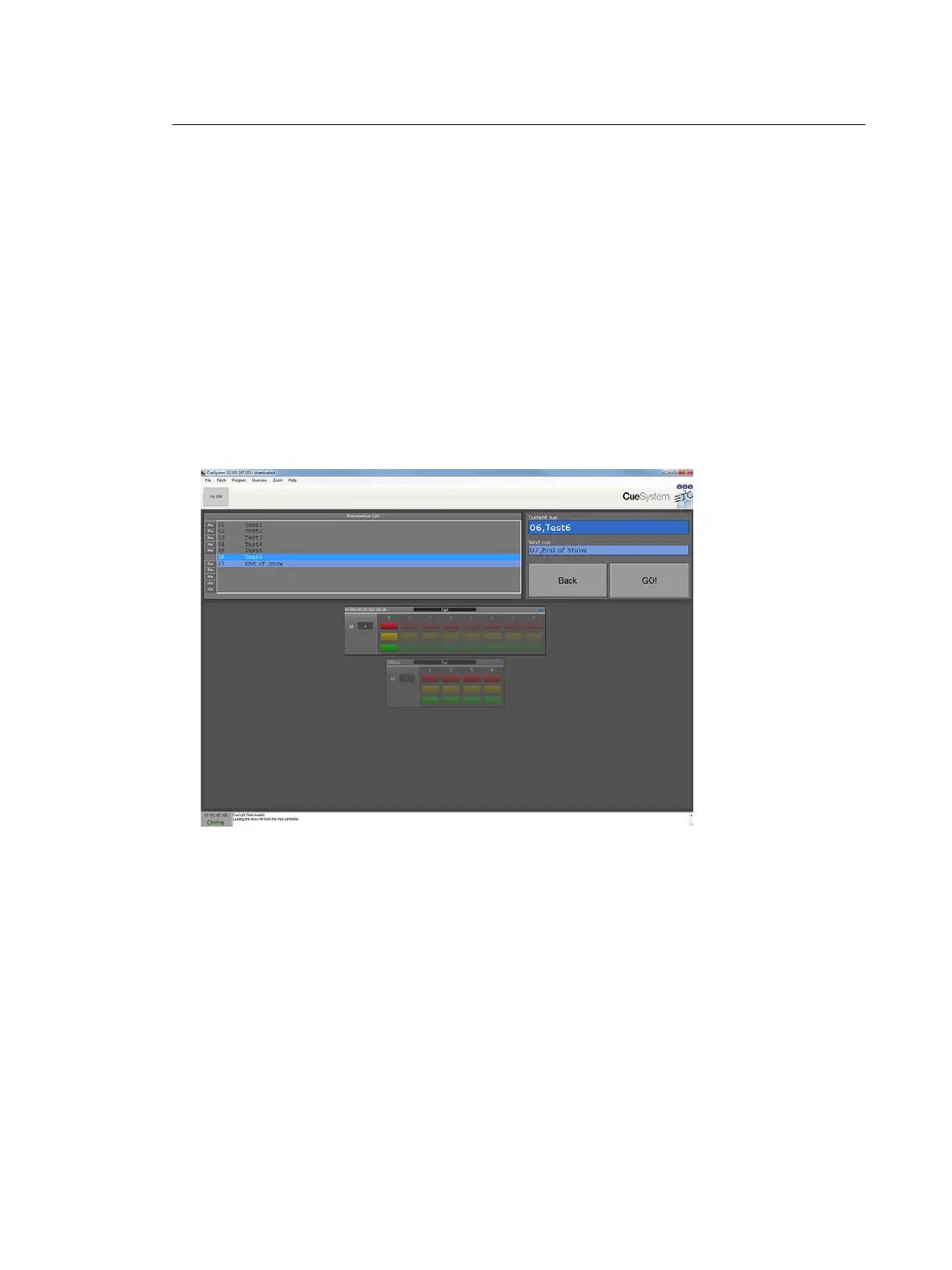
The Live window provides a clear and easy way to navigate and play back the cue list.
Step 1: Click the Program menu. The Cue Editing window opens.
Step 2: Click Go Live at the top of the Cue Editing window. The Live window opens.
(To return to the Cue Editing window from the Live window, click Go Edit.)
Current cue and Next cue boxes appear on the right side of the window and dynamically
update each time you click the GO! button.
Previewing Cues
The Live window provides blind preview buttons to allow discreet review of the contents of
a cue without outputting to any connected hardware.
Step 1: Click and hold the Pre button next to the cue that you want to preview. The cue with
its associated cue lights is shown in the display.
Step 2: Release the mouse button to return to the current cue.












 To Next Page