232 Ion Classic User Manual
Note:
Color scroller data will display on the encoders and displays as frame
numbers, F1, which would be frame 1, F2 for frame 2, etc. F1.5 is halfway between 1
and 2. F2+ will display if the frame is less than 2.5 and F2- if the frame is greater than
1.5. After the frame number, the gel number will also be displayed. This is also true
for color and gobo wheels.
Note:
Frame numbers can be used from the command line. [2]{Scroller}[5][Enter]
will send channel 2’s scroller to frame 5. Frames can also be selected by using the
DMX value for that frame. Pressing [/] twice will post DMX to the command line. [3]
{Scroller} [/][/][2][5][5] [Enter] will send channel 3’s scroller to the frame with the
DMX value of 255.
Note:
Dual scroller fixtures are addressed as 0-100% instead of by frame numbers.
You may need to update your fixture before this feature will work. See Update Profile
(on page183)
Custom Control
Pressing the {Custom} button enables custom encoder mode. For more information, see
Custom Encoder Maps (on page122)
.
Using the Color Picker
The color picker can be opened from the
Workspace Layout Menu (on page90)
or by using
[Tab] [2][7].
With the color picker open, you have the choice between six different
Color Spaces
, a
Gel
Picker
,
Color Path
,
Tinting Tools
, and
Spectrum Tools
.
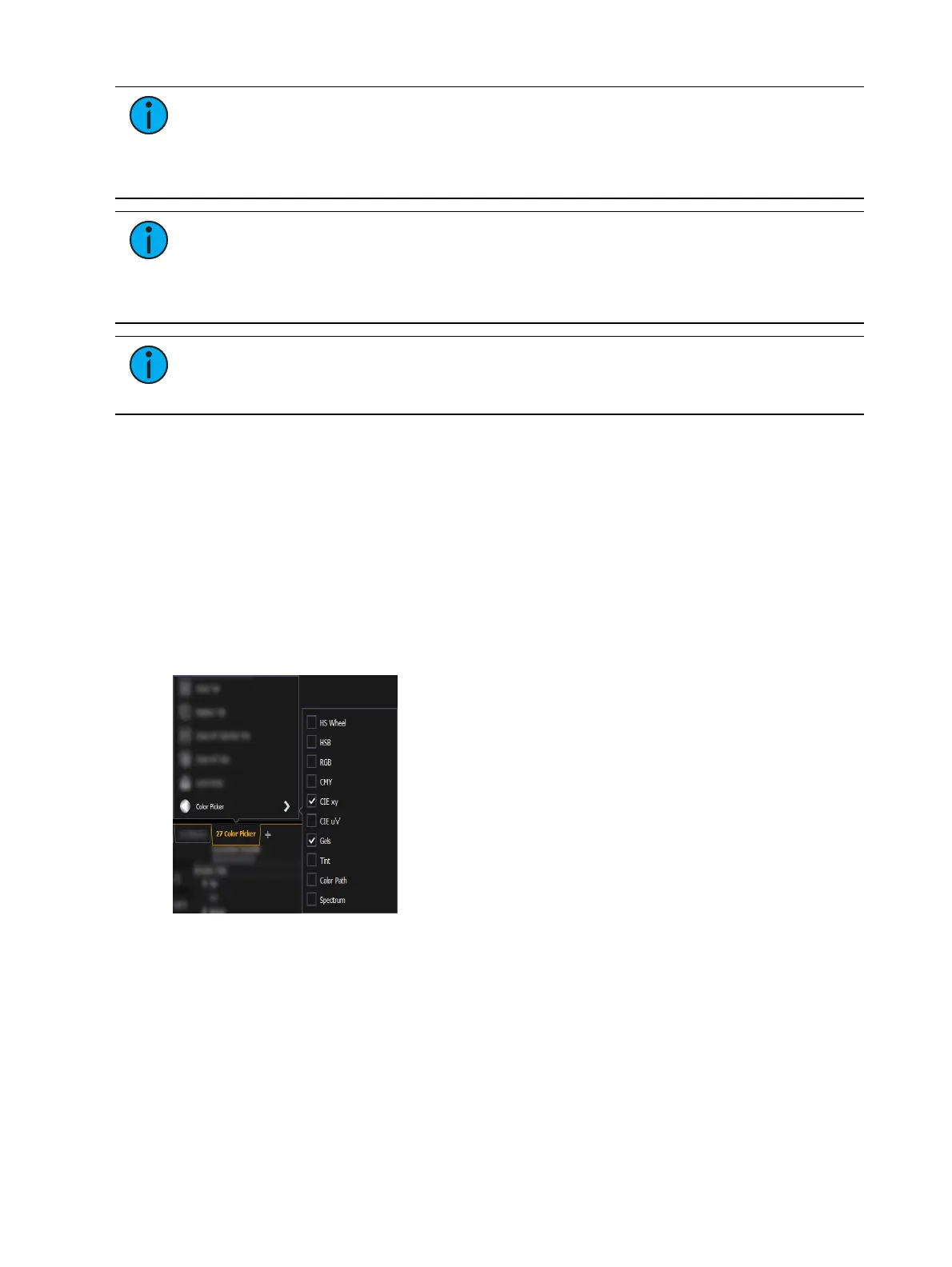
These options are found by right-clicking on Color Picker Tab.
Color Spaces
There are six color spaces that you can choose to work in. All of these spaces are connected.
So it doesn't matter which space you wish to work in, the console will translate the
information to work with your fixtures.
When the color picker is first opened, the CIE xy color space and the gel picker will open by
default. You can select other color spaces and tools by clicking on the display configuration
tool (the gear icon) in the bottom left corner of the tab bar, or by right-clicking on the tab.



 To Next Page