The Harmonizer
®
Programmer’s Manual
© 1999-2008 Eventide, Inc. Page 20 of 97 Release 1.3
DISPLAY FUNCTIONS
Now that you can add modules, we can discuss a few of the display-related features of VSigfile. These
functions don’t have anything to do with the actual construction of a program; they simply make it
easier to view and manipulate the display.
Selecting Modules
A single module can be selected by clicking on it.
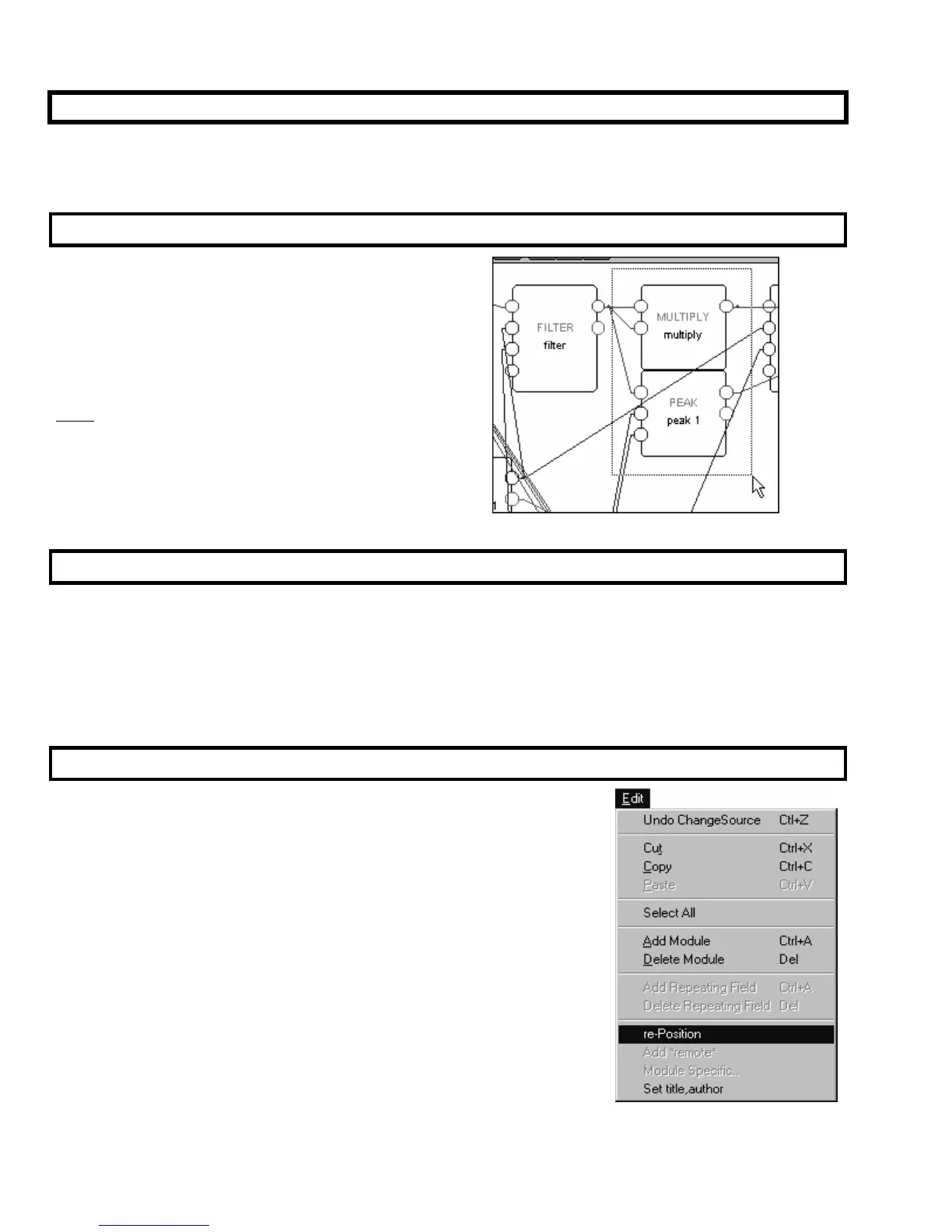
Several modules can be selected simultaneously by
clicking and dragging over the area on the screen that
contains the desired modules (as shown to the right) or by
clicking on all of the desired modules while pressing the
“Shift” key on the keyboard. The selected module or
modules will have red module type names (modules that
aren’t
selected have gray module type names).
Moving Modules
You can move modules around on the screen at will. Doing so can help to make a patch more
“viewable." Simply click on the module you want to move and drag it to its new position. All of a
module’s connections will stay with the module.
To move more than one module at a time, first select the modules you would like to move. All of the
selected modules will have red module type names. Then click on any one of the selected modules and
drag the whole bunch to its new location.
Re-Positioning Modules
To make a patch more “viewable." a function under the Edit menu exists
that automatically re-Positions all of the modules on the screen. There are
times when this is very useful; particularly when you’ve downloaded a
program from the Harmonizer to work with on VSigfile. There are other
times where using re-Position will just make things less “viewable."
Trouble is, the re-Position function is not “Undoable” (see below). As a work-
around, Save a program just before you use the re-Position function. If the
result is worse than the original, simply reopen the saved version.



 To Next Page