The Harmonizer
®
Programmer’s Manual
© 1999-2008 Eventide, Inc. Page 63 of 97 Release 1.3
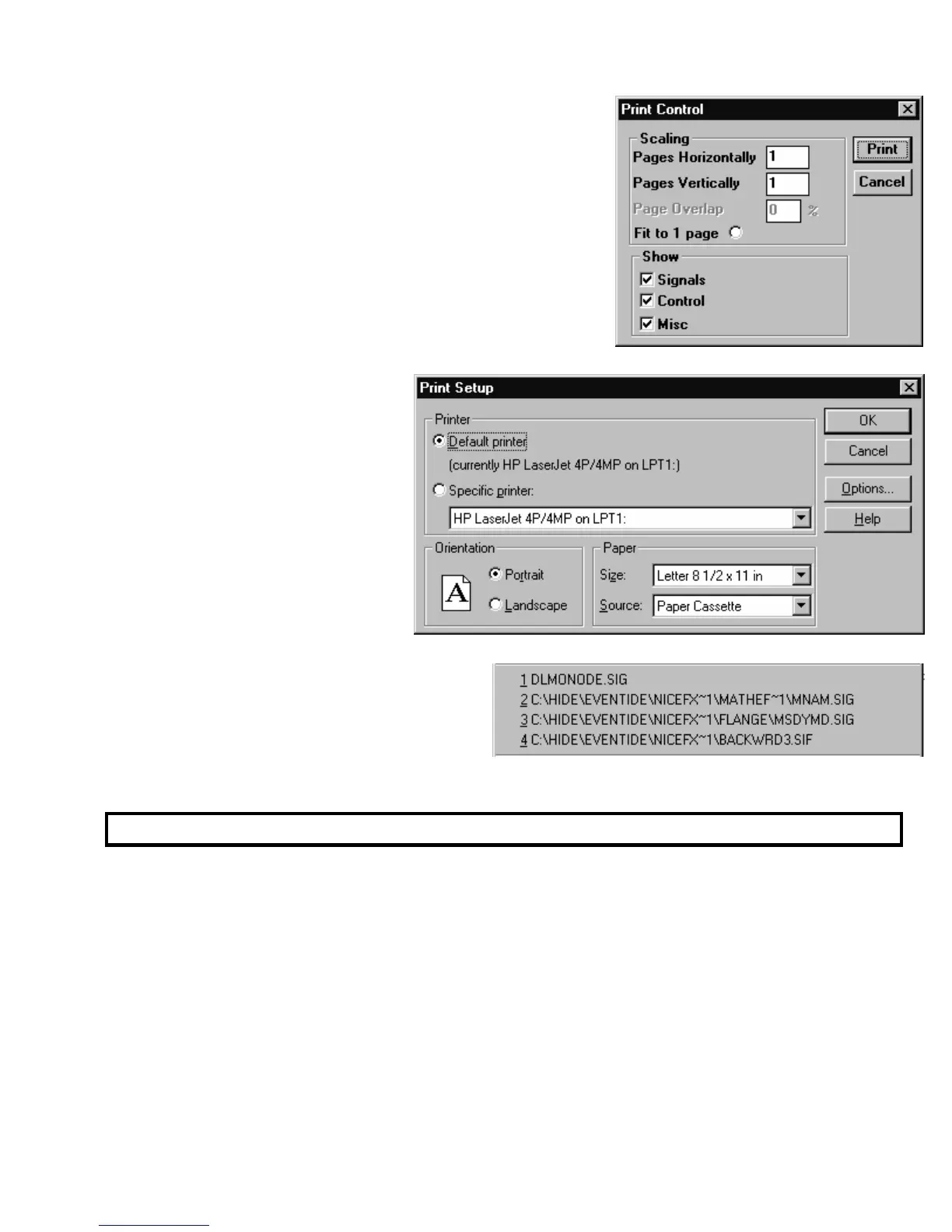
• The Print command prints opens the dialog box shown to the
right. The top section allows you to scale the size of the image
to fit on a given number of pages. If more than one page is
selected, you can overlap their edges by a given amount. The
bottom section allows you to “hide” audio (Signals), control, or
userobject (Misc) connections, inputs, and outputs. Once you’re
satisfied with these settings, press the Print button to print or the
Cancel button to abort.
• The Print Preview command calls up the exact same dialog box
that the Print command calls up. Once you select the Scaling
and Show options you would like to view, press the Print button
to call up the Print Preview
window.
• The Print Setup command calls up
the dialog box shown to the right.
Here you can select the printer,
paper, and orientation for your
Vsigfile print jobs.
• The section of the File menu below the print
section contains links to the last few opened
files for quick access.
• The Exit command closes the Vsigfile
program entirely.
“ *.sig” Files versus “ *.sif” Files
Two file formats are recognized by Vsigfile. You will normally want to save all of your files with the “
*.sif” extension, but it may be useful to know why both exist.
• The “Sig” file format is the format recognized by the Harmonizer. When files are transferred to or
from the Harmonizer, they are transferred in the “Sig” format
(you may have noticed that when you use the Get
command under the Midi menu, the file that results has the “Sig” extension)
.
• “Sig” files are saved as ASCII text. If you want to look at a Vsigfile file in a text editor, the “Sig”
extension is the one to use. But be warned, saving files with the “Sig” extension may result in a loss of
some display information. In other words, the program may not look the same in VSigfile when you
reopen it, although it will still function the same when sent to the Harmonizer.
• To view files in their “Sig” format, select the as Sigfile command under the View menu.
• The “Sif” file format on the other hand, does save all of the display information, but may be phased
out in future versions of Vsigfile.



 To Next Page