The Harmonizer
®
Programmer’s Manual
© 1999-2008 Eventide, Inc. Page 21 of 97 Release 1.3
Aligning Modules
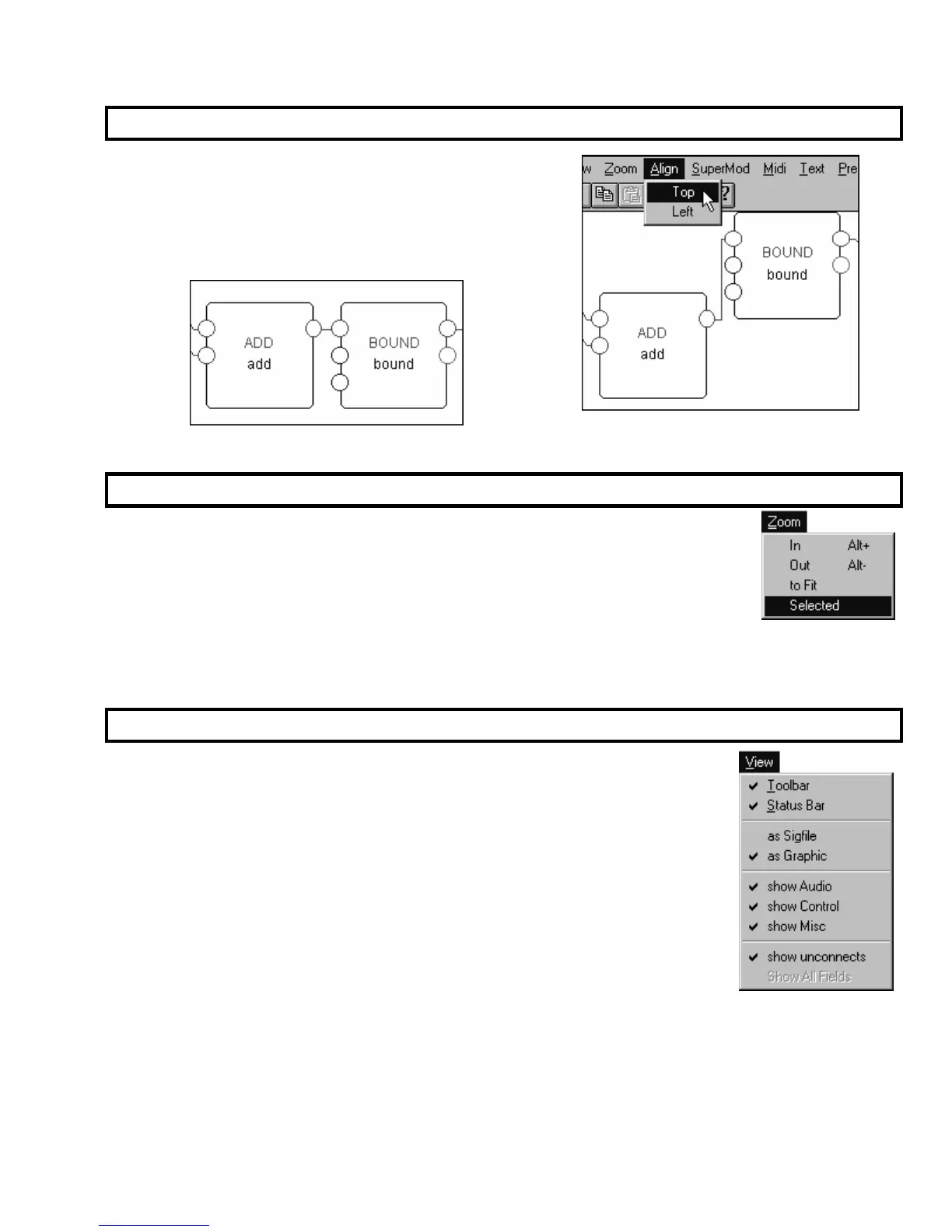
You can align a group of modules either along their top edge
or their left edge. First, select the modules you would like to
align. Then select either Top or Left from the Align menu. The
add and bound modules have been selected to the right.
The result of Top aligning them is shown below. Nice, eh?
Zooming
You’ll find that as a patch gets very large it’s hard to see the names or input/outputs
of individual modules when the whole patch is in view. A zoom function exists to
let us zoom in or zoom out. Under the Zoom menu you’ll find four choices:
In Get closer relative to the current display.
Out Get further away relative to the current display.
to Fit Zoom such that the entire patch just fits on the screen.
Selected Zoom such that the currently selected modules just fit on the screen. Modules are
selected by clicking and dragging over the area that contains them.
View
As your programs become more complicated, you’ll often want to “hide” certain
kinds of signals to make a patch more “viewable." A check mark next to an item
under the View menu indicates that that sort of signal is shown. The absence of a
check mark next to an item indicates that that sort of signal is “hidden."
Audio
Shows or hides all audio/mod
(green) connections, inputs, and outputs.
Control
Shows or hides all control
(blue) connections, inputs, and outputs.
Misc
Shows or hides all userobject
(pink) connections, inputs, and outputs.
Unconnects
Shows or hides all unconnected inputs and outputs. Hiding all the unconnected inputs and outputs is
useful when trying to follow the logic of a patch.



 To Next Page