The Harmonizer
®
Programmer’s Manual
© 1999-2008 Eventide, Inc. Page 69 of 97 Release 1.3
Front Panel Controls
There are several controls used to manipulate the Patch display.
Knob
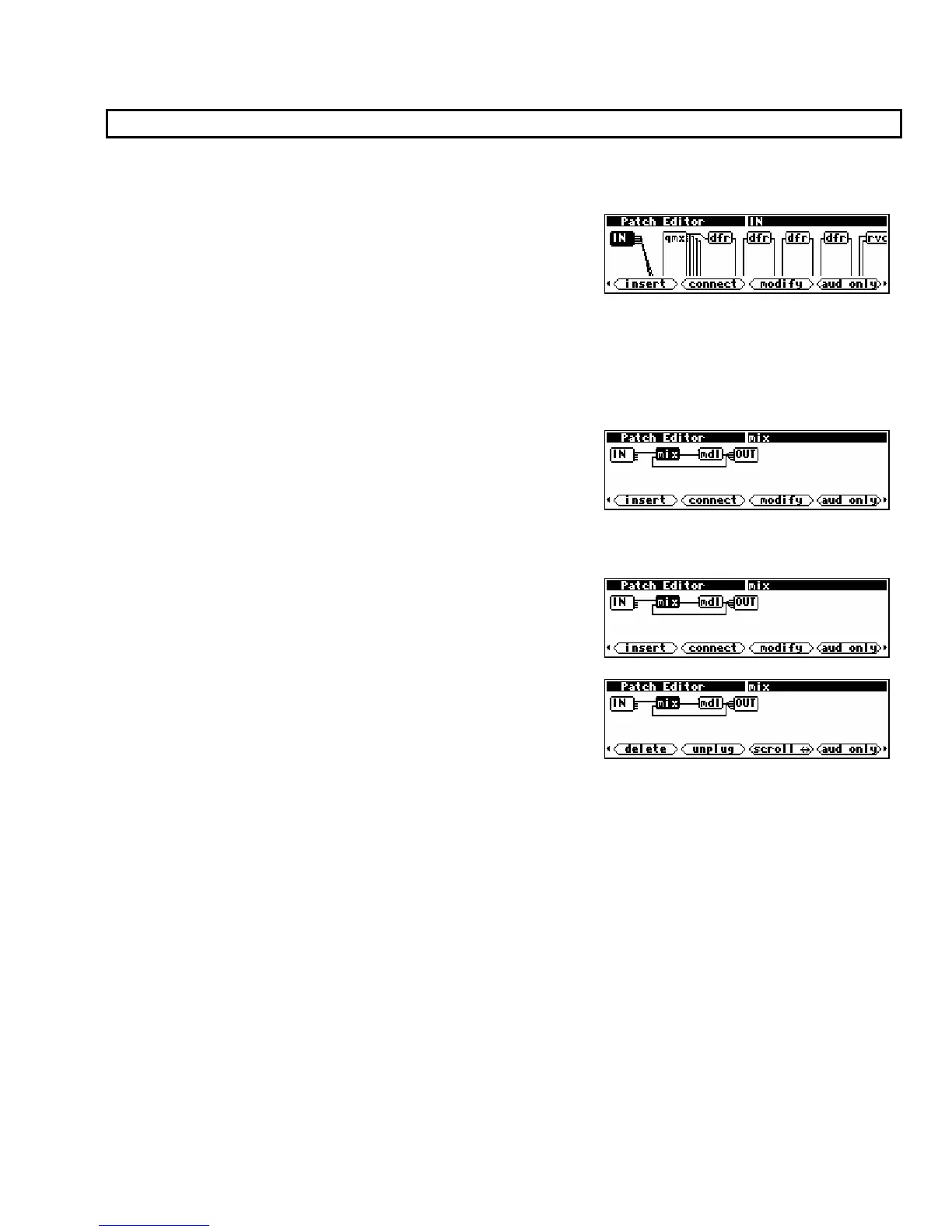
In many programs, the patch diagram will be larger than the
screen. In such a case, the screen will display only part of the
program. The KNOB may be used to shift the screen. A
complicated program will move more slowly across the screen
as the KNOB is rotated. This is due to the processing required for the Harmonizer to draw the picture of
the program. If the KNOB is rotated faster than the screen moves, the screen will jump to catch up. If
the KNOB is rotated very fast, the screen immediately jumps to the end of the program. The screen will
not “wrap around” to the other end of the program.
Cursor Keys
The LEFT and RIGHT CURSOR keys are used to highlight
(select) modules. When you first enter the Patch Editor area,
the IN module is highlighted. As shown on the example screen
to the right, pushing the RIGHT CURSOR key causes the mix
module to be highlighted. The name of the selected module is shown in the top right line of the display.
PARAMETER key
The PARAMETER key is used to toggle between sets of SOFT
KEYS
. Tapping the PARAMETER key on the screen to the right
would give you access to. . .
. . .these SOFT KEYS. Notice that you need only tap the
PARAMETER key. If you hold it down, you will exit the Patch
Editor area and return to the PARAMETER area.
→ To adjust the “hold time." key hold parameter on the [misc] menu page in
the SETUP area.



 To Next Page