resolution. There should not be text wrapping in your window. If so, it will make it difficult
to use Maintenance Mode. If text wrapping is occurring then try to adjust your screen
settings and/or window size so that Maintenance Mode displays properly.
Maintenance Mode: Diagnostics Tool Directions
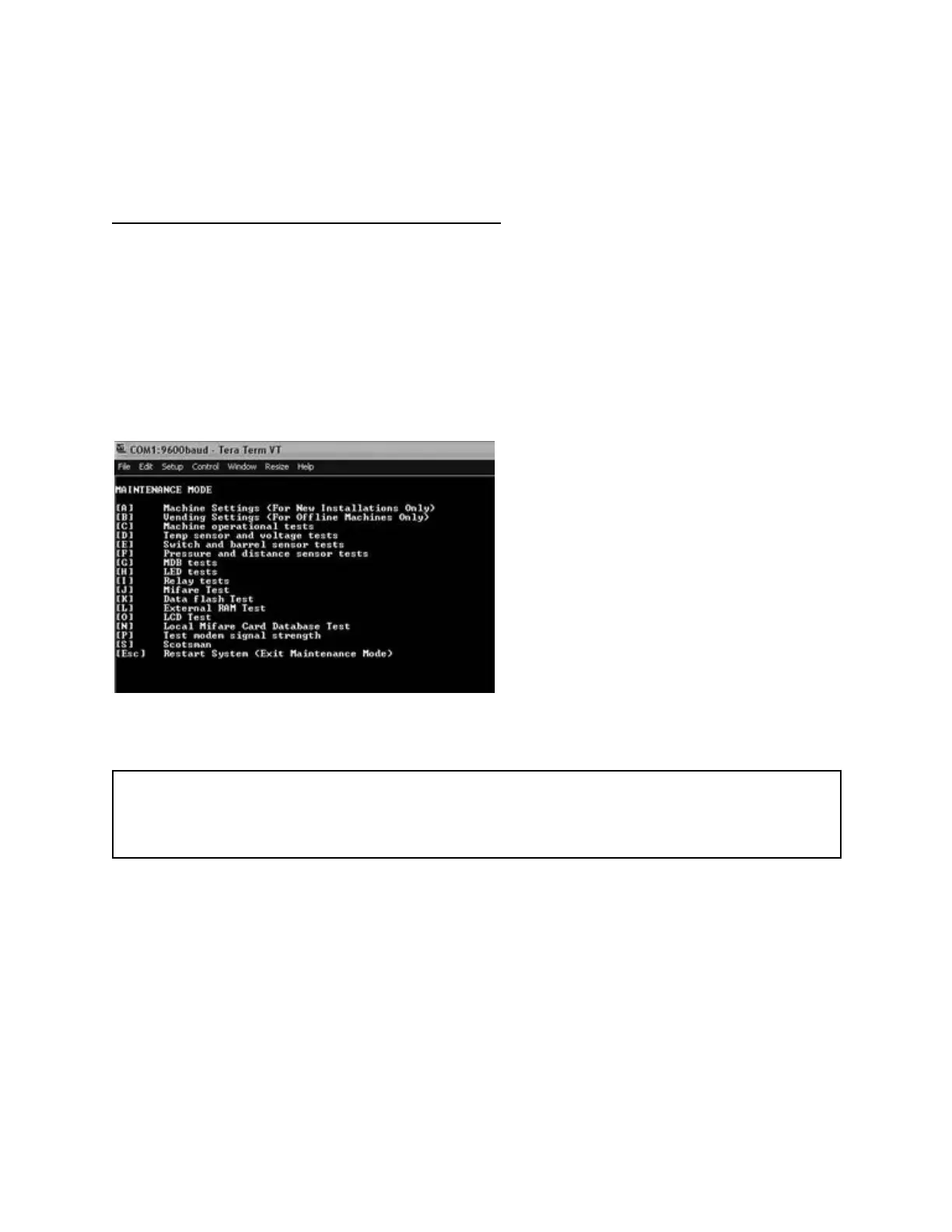
This is the Maintenance Mode landing page. This is the first screen you will see when you enter
maintenance mode.
● To enter each category, push the letter on your keyboard associated with that category.
Make sure caps lock is OFF.
● At any time during maintenance mode, and on any screen, you can push ESC to go
back to this landing page.
● NOTICE: always push ESC one time, pushing ESC multiple times will exit maintenance
mode completely.
Image 10: Maintenance Mode home screen
WARNING: NEVER CHANGE SETTINGS IN CATEGORY A - MACHINE SETTINGS (FOR
NEW INSTALLS ONLY) THESE PARAMETERS ARE SET IN FACTORY AND NEVER NEED
TO BE CHANGED UNLESS TOLD TO DO SO BY AN EVEREST EMPLOYEE!
A: MACHINE SETTINGS (FOR NEW INSTALLS ONLY) - These settings will never need to be
changed. Do not use this screen or change settings. Changing settings will result in
communications to be disabled on this machine. Don’t change any settings on this screen.


 To Next Page