DreamCatcher Replay SystemDream Catcher
Revision 1.13 Page 47
Panel Vue Changes
Connect a keyboard and mouse by plugging it to the back of the controller via USB.
Either DVI or VGA cable from back of panel should connect direct to the monitor.
It will need clip view to run, add the clip view widget through CTRL + E.
Click on system and change the following. See Figure 4-4.
o Panel: 127.0.0.1.
o Name: Dreamcatcher Server 1 (or whichever panel you are working on)
o Host: 100.100.100.101 (Exmple IP of the server)
o Username: Panel 1 (Example Username or whichever panel you are working on)
o Plug in Ethernet cables
Web Configurations
Change to 4x4 configuration with Montage Outputs set to 0. See Figure 4-6.
Set Remote Clipping and Play out: ON
Users: Set each user to see one input and one output. See Figure 4-6.
o For example, Controller 1 Username, Input 1 and Output 1 would be the only 2 boxes that
are green, nothing else is highlighted
Back on the Server Multi-viewer, you need to assign Inputs and Outputs, via CTRL + E, double click
the window and assign windows. (Dreamcatcher Server 1 then Output 1). See Figure 4-7.
o All UMD’s and progress bars need to be assigned. Make sure you have only one clip view
selected.
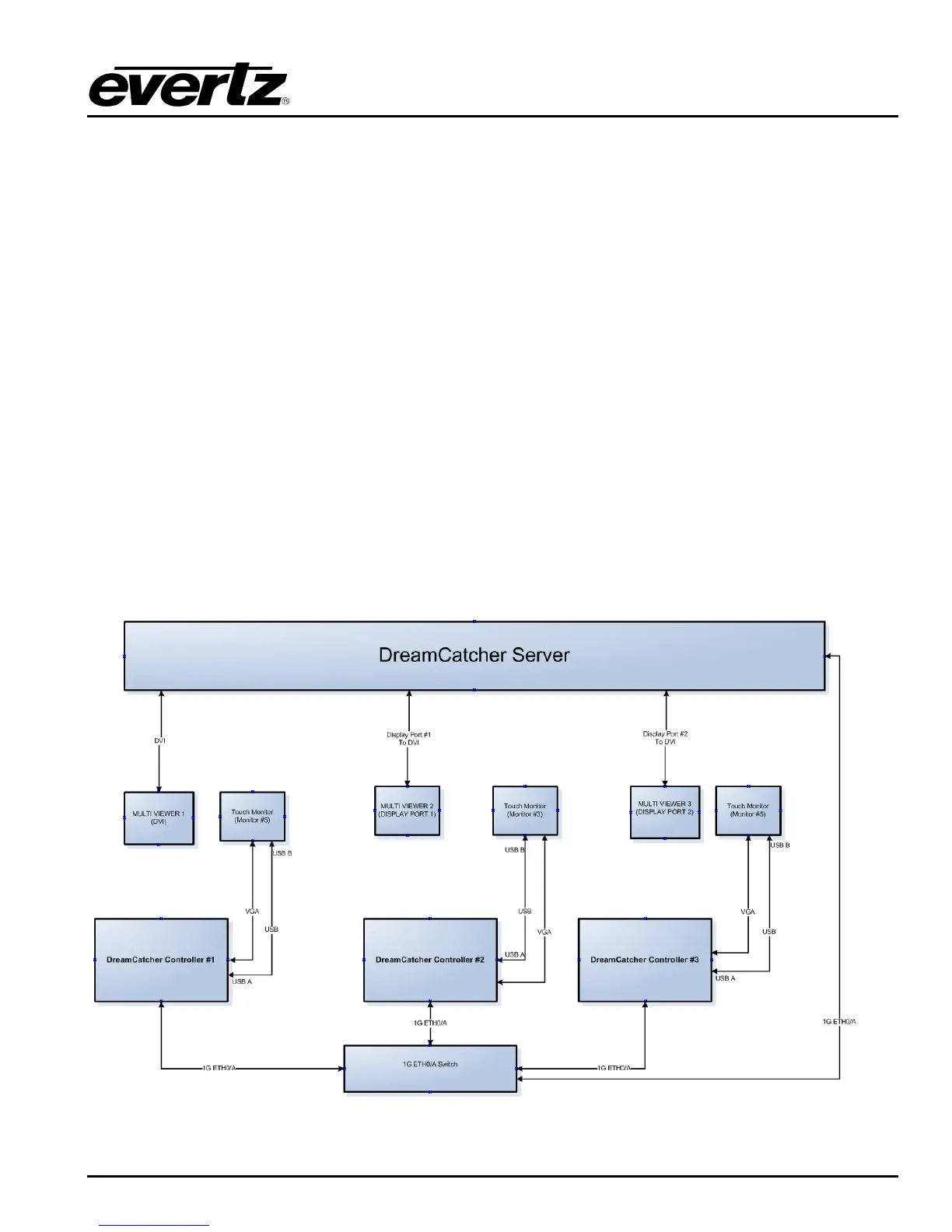
Figure 4-8: Split Server 3 Panel Set up


 To Next Page