DreamCatcher Replay SystemDream Catcher
Revision 1.13 Page 49
In a typical 4K setup, we will have each of the FOUR quadrants coming from the 4K source (in this
case, a live camera), and each of quadrants 1 – 4 will feed the DreamCatcher to INPUT 1 – 4.
Once the 4K feeds have successfully been fed to the DreamCatcher (each quadrant combining to
compose ONE COMPLETE INPUT), then we will be able to perform our ZOOM functions. (See
Figure 5-1)
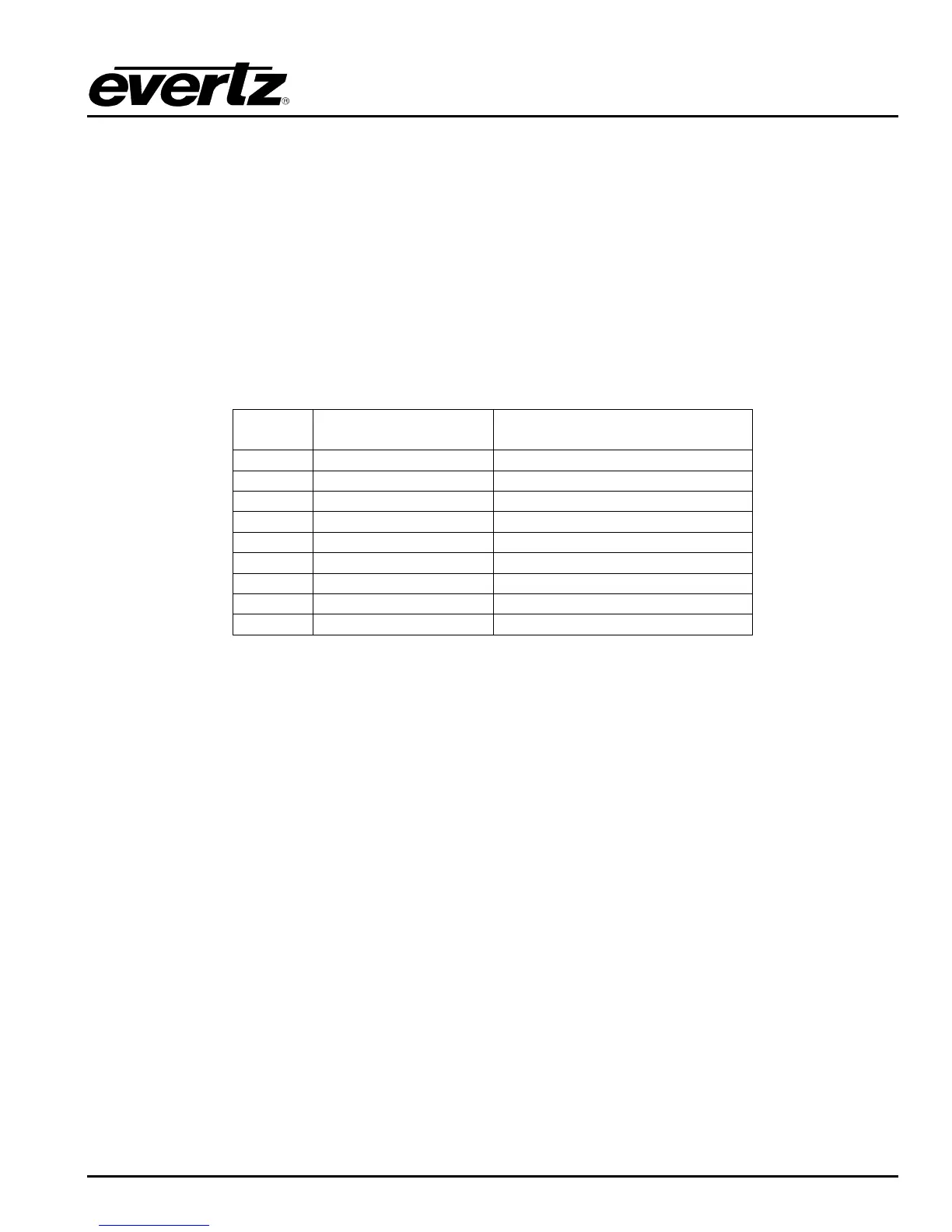
The chart below relates two potential applications for DreamCatcher 4K. The column on the left
represents the typical i/o configuration when looking to implement the DreamCatcher 4K Zoom
function. (See Table 5-1)
Table 5-1: UHD Configurations
5.1 CONFIGURING DREAMCATCHER IN 4K MODE
Changes to video standard and bit rate can also be made through the DC Web Interface.
Access the server‟s web interface through an internet browser by typing in the IP that is associated
with Ethernet Port „1‟ or „B‟. See Figure 5-2.
Navigate to the „Configure Your DreamCatcher‟.
Ensure „Input‟ and „Output‟ standard are both set to „Ultra HD‟, and set the desired number of Ins
and OUTs
Next, set the Bit Rate to 200M
You will have to perform a ‘Clear All’ on your system, essentially erasing all previously recorded
and clipped content, in order for the standard change to take effect
If you wish to keep your previously clipped content, use the ARCHIVE function to ensure that your
clips are copied to the server‟s Internal Storage


 To Next Page