XRF1/XRF1A 16x16 RF Router Manual
XRF1 - 4-10 Revision 1.2 FRONT PANEL INTERFACE
4.3.2.1. Configuration Menu Passcode Access
The Configuration Menu may be protected by 1 system-wide, administrator-level passcode, when enabled
through VistaLINK
®
. When passcode protection is enabled, the user presses [MENU] from Source
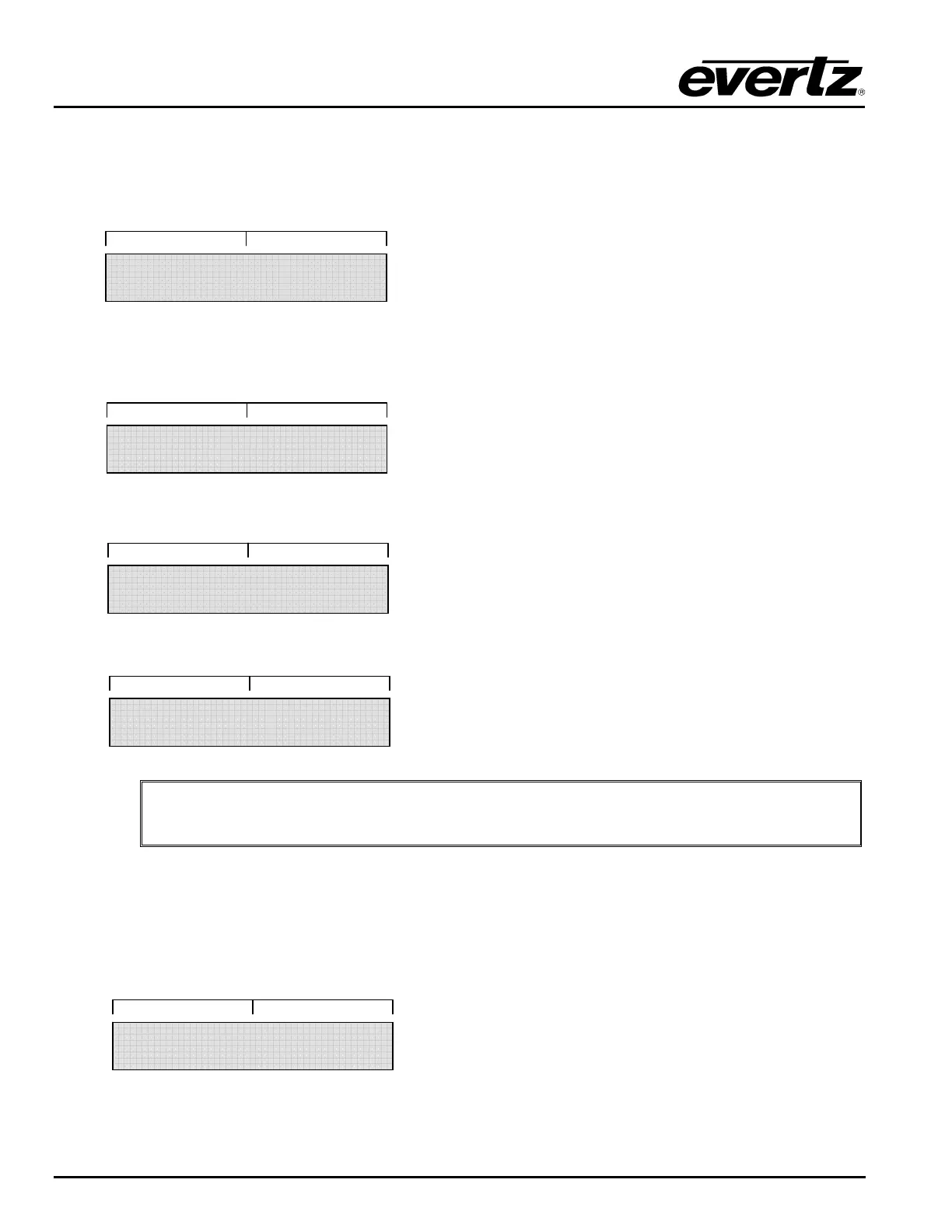
Destination or Salvo Selection Mode, and the display now prompts the user for the passcode:
The user enters the passcode using the 0-9 numeric buttons and the first choice of Level 2 of the
Configuration Menu is displayed in full-display view:
If the user enters the incorrect passcode, the screen will display a 2-second message that will look like this:
After 2 seconds, the screen will once again display the passcode prompt, as shown below:
"
Refer to Figure 5-3 for the operational flow for accessing the Configuration Menu.
4.3.2.2. Destination Lock Passcode Access
The destination “lock” function may be passcode protected, when enabled through VistaLINK
®
. A system
administrator may assign both “operator” and “administrator” passcode types. When passcode protection
is enabled, the user presses [LOCK] from Destination Selection Mode, and the display now prompts the
user for the passcode:
LOCK CODE?
MENU CODE?
1. INPUT LEVEL
INVALID CODE
MENU CODE?



 To Next Page