XRF1/XRF1A 16x16 RF Router Manual
XRF1 - 5-6 Revision 1.2 CONTROL PANEL OPERATION
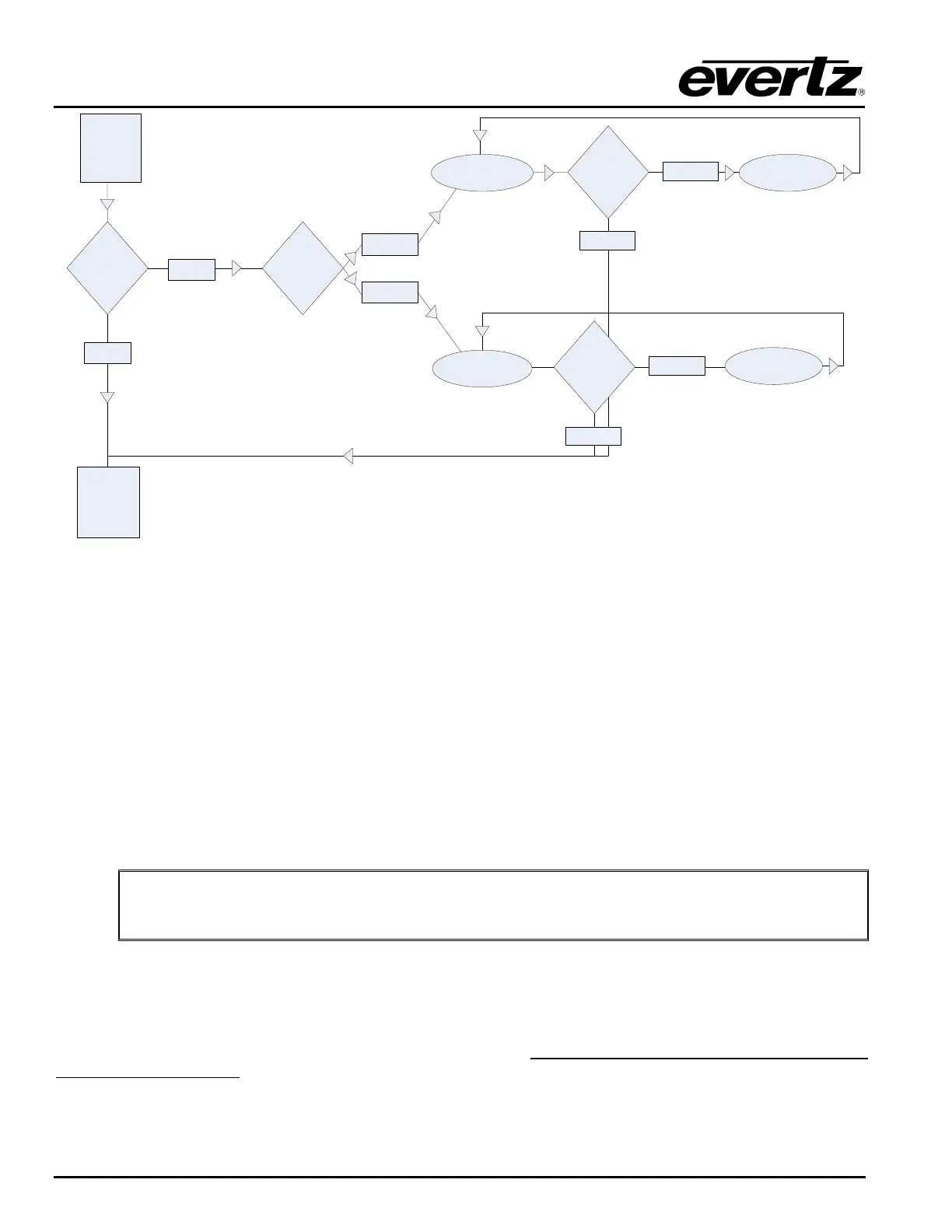
PRESS
[LOCK]
Has Passcode
Been Set?
ENABLES
LOCK ON
SELECTED
DESTINATION
Is Passcode
Admin
or
Operator?
(PROMPT)
“ADMIN CODE _ _ _ _”
(PROMPT)
“ENTER CODE _ _ _ _”
Is Passcode
Correct
or
Incorrect?
(DISPLAY)
“INVALID CODE”
(DISPLAY)
“INVALID CODE”
YES
ADMIN
OPERATOR
CORRECT
INCORRECT
INCORRECT
CORRECT
NO
Is Passcode
Correct
or
Incorrect?
Figure 5-4: Destination Lock Access Operation – Enabling a Destination Lock
5.6. DESTINATION [PROTECT] FUNCTION
The Lock function can only be used from Destination Selection Mode.
TO ENABLE:
1. Navigate to desired destination.
2. Press [PROTECT].
3. PROTECT LED will blink at 2Hz when any “protected” destination is selected
TO DISABLE:
1. Navigate to the desired “protected” destination.
2. Press [PROTECT].
3. PROTECT LED will be dark when any “unprotected” destination is selected
"
When a Protect enable or disable process is completed, or after 30 seconds of
inactivity, the XRF1 Control Panel will return to the previous mode, Destination
Selection Mode.
5.7. [TAKE] FUNCTION
The [TAKE] button performs the physical crosspoint connection within the XRF1 router. A “take” can only
be initiated from Source Selection Mode, Destination Selection Mode, or Salvo Selection Mode. Pressing
[TAKE] will perform the physical crosspoint change for the current statuses input/output pairing or the
currently selected salvo.
One example of how a typical crosspoint change (for source “TELSTAR 12” and destination “IRD 16”) may
be performed is as follows:



 To Next Page