34
MAIN screen - accessing the system
When you access the panel for the first time after
installation, you will be prompted to choose the display
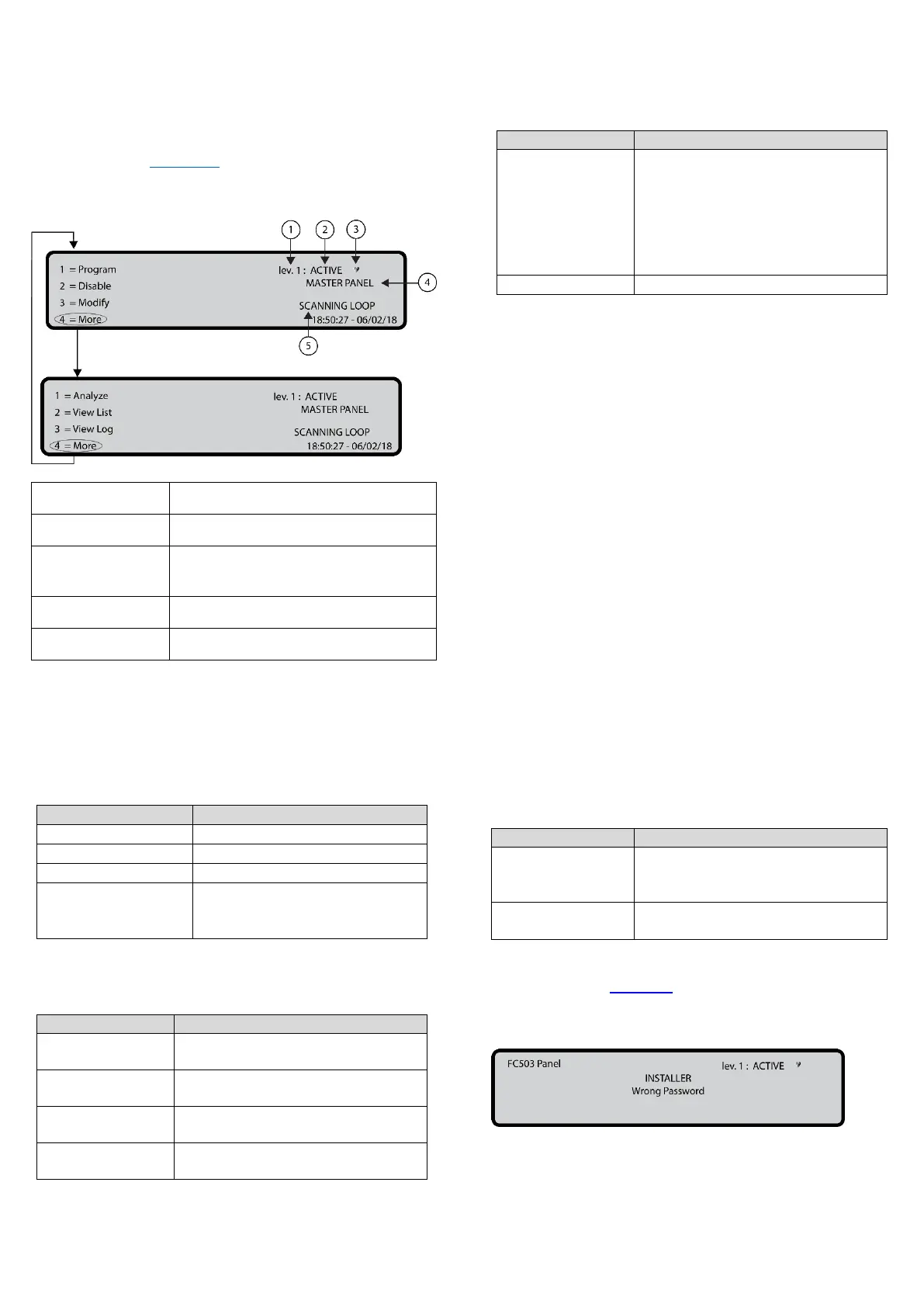
language. Once you select the language, the MAIN screen
will display. See Figure 19.
Figure 19: MAIN screen
If blinking, control panel working
properly
In this phase the keypad and keys have the following
functions:
Alphanumeric keypad
Table 18: Alphanumeric keypad function in MAIN
screen
Display Program or Analyze
Display Disable or View List
Display Modify or View Log
Select between groups of
related functions of keys 1, 2,
and 3
Cursor keys
Table 19: Cursor key functions in MAIN screen
Use to increase the brightness of
the LCD display
Use to decrease the brightness of
the LCD display
Use to increase the contrast of
the LCD display
Use to decrease the contrast of
the LCD display
ESC and ENTER keys
Table 20: ESC and ENTER key function in MAIN screen
Use to exit the MAIN screen and
to move from the user interface to
the front screen or event driven
screen, if any. If you press the
ESC key for more than 3
seconds, the panel will access
level 1.
Note: When the panel starts its normal activity and there is
no access to the user interface for a period of 30 seconds,
the user interface leaves the MAIN screen and reaches the
front screen. For more features refer to the description of
the MAIN screen in the FC503 & FC506 Addressable Fire
Control Panels User Manual.
Insert password
Select the 1 key, Program, from the MAIN screen to
insert the installer password required to operate at L3.
The default installer password is 00000. All digits will be
masked with an asterisk.
In this phase the keypad and keys have the following
functions:
Alphanumeric keypad
Use the alphanumeric keypad to select the 0 key and
access the display.
Cursor keys
No functions are related to the Up, Down, Right, or Left
keys.
ESC and ENTER keys
Table 21: ESC and ENTER key function in insert
password
Use to return to the previous
screen or to clear the entered
digits of a password.
Use to accept and verify the
password.
If the password is incorrect or missing, an error message
will appear. See Figure 20.
Figure 20: Wrong password screen



 To Next Page