66
Panel and repeater
firmware upgrade quick
guide
Firmware upgrade procedure using
FireClass FC500 (FC501_FC503_FC506)
Console software
1. Connect the communication cable of choice (either
PC - LINK or USB).
2. If you are using a USB cable, insert the USB cable
into the PC host port and install the USB driver when
asked.
3. Find the correct drivers in the FireClass FC500
(FC501_FC503_FC506) Console Software
installation directory: C:\Program
Files\FireClass\FireClass_FC500_Console
\Drv.
Notes:
For 32 bit Windows
TM
, use the X86 version.
For 64 bit Windows
TM
, use the X64 version.
Windows may show a driver security warning. In
this case, continue with the installation
procedure.
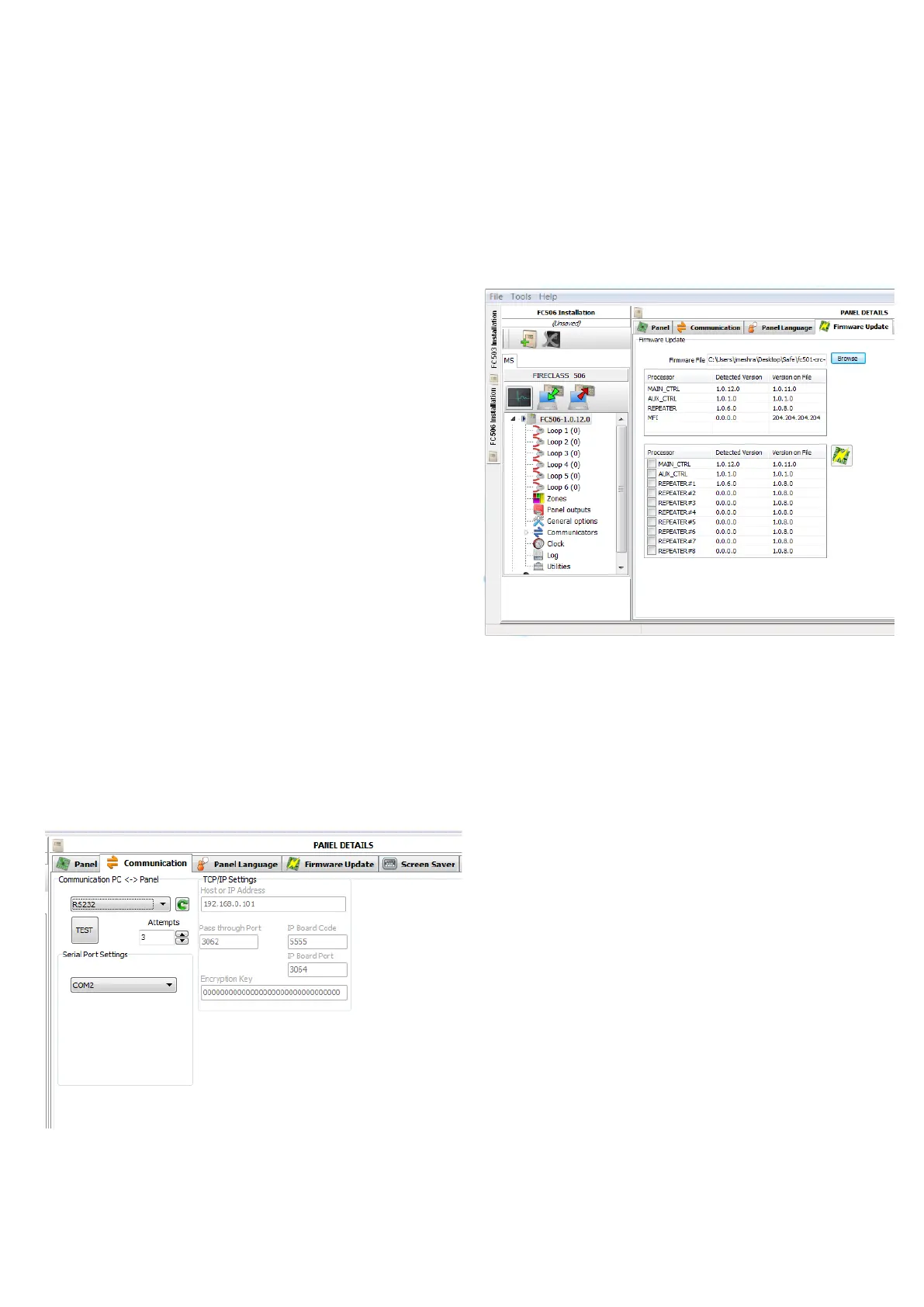
4. Proceed to the FireClass FC500
(FC501_FC503_FC506) Console software main
screen, select the Communication tab and the
channel you will use: RS232 (COMx) or USB
(USBx).
Figure 40: Selecting a channel
5. Proceed to the FireClass FC500
(FC501_FC503_FC506) Console software main
screen and select the Firmware Update tab.
6. Select Browse and load the .BIN packet
containing the FW (firmware).
7. The software scans the packet and then shows
the FW versions read on file and those detected
on the connected panel.
Figure 41: Scanning for firmware versions
8. Select the FW for updating and click the Start
flash button, as seen in Figure 41.
9. Wait until all the firmware files have been
updated (you will receive a confirmation notice
from the software).
Notes:
You may receive a fault warning during the aux
controller or the PTSN communicator updates.
When all FW update related faults are
automatically restored, the system is considered
fully operative again.
10. Verify that the FW version running is the updated
version on the Panel tab.



 To Next Page