Flora Digital Printing System
Model LJ320P
Copyright 2011@ Shenzhen Runtianzhi Image Technology Co.,Ltd. By Victor Xu
~56~
Figure above shows the image layout parameters like: printing size, margins, number
of copies and orientation of image. This is the first window that will pop out every time you
click the job or default job properties. After editing you can directly send the job for printing
by clicking send button or send for ripping by clicking OK button. Clicking the reset button
will change all the parameters back to default settings. Other parameters shown on this
window are self- explanatory.
6.4.3 Work Flow Tag
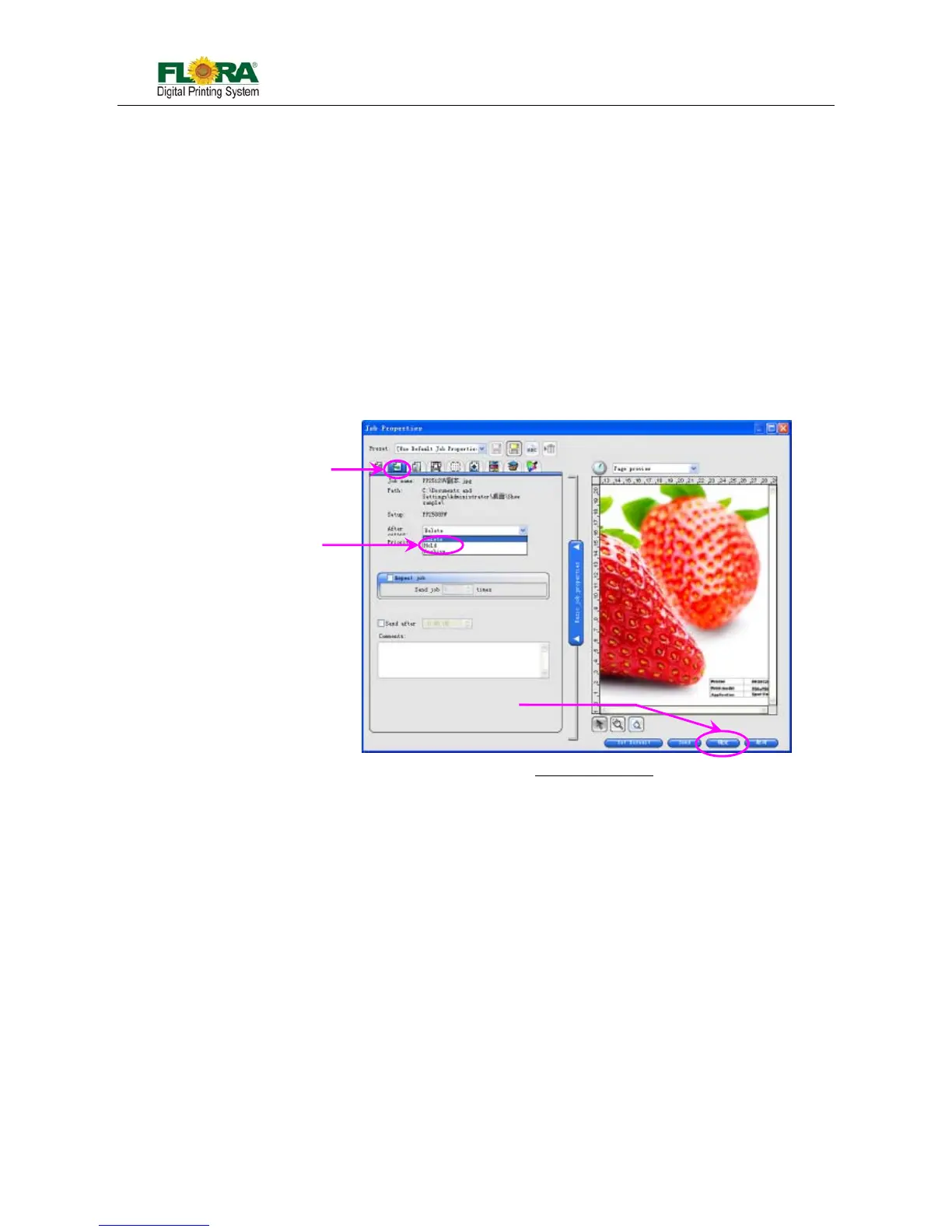
Figure below shows the option what to do with the job file after printing. There are
three options available for the end users:
z Delete – the image will be lost after printing is completed
z Hold – the image will be retained in the job folder after printing is completed
z Archive – the image will be sent in archive folder after printing is completed
Notice: Click “OK” button after you select from the option.
6.4.4 Color Management Tag
Figure below shows the image printing parameters in terms of resolution, ripping
quality, type of media, ICC profile and others. Detail explanations can be read in PhotoPrint
manual, which is available after the RIP software has been installed in the PC.
Click OK button or send button if all parameters are finalized.
Note:
1,Color correction Box: You can choose print with ICC correction or not.
2,ICC check box: Select ICC you want to use.
3,Media check box: Choose Media mode when you create ICC named.
4,Resolution option box: Choose different resolution.
5,Color mode box: By default it is CMYK mode.
6,Dither type box: Choose different dither type, you can get different print quality. But
the speed of ripping will be different. The higher quality you want, the slower it will be
ripping.
Work flow
tab
Work flow box
Choose hold
Click OK
Fig.6.4.3-1 Workflow Windows


 To Next Page