10
7
6
5
4
3
2
8 9 1
f
gh
a
i
b
d
e
c
j
5.2 Operatingthee-bikewiththe
Purionon-boardcomputer
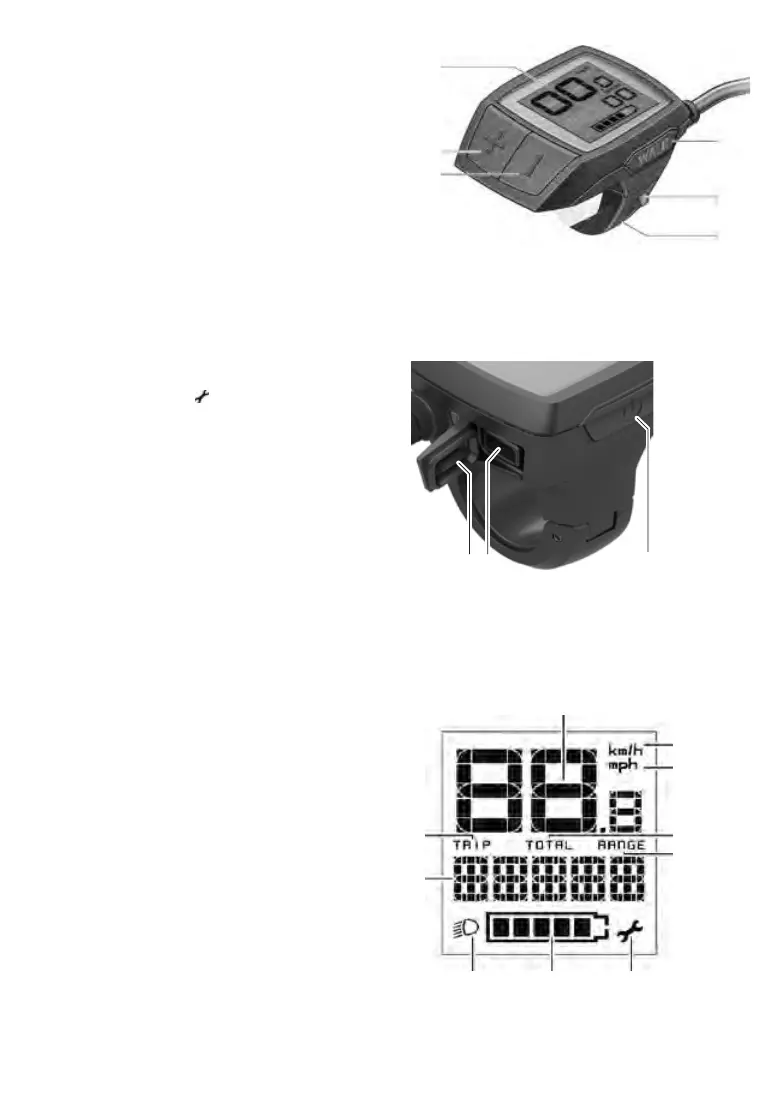
1. On/obuttonforon-boardcomputer
2. «WALK» pushing aid button
3. Fastening screw for on-board computer
4. Holder for on-board computer
5. Reduce assistance button «–»
6. Increase assistance button «+»
7. Display
8. Protective cover for USB socket
9. USB diagnostic socket (for maintenance
purposes only)
On-boardcomputerdisplayelements
a Speedometer display
b Display in km/h
c Display in mph
d Total distance indicator «TOTAL»
e Range indicator «RANGE»
f Service display
g Battery charge status indicator
h Lighting display
i Support level indicator/value display
j Trip indicator «TRIP»
Switchingon/o
The E-bike system can be switched on in the
following ways:
• With the E-bike battery inserted, press the on/
obutton1 on the on-board computer.
• Press the on/o button on the E-bike battery
(see battery operating instructions).
The drive is activated as soon as you put your
feetonthepedals(exceptforinpushingaidmode
or in support level «OFF»). The motor output is
based on the support level set in the on-board
computer.
Ifyoutakeyourfeetothepedalsinnormaloper
-
ation, or once you reach a speed of 25/45 km/h,
the
support is switched o by the E-bike drive.
The drive is automatically reactivated when you
put your feet on the pedals and your speed drops
below 25/45 km/h.
The E-bike system can be switched o in the
following ways:
• Presstheon/obutton1 on the on-board com
-
puter.
•
Switch o the E-bike battery using its on/o
button (see battery operating instructions).


 To Next Page