19
2
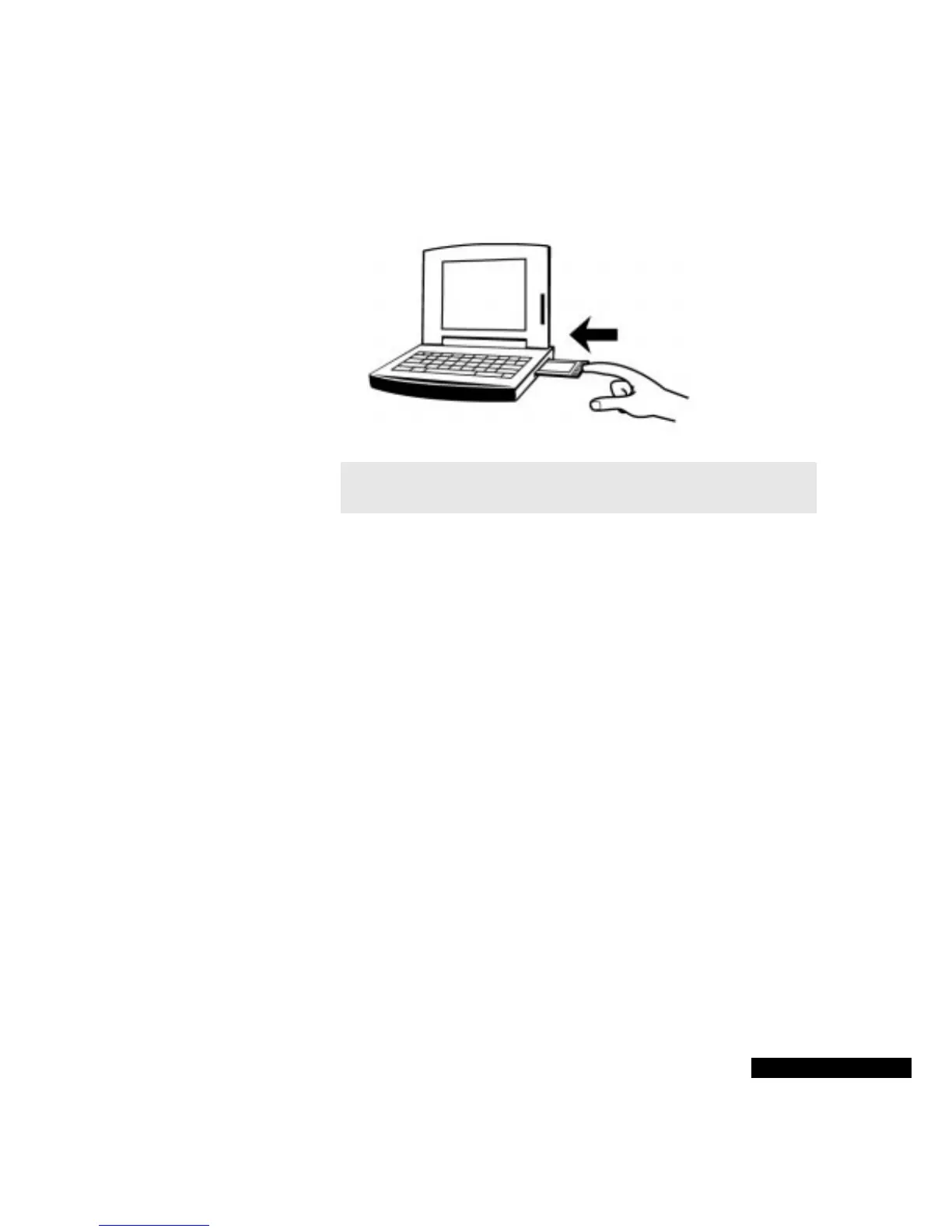
You should hear a connection tone, or see a PC Card icon on the
Windows taskbar.
3
To remove the card, press the Eject button on the PC card slot.
Depending on your system, you may also be able to remove the
REX PRO card by right-clicking the PC card icon on the Taskbar,
choosing the REX PRO card from the list, and clicking Eject.
To connect using the Docking Station:
If your computer does not have a Type II PC card slot, you will need
to connect the Docking Station to a serial communications (COM)
port on your computer. The procedure is outlined below. For more
details, refer to Chapter 5.
1
Connect your Docking Station to a serial communications (COM)
port on your computer.
2
With its screen facing you, align the REX PRO card with the card
slot in the Docking Station and carefully slide the REX PRO card
into the slot until you hear the connection tone. Do not force the
Slide in the
card carefully.
NOTE
You can enable or disable the tone and icon using the
PC card icon in the Windows Control Panel.



 To Next Page