54 Using the Docking Station
5
Place the Docking Station in an upright position.
Connecting the
Docking Station
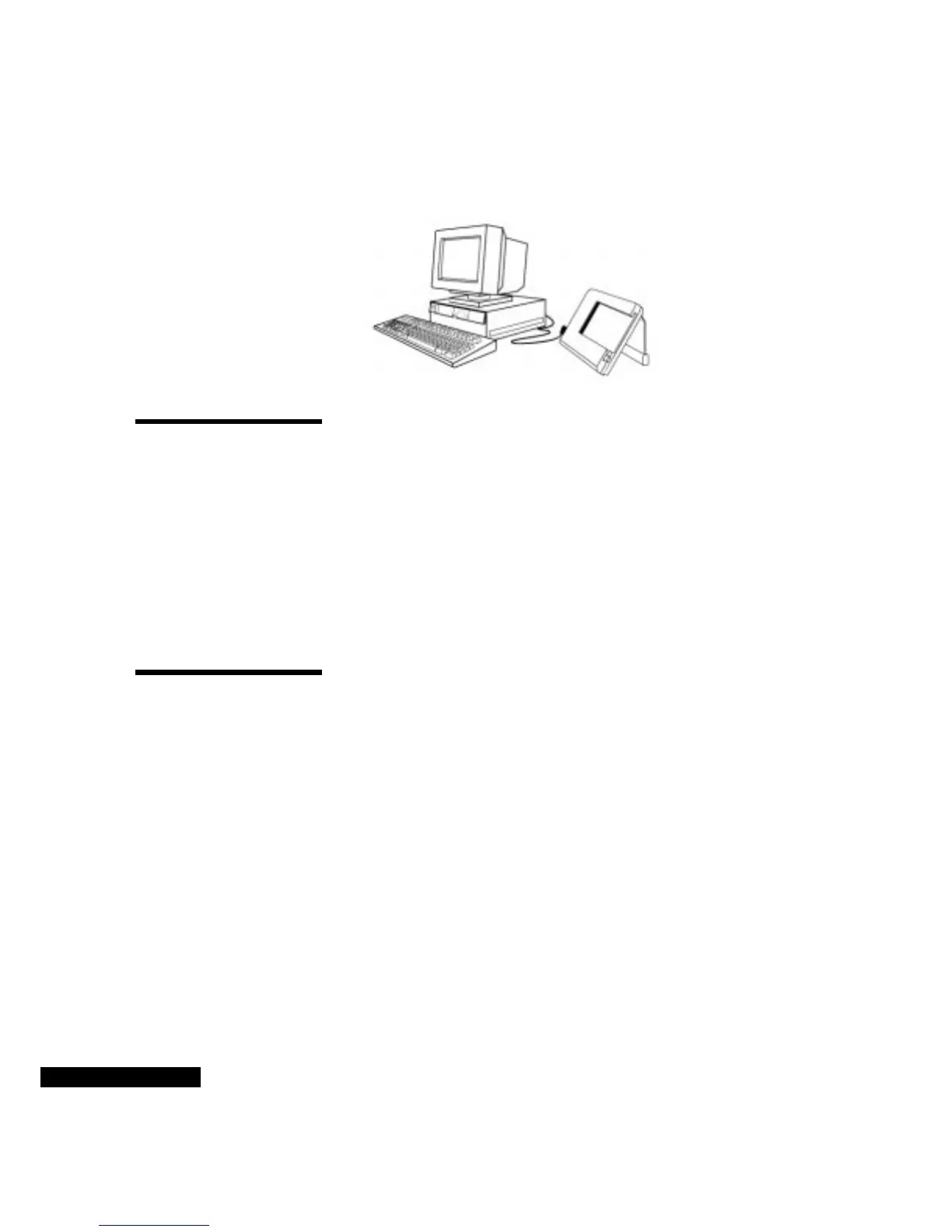
To connect the Docking Station:
1
Locate an available serial communications (COM) port on your
computer. (If you need more information about COM ports, please
refer to your computer’s user manual.)
2
Insert the 9-pin plug of the serial cable into the COM port. Tighten
the screws. Be sure to note which COM port you used (for
example, COM1). You will need this information to configure
your TrueSync Desktop before you can synchronize. Please note
that you will need an adaptor if the only available serial port on
your computer has a 25-pin jack.
Setting up your
REX PRO card
To place your REX PRO card in the Docking Station:
1
Begin sliding the REX PRO card into the slot in the Docking
Station. Its screen should face you.
2
Continue sliding the REX PRO card until you hear the connection
tone. “Ready” will appear on its screen.
3
If the REX PRO card is not correctly inserted in the Docking
Station, its screen will stay blank. If that occurs, press the Eject
button on the Docking Station, and remove the REX PRO card.
The
Docking
Station
should be
upright.



 To Next Page