40
2
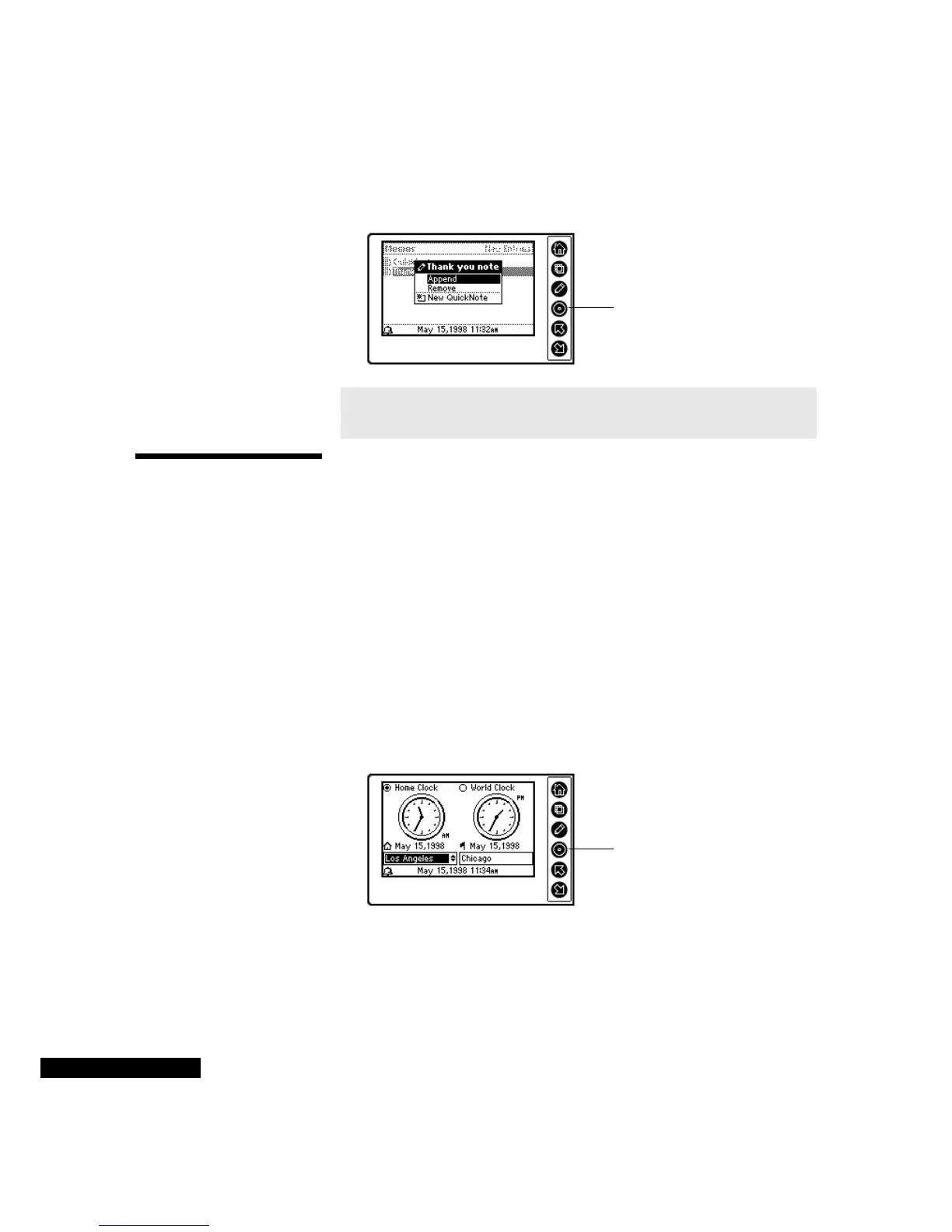
Press the Edit key, and then highlight the Append option. Press the
Select key.
Using Time
Zones
Your REX PRO card has two clocks: the Home clock, which shows
the time and date in your home city, and the World clock, which can
show the times and dates in other cities around the world.
When you select a clock, by highlighting it, that clock’s time becomes
your Local Time. The status bar time will change accordingly.
Changing cities
and time zones
You can change both the Home and World clocks to show different
cities and/or time zones.
1
Move from the Home Clock to the World Clock by using the Up or
Down key.
2
Press the Select key to change to a different city or time zone.
3
Use the Up or Down key to highlight your new choice, and press
the Select key.
Setting the clock
To change the clock settings:
1
In the Time Zones module, press the View key.
2
Select Set Clock from the menu by using the Up or Down key, and
then press the Select key.
Highlight Append if you
want to add text to a
QuickNote, and then
press the Select key.
NOTE
Appending to a QuickNote adds new text; you cannot edit
existing text by selecting Append.
Use the Up or Down key
to select the new time
zone, and then press the
Select key.



 To Next Page