32
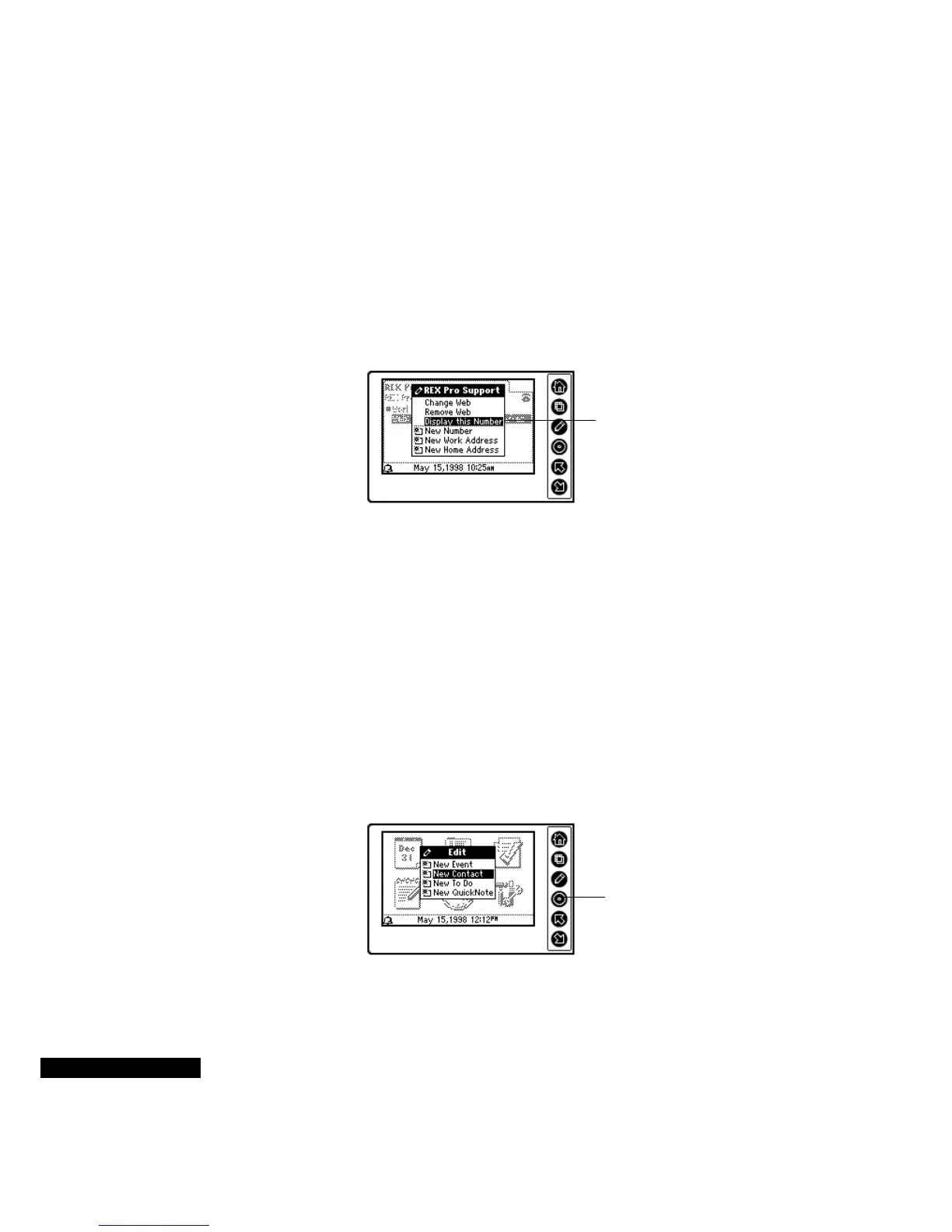
To change the information displayed in the Contacts index view:
1
Press the Select key, and then use the Up or Down key to highlight
a specific card. Press Select again to view its details.
2
Use the Up or Down key to highlight the field that you want. You
may need to press the View key to move to the correct field. (You
are in the telephone field if you see a telephone icon at the upper
right corner of the card). Then press the Edit key, and select
“Display This Number.”
3
Press the Select key to choose the field.
The selected number or address now appears after the name in the
tabbed cardfiles view.
Editing your
Contacts
You can create, edit, and delete Contacts by selecting Edit mode and
using the REX PRO Wizards. In addition, you can set up a meeting or
a telephone call from within a contact in Edit mode.
To create a new Contact:
1
Press the Edit key in Contacts module, or in the Home screen.
2
Use the Up or Down key to highlight the option to create a New
Contact, and press the Select key.
Select Display This
Number from the
menu.
Press the Select key
after highlighting New
Contact.



 To Next Page