35
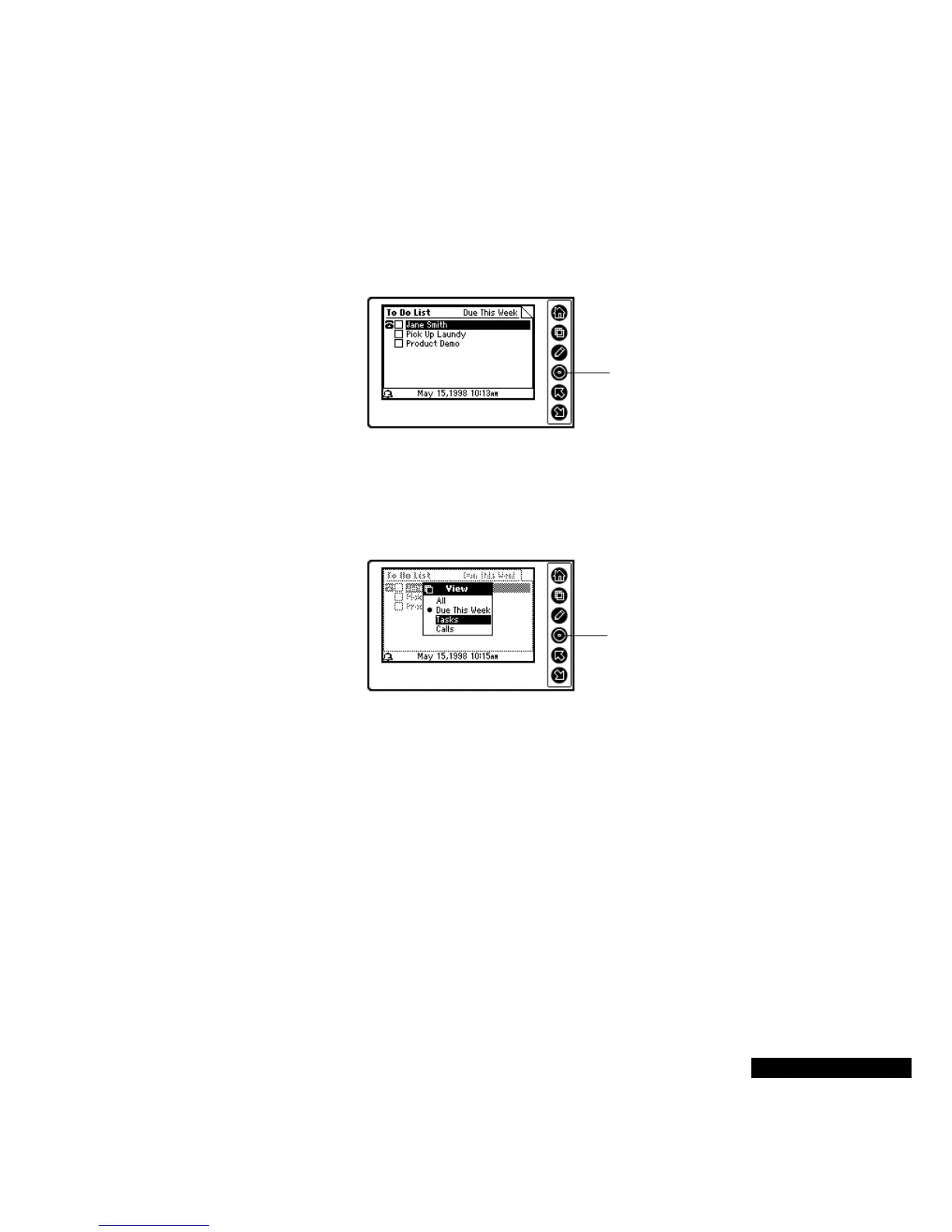
To view To Do items
1
From the Home screen, highlight the To Do icon, and press the
Select key.
2
You will see a list of your To Do items. Highlight a To Do item,
and press the Select key, to see the details of that item.
3
After viewing the details, press the Home key to return to the To
Do list.
4
To see a list of all your options in the To Do module, press the
View key. Use the Up or Down key to highlight the To Do items
that you want to view, and press the Select key.
Checking off
completed items
You can check off a To Do item as completed. Then, when you
synchronize to your desktop application, your To Do item will be
checked off there as well.
To check off completed To Do items
1
Highlight the item by pressing the Up or Down key, and then press
the Select key to move to the Details of that item.
Highlight an item, and
press the Select key to
see the details.
Highlight a menu option,
and press the Select key.



 To Next Page