30
3
Select Find in Contacts.
4
The card for the Contact included in that event appears.
Using Contacts
Using Contacts, you can view and create cardfiles containing
information such as names, phone numbers, street addresses, and e-
mail addresses.
You can also change how your Contacts are sorted on the REX PRO
card, and decide which telephone numbers to display.
To select the Contacts module:
From the Home screen, use the Up or Down key to highlight the
Contacts icon, and then press the Select key.
Changing views
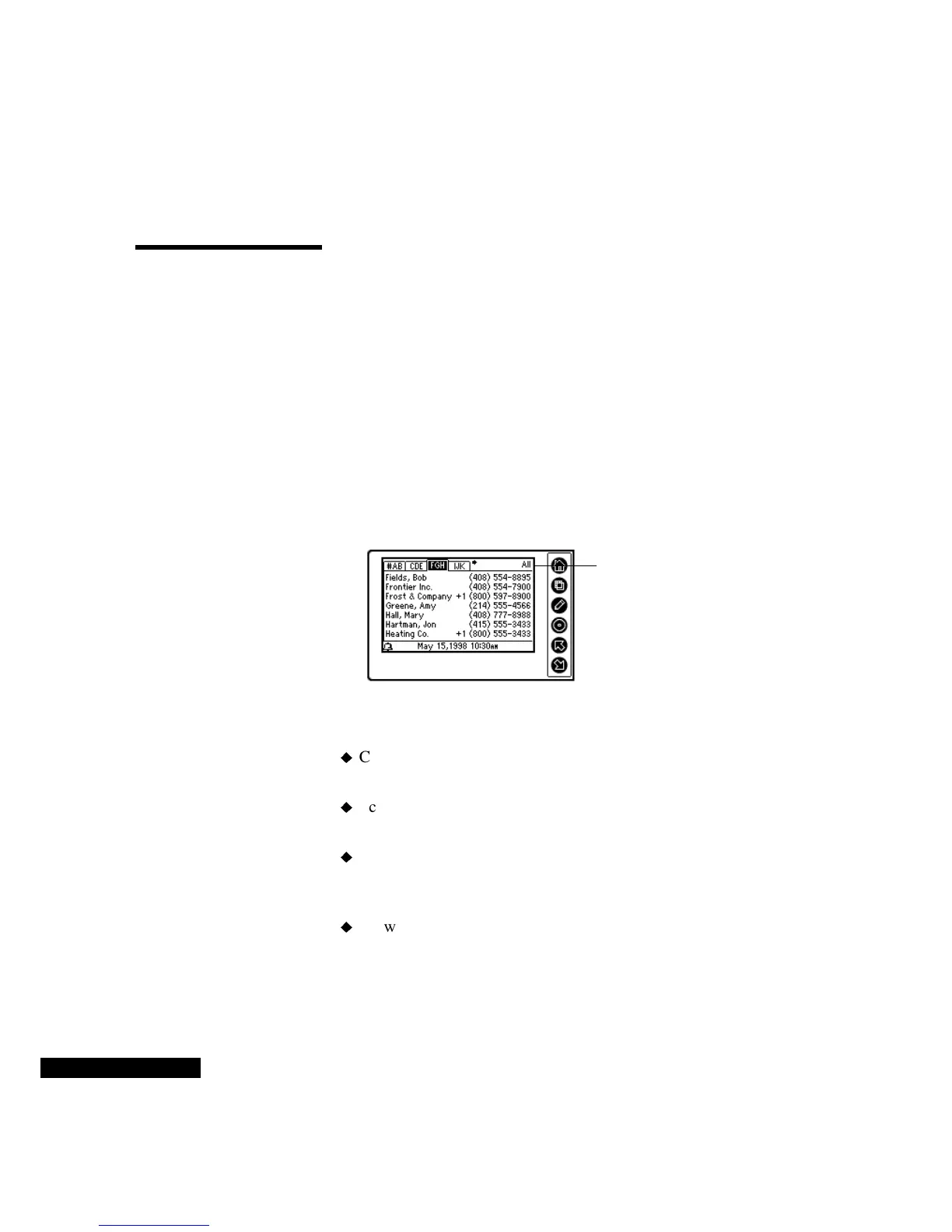
You will see a cardfile name or “all” at the top right of the screen.
“All” means that you are viewing all the cardfiles that were
synchronized. (If you have only one cardfile category or the Contacts
modules does not contain any cardfiles, “All” will not appear.)
Now you can:
Choose a cardfile by pressing the View key, and selecting the
desired cardfile from the menu.
Scroll through the alphabetical tabs of a cardfile with the Up or
Down key.
Go to a specific lettered tab by pressing the Select key, and then
using the Up or Down key. If the tab has too many cards to display
on a single screen, press the Select key again to see the sub-tabs.
View a specific card by pressing the Select key, and then using the
Up or Down key. Now a single card should be highlighted. Press
the Select key again to view the details, and the View key to switch
between the address, telephone number, and note views of the
“All” appears if you are
viewing all the
synchronized cardfiles.



 To Next Page