29
16
Congratulations! You can view the summary of the Event that you
have created. Press the Select key to accept it, or the Home key if
you want to make a change.
17
You will now see the daily Calendar view for the event that you
created.
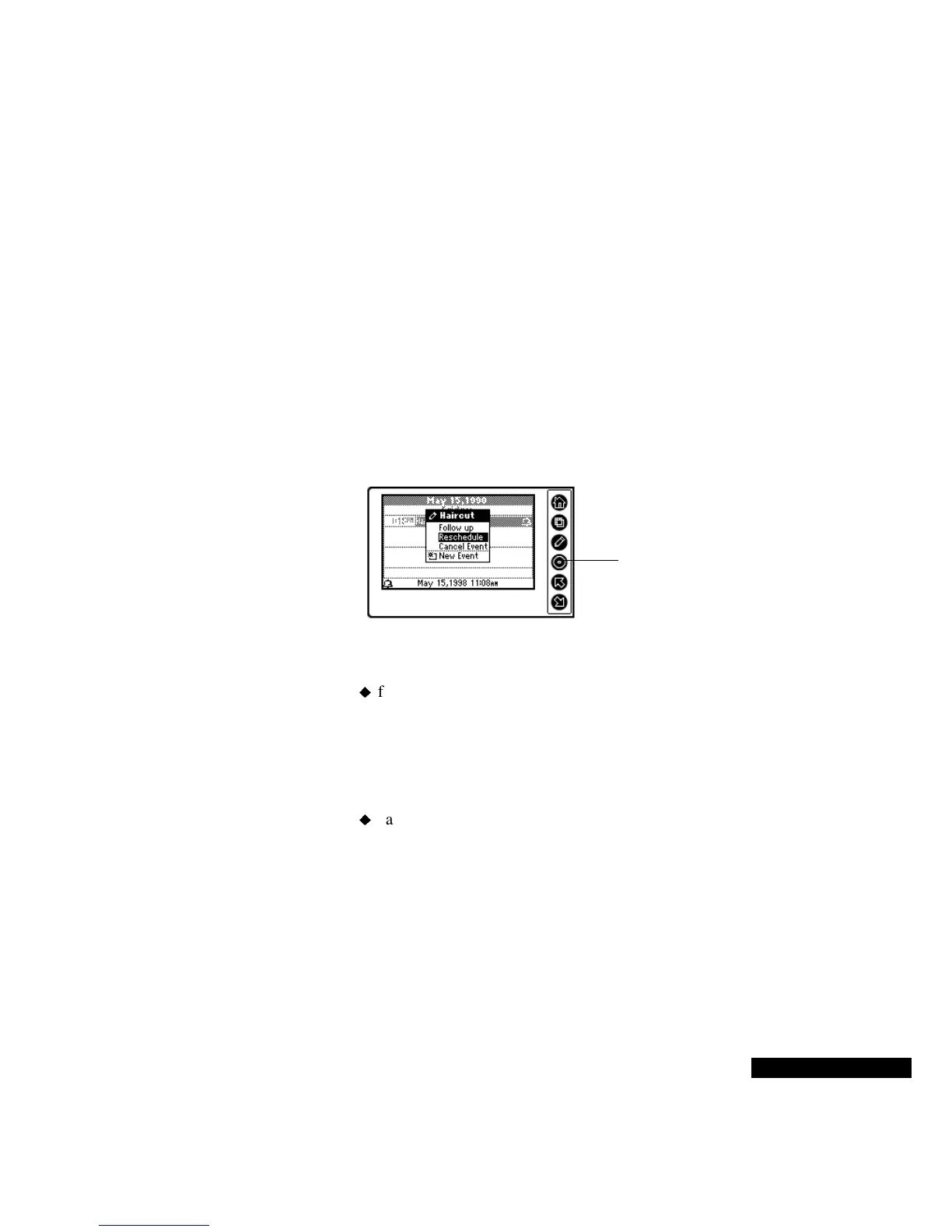
To follow up, reschedule, or cancel an event:
1
Go to the event in your Calendar, and highlight it by pressing the
Select key.
2
Press the Edit key, and then highlight the desired option. Note that
choosing “Follow up” creates a new meeting; “Reschedule” moves
the original meeting’s date. After you have highlighted an option,
press the Select key.
3
If you are:
following up or rescheduling an event, use the Up or Down key
to choose the new date and/or time, and the Select key to enter
your selection. Press the Select key again when you are done.
When you follow up an event, or reschedule an event, the
existing meeting’s characteristics are used, such as alarm
settings. This means that you can update an event very quickly.
canceling an event, you will see a confirmation screen asking if
you are certain that you want to delete the event. Highlight Yes,
and press the Select key to remove the event from your REX
PRO card. Highlight No to keep the event.
To go to a linked Contact within in an event:
1
Go to the event in your Calendar, and highlight it by pressing the
Select key.
2
Press the Edit key.
Highlight the desired
option, and then press
the Select key.



 To Next Page