46 Chapter 3
6
Carefully close the battery compartment door until it snaps shut.
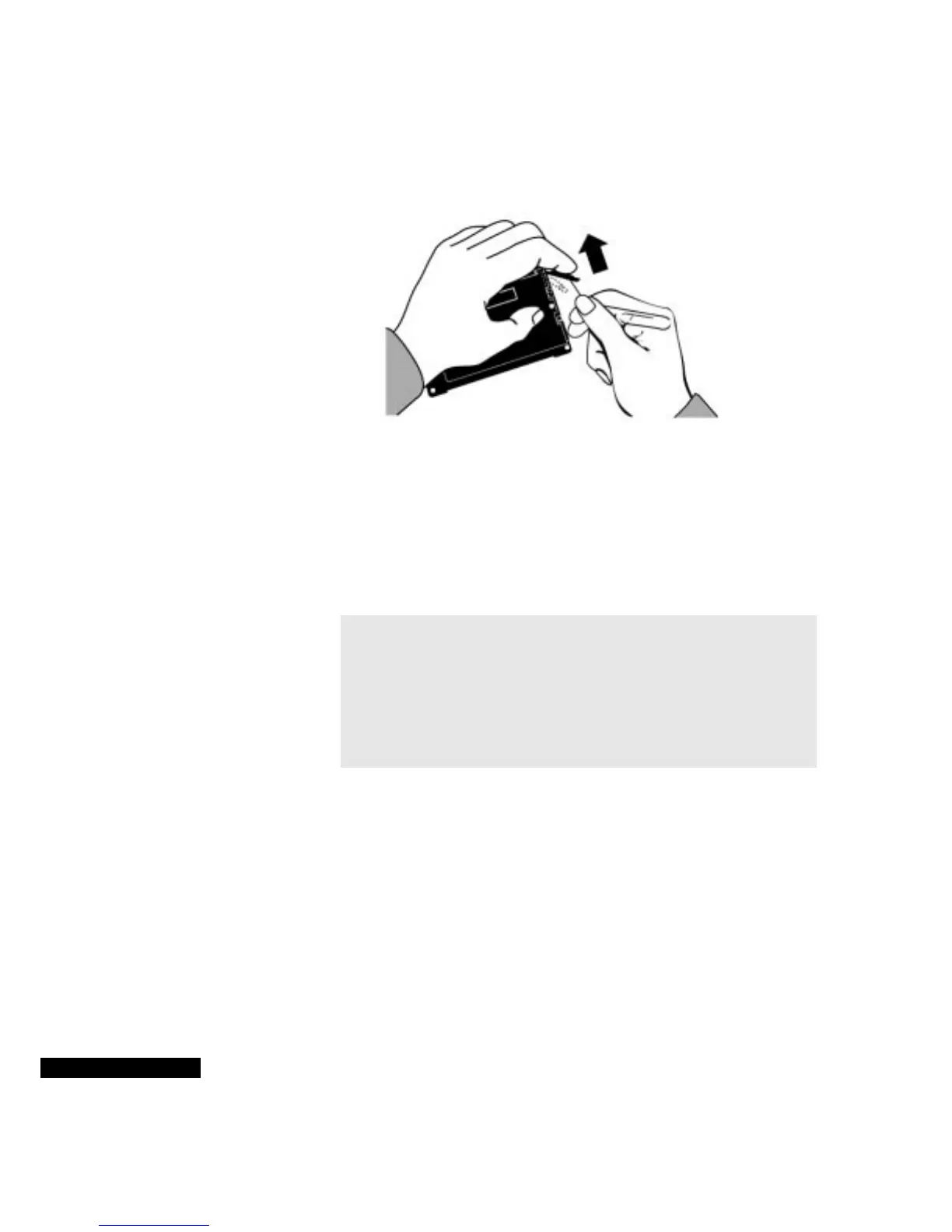
Tips for removing
the batteries
You can insert the tip of an opened paper clip into the small hole in
one of the battery compartment doors. Then gently press the door
toward the hinge, and push the compartment door out to a 45-degree
angle. Rest a finger on the door to prevent it from opening beyond
that angle.
After replacing the batteries, be sure to close the battery compartment
door very gently. Do not press it down into the REX card.
If your REX PRO card fails to operate properly after battery
installation, you can perform a reset.
Resetting your
REX PRO card
You should reset your REX PRO card only if it does not operate
correctly. For example, if you press the View key, and nothing
happens, you can try performing a reset.
To reset your REX PRO card:
1
Turn over the REX PRO card.
Push the door outward slowly
and carefully.
WARNING
Avoid removing both batteries from the REX
PRO card at the same time. If you remove both batteries
simultaneously, the information in the REX PRO card will be
lost. You will then need to resynchronize with your computer.
However, you will lose any information that you entered
directly into your REX PRO card and did not synchronize to
your computer.



 To Next Page