20
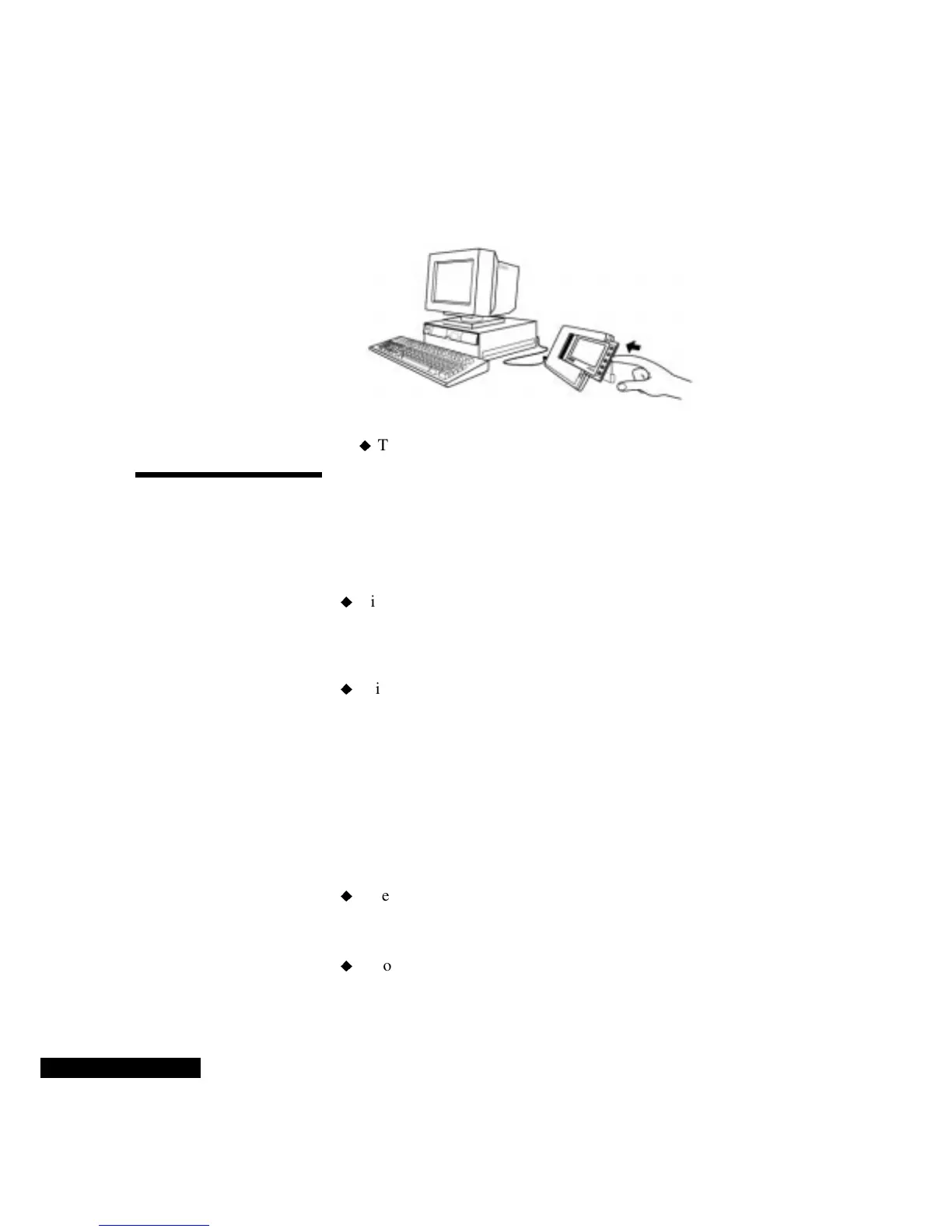
REX PRO card into the slot. When the REX PRO card is inserted
correctly, Ready will appear on the REX PRO screen.
To remove the card, press the Eject button beneath the card slot.
Synchronizing
Now that you have set up your files and connected your REX PRO
card, you are ready to synchronize. Make sure that your REX PRO
card is in your PC Card slot or Docking Station.
To synchronize without starting TrueSync Desktop:
Right-click the TrueSync icon in the Windows taskbar, and choose
Synchronize from the shortcut menu.
To synchronize from the TrueSync Desktop:
Click the TrueSync icon on the Deskpad.
If you have a password enabled on your REX PRO card, you will
need to click the five-key password combination, and click OK to
start the synchronization process. For details on setting your
password, see “Using Preferences” on page 41.
Do not remove your REX PRO card from your PC Card slot or
Docking Station until synchronization is complete.
Please note the following guidelines:
After you finish synchronizing, remove the REX PRO card from
the Docking Station. Leaving the REX PRO card in the Docking
Station decreases battery life.
If you have an alarm set to go off at a certain time, do not place the
REX PRO card in the Docking Station or PC card slot during that
Slide in the card,
and listen for the
connection tone.



 To Next Page