33
3
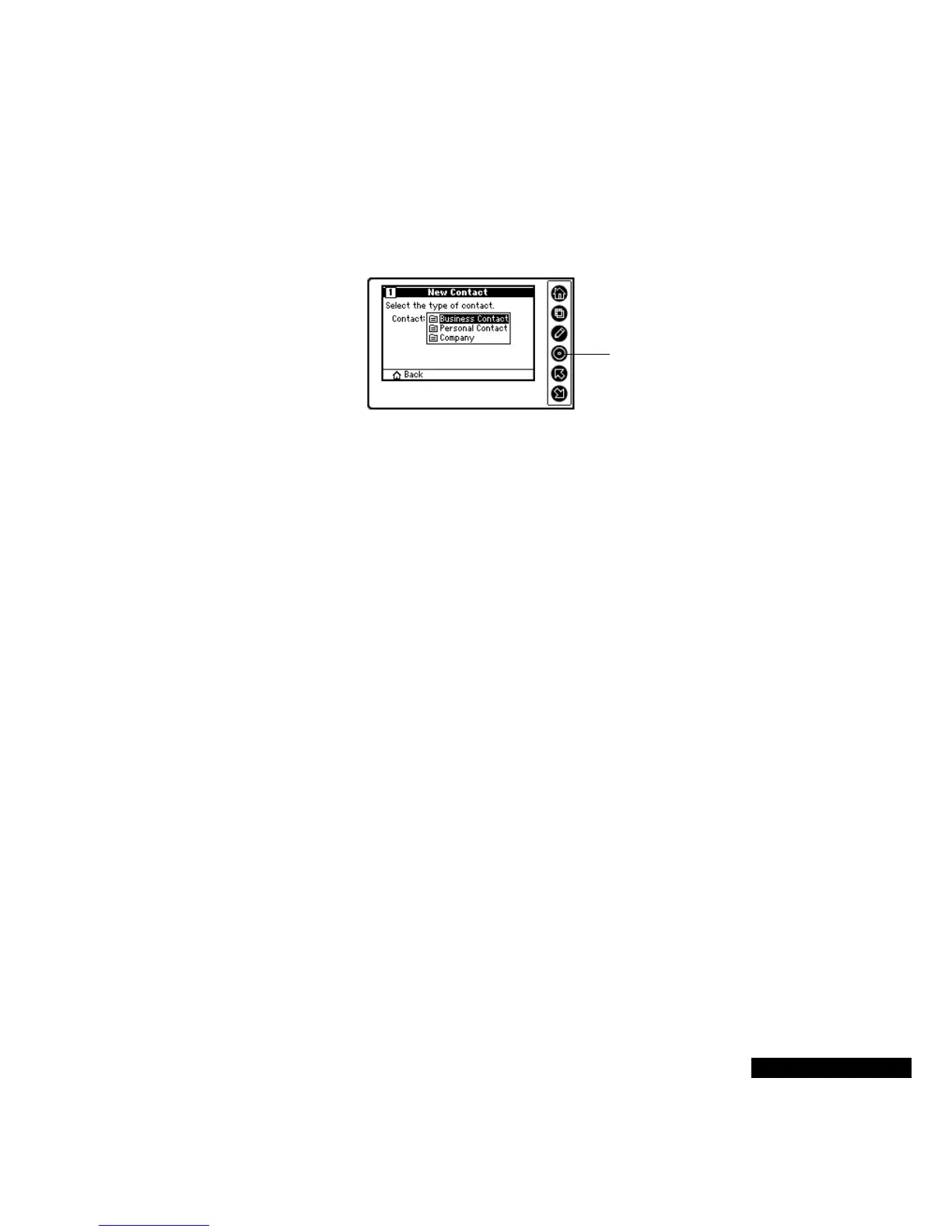
Use the Up or Down key to select the type of Contact that you
want. The Contact types are Business Contact, Personal Contact,
and Company Contact; the fields will vary, depending on the type
of contact that you choose.
4
Now enter the contact’s first name. If the Contact is a Company
Contact, enter the name of the company. Use the Up and Down
keys to move from one letter to the other, and use the Select key to
enter each letter. To change to numbers, press the View key. Press
the View key again to move back to letters. When you are finished,
press the Edit key.
5
Enter the Contact’s last name. (If it is a Company Contact, this
screen will not appear.)
6
Confirm the contact name by pressing the Down key. If you want
to make a change, press the Edit key.
7
Now enter the category for your new Contact. If there are no
categories, or only one category, this Wizard screen will not be
displayed.
8
Next comes the contact’s information. Use the Up or Down key to
scroll and select the desired contact method, such as Work Fax. If
you enter a telephone number without hyphens or parentheses,
such as “18001003000,” REX PRO will auto-format it for you,
adding hyphens (-) and parentheses as needed.
9
Confirm the contact information by pressing the Down key. To
change it, press the Up key, or the Edit key.
10
At the Contact Summary page, press the Select key to enter the
new contact on your REX PRO card.
To remove a Contact:
1
Highlight the Contact, and then press the Edit key.
Choose the Contact
type, and press the
Select key.



 To Next Page