37
4
The Confirmation screen appears. Press the Down key to accept
your selection, or press the Edit key to change it.
5
Select a due date, if desired. (Note: “Due by” dates for calls
entered on the REX PRO are neither displayed nor accessible on
TrueSync Desktop.) If you select “Specific date” from the menu,
you can enter a month, day, and year in the next Wizard screen.
6
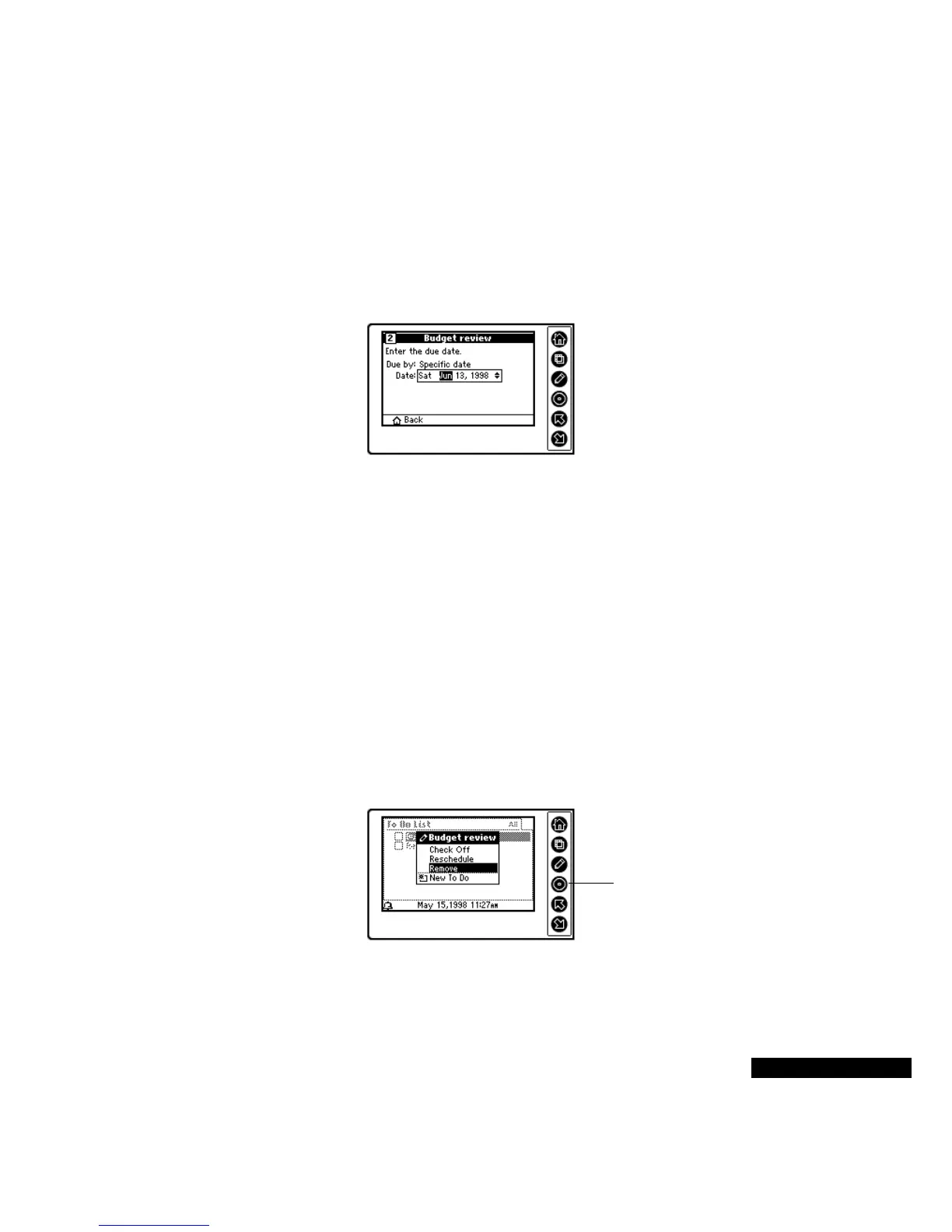
If you chose Specific Date, use the next Wizard screen to choose
the month, date, and year. Use the Up or Down key to scroll
through each field; move from field to field by pressing the Select
key.
7
Confirm the due date by pressing the Down key. To change your
selections, press the Edit key or the Up key.
8
At the Summary screen, press the Select key to enter your new To
Do item. Press the Up key if you want to return to a previous
Wizard screen.
To reschedule or remove a To Do item:
1
Highlight the To Do item with the Up or Down key.
2
Press the Edit key, and then highlight the Reschedule or Remove
option. Press the Select key.
3
If you are rescheduling the To Do item, use the Up or Down key to
choose the new date, and the Select key to enter your selection.
Use the Up or Down key to
select the month, date, and
year. Press the Select key
to enter each choice, and
move to the next field.
Highlight the desired
option, and then press
the Select key.



 To Next Page