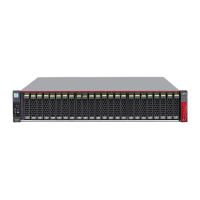
Drive enclosure 1
D
rive enclosure 2
(drive enclosure
that is to be added)
Connect here
Connect here
16 Click the [Next >>] button.
A screen that indicates the drive enclosure has been added appears.
17 Click the [Done] button.
The [Add Drive Enclosure] screen closes and the screen returns to the [Drive Enclosure] screen.
18 In the [Storage] screen of [Component], check that the added drive enclosure is displayed.
19 To install more additional drive enclosures, repeat Step 1 to Step 18.
20 Install the drives.
For details on drive installation, refer to "Additional Drive Installation Procedure" (page
32).
21 If a wrist strap is used, remove the wrist strap.
4. Component Expansion/Function Enhancement
Installing Additional Drive Enclosures
47 Operation Guide (Basic)



 To Next Page
 Loading...